
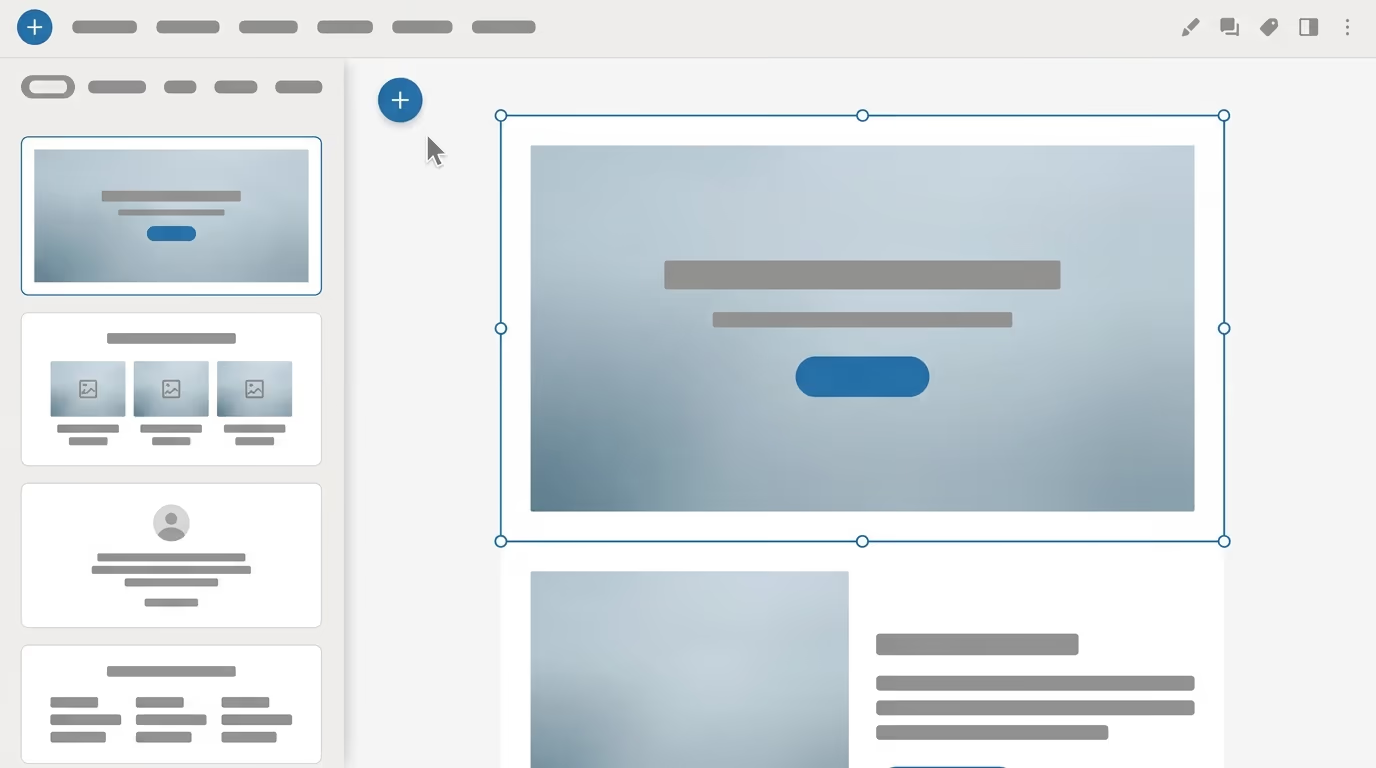
WordPress block patterns are ready-made layouts built from blocks that you drop into a page or post in one click, then edit like any other content. Think of a hero section, a pricing row, a testimonial grid, or a call to action that already has the right structure and spacing. You pick one from the inserter, it lands on your canvas, and you swap in your own words and images. They save the fiddly part of building a page, which is arranging blocks by hand until the layout finally looks right.
Patterns first appeared in WordPress 5.4 and became far more useful in version 6.3, released on 8 August 2023, when the old reusable blocks feature was folded into patterns as synced patterns. That single change is the source of most of the confusion people run into today, so this article sorts out what each term means before it shows you how to insert them and build your own.
If you run a WordPress site and you have ever rebuilt the same layout twice, patterns are the feature that pays you back. A small business owner can assemble a landing page from three or four patterns in a couple of minutes. A developer can register a library of branded sections that a whole team reuses without touching code. You get consistent design across the site and a lot less repetitive clicking.
Everything below works in the standard block editor, so you do not need a page builder or any paid add-on to start using patterns today. Some themes and block plugins ship their own pattern libraries that go further, and we will get to those, but the core feature is already sitting in your editor right now.
What are WordPress block patterns?
WordPress block patterns are pre-designed groups of blocks saved as a single reusable layout, so inserting one drops an entire page section onto your canvas at once instead of you adding blocks one at a time. A pattern can be as small as a styled button paired with a heading, or as large as a full landing page hero with an image, a headline, body text, and two buttons already arranged. Once it lands in the editor it is just normal blocks, which means you can change the text, replace the image, adjust colours, or delete any part you do not want.
The everyday value shows up when you build the same kind of section over and over. A testimonial row, a three-column feature list, a frequently asked questions block, a pricing table, a contact section, these are the layouts most sites need on more than one page. Without patterns you rebuild each one by hand every time. With patterns you insert a proven layout and only edit what is actually different, which is usually just the words and the images.
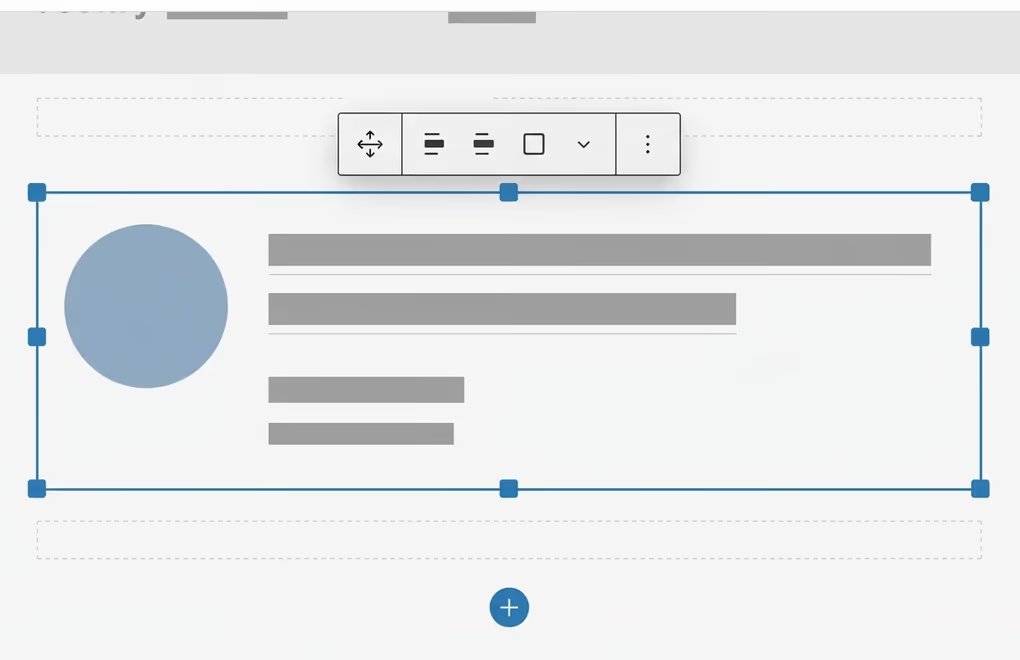
To make that concrete, a testimonial pattern might already contain a quote block, a customer name, a job title, and a small round avatar image, all aligned and spaced the way a designer would set them. You insert it, type the real quote over the placeholder, drop in the real photo, and the section is done. The arranging and aligning work that normally eats the most time is already finished for you, which is the whole point of a pattern.
Patterns are built into WordPress core, so any recent version has them whether your theme adds any of its own or not. They live in the block inserter right next to your blocks, under a dedicated Patterns tab. Your active theme can contribute its own designs, WordPress bundles a handful of defaults, and there is a public directory of community patterns you can pull from as well. We will cover each of those sources further down.
One point is worth clearing up early. A pattern is a starting point, not a locked template. When you insert a standard pattern, WordPress copies its blocks into your page and then forgets where they came from, so editing your copy never touches the original or any other page that used it. That behaviour is exactly what you want for most page sections, and it is also the thing that trips people up when they expect a change to ripple everywhere. The next section explains when a change does spread and when it stays put.
How do block patterns differ from synced patterns and templates?
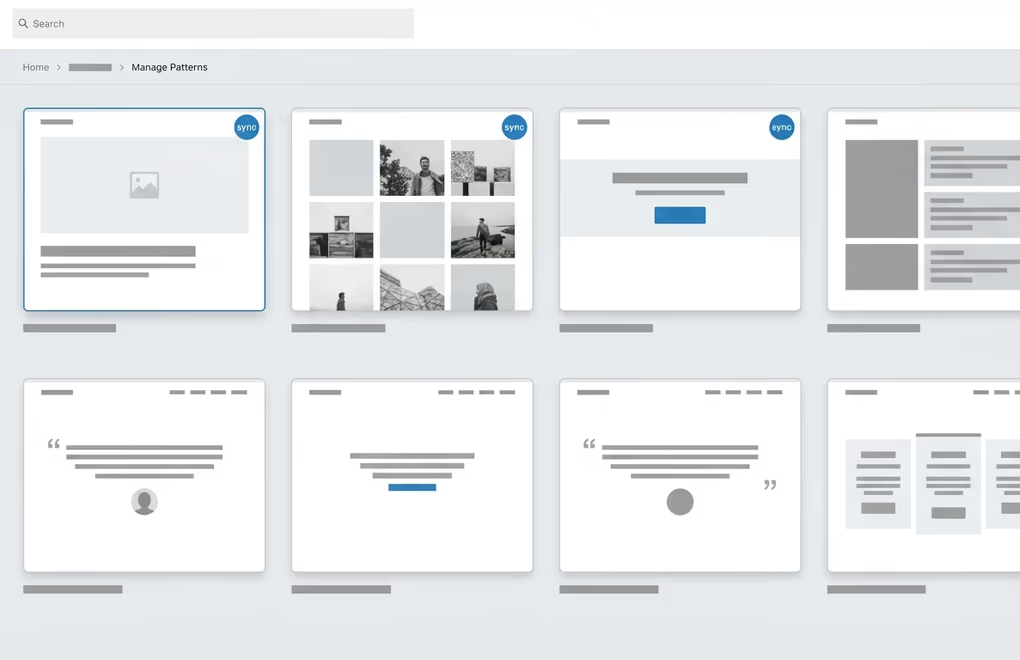
A standard block pattern is copied into your page and edited on its own, a synced pattern updates every place it appears the moment you change it, and a template controls the layout of an entire type of content rather than one section. Those three do genuinely different jobs, and WordPress made the naming clearer in version 6.3 by bringing the old reusable blocks under the pattern umbrella. If you learned WordPress before August 2023, this is the part that changed under you.
Synced patterns are what used to be called reusable blocks. You build a section once, mark it as synced, and every page that uses it shows the exact same content. Edit it in one place and the update appears everywhere at once, which is perfect for a footer call to action, a promotional banner, or an author bio you want identical across dozens of posts. If you have old reusable blocks on your site, WordPress already treats them as synced patterns, so nothing broke when the feature was renamed.
A standard pattern, sometimes called an unsynced pattern, works the opposite way. It hands you the layout as a fresh copy and then steps out of the way. This is the right choice for page sections you want to tweak individually, like a hero that needs a different headline on every landing page. You still get the head start of a good layout, without being locked into content that has to stay the same everywhere it appears.
Templates and template parts are a different tool again. A template controls the frame of a whole content type, such as every single post or every product page, while a template part is a shared region like a header or footer used inside those templates. Patterns fill the space inside a page, and templates decide the shape of the page itself. You will often drop a pattern into a template while building a block theme with full site editing.
- Standard pattern gives you a layout as an independent copy you edit per page.
- Synced pattern is the former reusable block, shared and updated everywhere at once.
- Template sets the layout for a whole content type, like all posts or all pages.
- Template part is a reusable region such as a header or footer used inside templates.
How do you add a block pattern in WordPress?
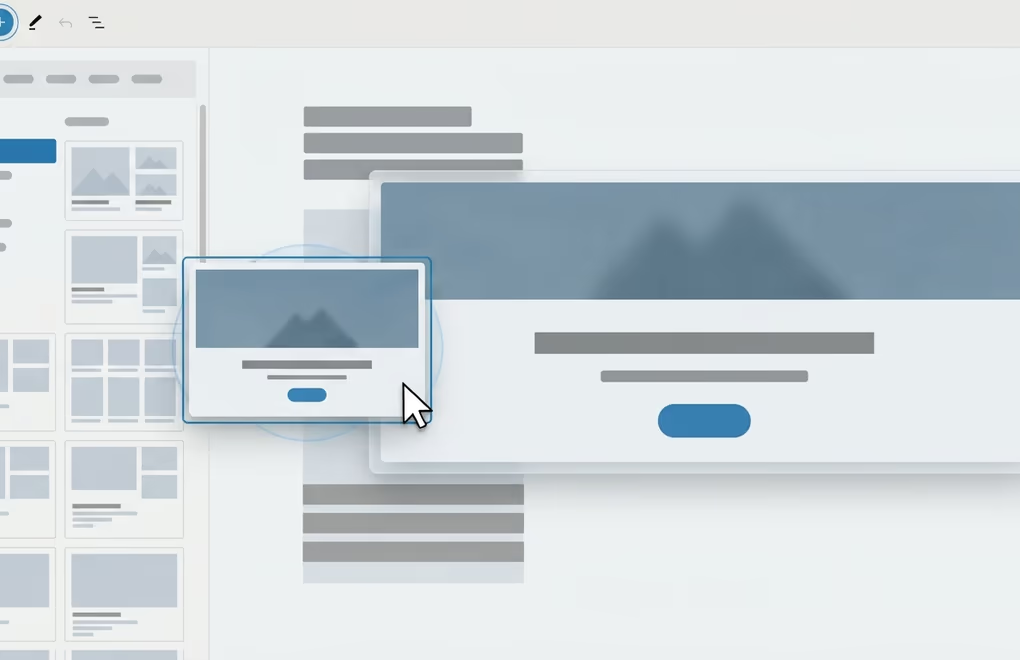
To add a block pattern, open the block inserter with the blue plus icon in the top left of the editor, click the Patterns tab, then browse the categories or search by keyword and click the one you want. It lands on the canvas at your cursor position as ordinary editable blocks. The whole thing takes a few seconds once you know where the Patterns tab actually lives.
The Patterns tab groups everything by category, such as banners, buttons, columns, gallery, and headers, so you can scan a whole type quickly. Hovering over a pattern shows a live preview at real size before you commit to it, which saves you from inserting something and then undoing it. If you reach for a certain layout constantly, the search box finds it faster than scrolling. Everything you insert stays fully editable, so treat the preview as a rough fit and plan to swap the placeholder text and images for your own.
Patterns work in both block themes and classic themes, though what you get around them differs. On a block theme you also get the Site Editor, where you can drop patterns into templates and template parts as well as into posts and pages. On a classic theme you still get patterns inside the normal post and page editor, you just do not get the wider Site Editor experience around them. Either way the insert step itself is the same single click from the Patterns tab.
After inserting, you customise everything freely. Click any inner block to change its text, use the toolbar to adjust alignment or colour, and open the List View, that is the icon showing stacked lines, to select and reorder the pieces inside a busy pattern. If a pattern has more columns or buttons than you actually need, delete the extras and the layout reflows. Nothing you do here affects the original pattern, because a standard pattern is a one-time copy, so you can experiment as much as you like without breaking a source layout.
Where can you find good WordPress block patterns?
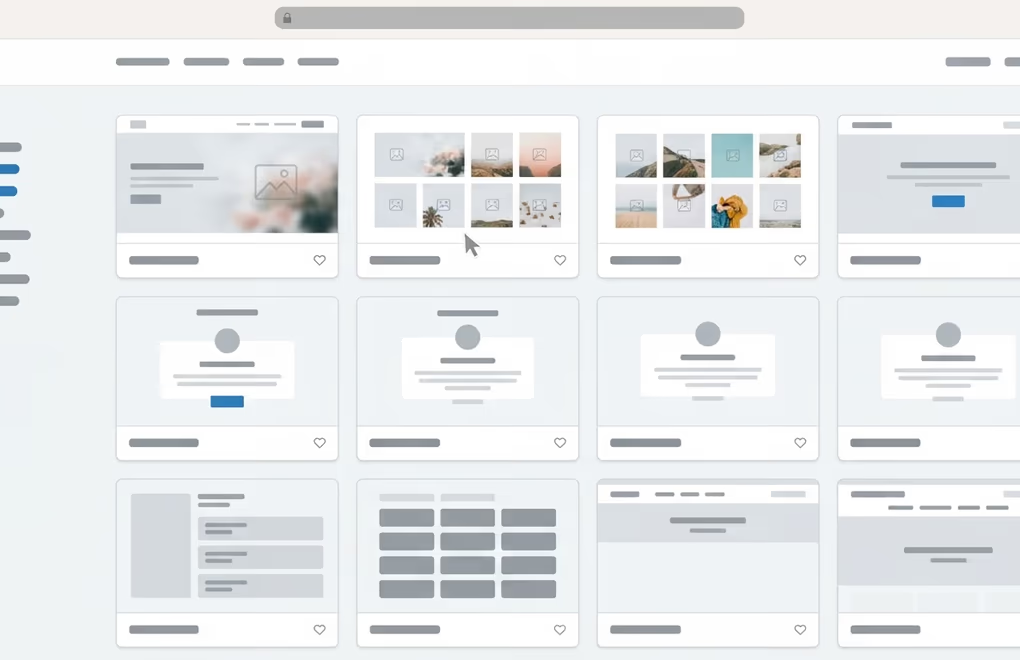
The main sources for good WordPress block patterns are the patterns your active theme bundles, the free public Pattern Directory at WordPress.org, and block plugins that add their own libraries inside the editor. Each source has a place, and most sites end up using a mix of all three. What you have available depends heavily on your theme, so the first thing to check is the Patterns tab on a fresh install to see what already came with it.
Your theme is the first place to look. Modern block themes such as Twenty Twenty-Five ship a set of patterns designed to match their own styles, so the colours and spacing already fit out of the box. Because those patterns are built specifically for that theme, they usually need the least editing to look right. If you switch themes later, the bundled patterns can change or disappear, so a layout you love today might not follow you to a new theme tomorrow.
The WordPress Pattern Directory is a free library of community-submitted patterns at wordpress.org/patterns, and you can copy any of them straight into your editor. It is handy for one-off sections you do not already have a pattern for, like a specific call to action or an unusual gallery arrangement. Quality varies because anyone can submit, so preview each one on your own site and expect to adjust the styling to match your theme rather than assuming it will drop in perfectly.
Block plugins are the third route and often the most practical for a branded site. A good Gutenberg block plugin adds new block types and usually a matching pattern library, which gives you far more section designs than core alone. Plugins like DigiBlocks bundle extra blocks and ready-made patterns so you can build richer pages without ever leaving the native editor. If you want a wider starting set than your theme provides, comparing the best Gutenberg blocks plugins is a faster path than collecting patterns one by one. Whatever source you use, insert into a draft first and check it on mobile before it goes live.
How do you create and manage your own block patterns?
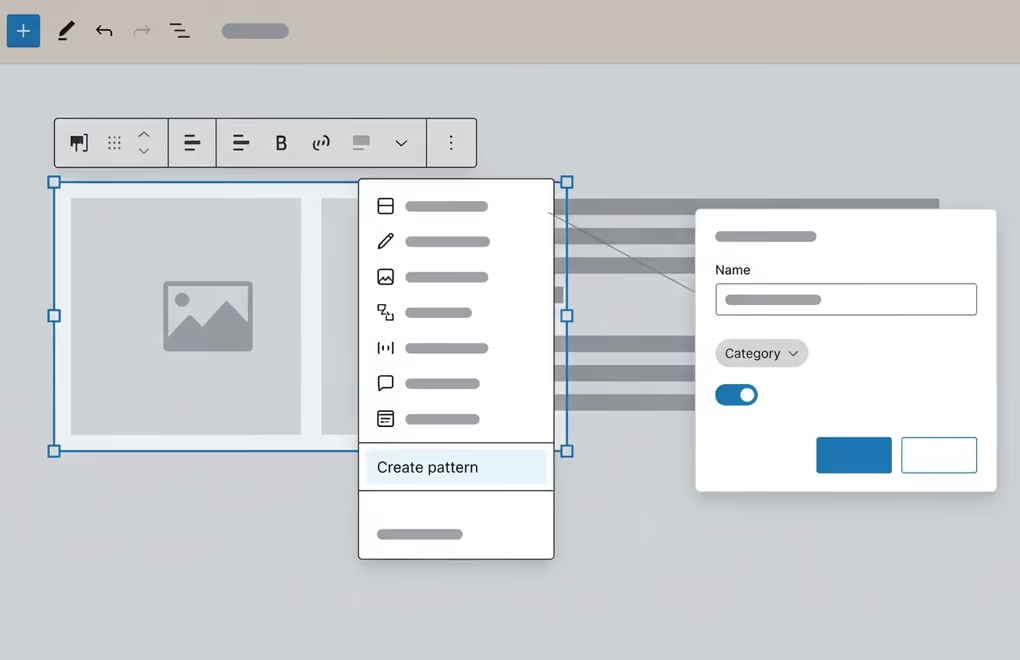
You can create a block pattern with no code by building the layout you want, selecting those blocks, opening the three-dot options menu in the toolbar, and choosing Create pattern. WordPress then asks for a name and a category, and it asks whether the pattern should be synced. Choose synced when you want one shared version that updates everywhere, and choose standard when you want each use to be an independent copy. This has worked inside the normal editor since version 6.3, so most people never need to touch a line of code.
The synced-or-standard choice is the one to get right, and a simple rule covers most cases. If the content should stay identical everywhere and change in a single edit, make it synced. A site-wide promotional banner, a newsletter sign-up, or a standard call to action at the end of every post are all good synced patterns, because you will want to update the offer once and have it change across the whole site. If the layout is a reusable shape but the words change each time, make it standard. A hero, a feature section, or a WordPress landing page skeleton you fill in differently per campaign should be standard, so editing one never disturbs another.
Developers who want patterns to travel with a theme can register them in code instead. The two common ways are the register_block_pattern function called on the init hook, and dropping a pattern file into a patterns folder inside the theme, which WordPress picks up and registers on its own. The theme folder route is the lighter option for most cases because it needs no PHP beyond a short file header. Code-registered patterns are ideal when you are shipping a theme to clients or a whole team, since the patterns come bundled and cannot be deleted from the editor by accident.
Managing patterns after you make them happens in the Site Editor on a block theme, under the Patterns screen, where you can rename, edit, duplicate, export, or delete any that you created. Exporting a pattern gives you a JSON file you can import on another site, which is a quick way to reuse a layout across projects without rebuilding it from scratch. If you inserted a synced pattern somewhere and later want to edit just that one spot without changing the rest, select it and detach it, which converts that copy back into plain blocks. Keep an eye on how many synced patterns you come to rely on, because a change to one updates every page at once, which is powerful and occasionally surprising.
Building pages the pattern-first way
Block patterns turn page building from a block-by-block chore into picking a layout and editing the words, and the whole feature ships inside WordPress with nothing to install. The habit worth forming is deciding, before you save any pattern, whether its content should stay shared or vary per page, because that single choice between synced and standard is what saves you from either duplicated edits or accidental site-wide changes. Get that one decision right and patterns quietly speed up almost everything you build.
A sensible way to start is to build the sections you repeat most, a call to action, a testimonial row, an author bio, and a pricing section, then save each as the right type. Pull richer layouts from your theme and the Pattern Directory when you need something new, and reach for a block plugin when you want a bigger styled library that matches your brand. Over a few projects you end up with a personal kit of patterns that makes every new page faster to build than the last, and that is time you get back on every site you touch after.





0 Comments on "How to Use WordPress Block Patterns (and Build Your Own)"