

WordPress gives you six default user roles, and each one controls exactly what a person can and can’t do on your site. If you’re running a blog with guest writers, selling digital products, or handing off a client site, picking the wrong role is one of the fastest ways to create security problems or lock someone out of the tools they actually need.
The short answer: Administrators have full control, Editors manage all content, Authors can publish their own posts, Contributors can write drafts but not publish, and Subscribers can only manage their profile. A sixth role, Super Admin, exists on WordPress Multisite networks and sits above Administrator with network-wide powers.
The more useful question is which role to assign to each specific person on your specific site, and that depends on the type of site you’re running and how much control you want each person to have. A freelance writer doesn’t need the same access as your business partner, and a customer on your digital product store shouldn’t be able to edit your homepage.
This article covers every default WordPress role and its specific capabilities, then walks through real team scenarios and custom role creation so you can match every person to the right access level. Whether you’re setting up a WordPress site for the first time or auditing an existing site’s user list, you’ll have a clear decision framework by the end.
What are WordPress user roles and how do permissions work?
WordPress user roles are preset bundles of capabilities that determine what each person can access and modify in your admin dashboard. Each capability is a specific permission – like edit_posts, publish_posts, manage_options, or install_plugins – and each role comes with a fixed set of these capabilities turned on or off.
When you add a new user in WordPress, you assign them one role, and that role determines everything they can see and do once they log in. A Contributor, for example, can see the Posts menu and write drafts, but the Publish button is missing entirely from their editor. An Administrator sees every menu item and settings page WordPress has to offer.
This system works on the principle of least privilege: every user gets the minimum access they need and nothing more. It’s the same principle behind file permissions on a Linux server or access control lists in any enterprise app. The goal is straightforward – if an account gets compromised, the damage stays contained to what that role could do. A hacked Subscriber account is an inconvenience that requires a password reset; a hacked Administrator account can mean a full site takeover.
WordPress stores roles and capabilities in the wp_options table under the wp_user_roles key. Each role entry contains a name, a display label, and an array of capabilities set to true or false. When WordPress checks whether a user can perform an action, it calls current_user_can(‘capability_name’) and compares that capability against the user’s assigned role. Plugins can add new capabilities to existing roles, create entirely new roles, or remove capabilities from default ones, which is how ecommerce and membership plugins extend the role system to fit their own workflows. The block editor adds its own layer of capabilities too: edit_theme_options controls whether a user can access the Site Editor for full-site editing, and create_reusable_blocks determines who can save and manage synced patterns (formerly called reusable blocks). If you’re using a block theme, these capabilities matter because they control who can modify your site’s header, footer, and template layouts directly from the editor.
One thing that catches people off guard: roles are site-specific, not network-specific. On a standard single-site WordPress installation, Administrator is the highest role and has unrestricted access. On a Multisite network, Administrator is actually limited – they can’t install plugins, edit themes, or add new sites to the network. That power belongs to the Super Admin role, which manages the entire network from a separate dashboard. If you’re running Multisite, this distinction matters because what your Administrators can do depends entirely on the network-level settings that a Super Admin controls.
Which capabilities does each default WordPress role include?
Here’s what each of the six default roles can actually do, ordered from the most restricted to the most powerful.
Subscriber is the most limited role in WordPress. Subscribers can log in, read content that sits behind membership walls, and edit their own profile (name, email, password). They can’t create, edit, or delete any content, and they can’t access the post editor or media library. WordPress assigns this role to new user registrations by default, which is exactly right – you don’t want a fresh signup to start publishing posts on your behalf.
Contributor can write and edit their own draft posts, but they can’t publish anything and they can’t upload files to the media library. Every post a Contributor writes sits in the Drafts folder until an Editor or Administrator reviews it and clicks Publish. This role works well for guest writers or freelancers you don’t know personally, because their content always goes through your editorial process before it reaches your readers.
Author can write, edit, publish, and delete their own posts, and they can upload images, PDFs, and other files to the media library. The key difference from Contributor is that Authors can hit Publish without anyone else’s approval, and they can go back and edit or delete their own published work. They still can’t touch posts written by other users or access any site-wide settings.
Editor has full control over all content on the site, regardless of who wrote it. Editors can create, edit, publish, and delete any post or page, including posts written by other users. They can also manage categories, tags, and comments. What they can’t do is change themes, install plugins, manage users, or access any of the Settings pages. If you need someone to run your editorial workflow without touching the site’s technical foundation, Editor is the right role for them.
Administrator has every capability WordPress offers on a single site. That includes everything Editors can do, plus installing and activating plugins and themes, managing all users and their roles, importing and exporting content, editing theme and plugin code directly, and controlling every setting on the site. On a single-site installation, this is the most powerful role available.
Super Admin exists only on WordPress Multisite networks. Super Admins can create and delete individual sites within the network, install themes and plugins that become available across all sites, manage users on every site in the network, and configure network-wide settings. Regular Administrators on a Multisite network can’t install plugins or themes at all unless a Super Admin explicitly enables that capability for them at the network level.
To put it concisely: Subscribers can only read and manage their profile, Contributors add the ability to write drafts, Authors add publishing and file uploads for their own posts, Editors add full control over all content on the site, Administrators add complete site management including plugins and users, and Super Admins extend that authority across an entire Multisite network.
How do you pick the right role for each team member?

Knowing what each role does is the straightforward part. The harder decision is matching real people in your workflow to the right role, and the principle is always the same: give each person the least access that still lets them do their job completely.
If you own the site, you’re the Administrator (or Super Admin on Multisite), and that part is obvious enough. The temptation is to hand out Administrator access to anyone who asks for “everything to work,” but you should resist that impulse because a second Administrator account doubles your attack surface and makes it much harder to audit who changed what when something breaks. If someone needs broad access, give them Editor and add specific capabilities through a plugin rather than handing over the keys to the entire site.
For content teams, the decision tree is fairly clean. Staff writers who manage the editorial calendar and review other people’s drafts should get the Editor role. Writers who publish their own work on a regular schedule and have earned your trust over time should get Author. Freelancers, guest bloggers, or anyone whose work you want to review before it goes live should be Contributors. The distinction between Author and Contributor is really about trust – do you want this person to be able to publish directly to your live site without your review?
Client handoffs deserve special attention because giving a client Administrator access feels generous but creates real problems down the line. Clients can accidentally break their site by deactivating the wrong plugin, deleting a critical page, or installing a theme that conflicts with their existing setup. An Editor role with a few extra capabilities added through a plugin (like managing menus or editing widgets) covers everything a business owner actually needs for day-to-day work without the risk of a catastrophic mistake.
For membership sites and communities, Subscriber is the right role for your members. It gives them access to log in, manage their profile, and view gated content – which is exactly the workflow covered in the WordPress membership site guide. Don’t promote members to Contributor unless they genuinely need to submit content, because it opens the full admin dashboard to them.
If you’re selling digital products on WordPress, your customers will typically be Subscribers or a custom “Customer” role that ecommerce plugins create automatically. Customers need to view their purchase history, download their files, and manage their billing details. They don’t need to see the Posts menu or the admin dashboard widgets, and they definitely don’t need editing capabilities.
How do user roles work for ecommerce and membership sites?
The six default WordPress roles are built for publishing workflows, not for running an online store or managing a paid membership community. That’s why every major ecommerce and membership plugin adds its own roles with custom capabilities tailored to its specific feature set.
WooCommerce adds two roles when you install it: Shop Manager and Customer. Shop Manager can access WooCommerce settings, manage products, process orders, issue refunds, and view sales reports, but can’t install plugins, change themes, or manage non-WooCommerce settings. Customer is a step above Subscriber – it adds access to order history, saved shipping addresses, and downloadable files. If you’re running a WooCommerce store, you’d assign Shop Manager to your operations team and let the plugin automatically assign Customer to everyone who completes a purchase.
Lightweight ecommerce plugins like DigiCommerce handle roles differently because they’re built specifically for digital products rather than physical inventory. The role structure tends to be simpler and more focused: you get admin-level product and order management on the backend, and customers get a clean purchase-and-download experience without the overhead of WooCommerce’s full dashboard interface. When your store sells ebooks, templates, courses, or software, you don’t need roles for warehouse staff or shipping managers.
Membership plugins like MemberPress, Restrict Content Pro, and Paid Memberships Pro create tiered access levels that map to custom roles or role modifications. A “Gold Member” might get access to all premium content on the site, while a “Basic Member” sees only the free tier. These plugins add capabilities like access_premium_content or view_level_2 that WordPress checks when a user tries to load a restricted page, and they handle role assignment automatically when someone subscribes or upgrades their plan.
The practical takeaway: your user role strategy changes the moment you add an ecommerce or membership plugin. Before you launch, map out every type of person who will log in to your site – store admin, support agent, fulfillment manager, customer, free member, paid member – and verify that each one has a role giving them exactly the capabilities they need. If a plugin’s default roles don’t match your workflow, create a custom role (covered below) rather than over-promoting users to a default role that gives them too much access.
How do you create and customize WordPress user roles without code?
The default six roles cover most publishing workflows, but real-world sites often need adjustments. You might want a “Client” role that can edit pages but not delete them, or a “Support Agent” role that can moderate comments and view orders but can’t publish posts. Both of these are possible without writing a single line of PHP.
The two most established plugins for role management are User Role Editor (by Vladimir Garagulya) and the Members plugin (by MemberPress). Both are free, both let you add or remove individual capabilities from any existing role, and both let you create entirely new roles from scratch through a visual interface.
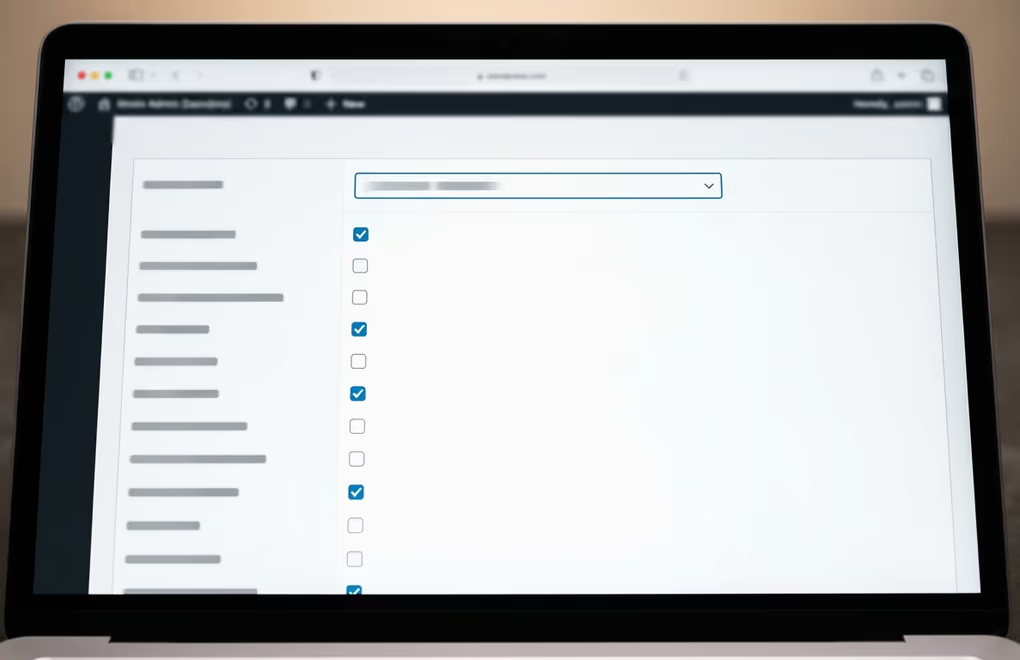
With User Role Editor, you select a role from a dropdown menu, see every capability as a checkbox, and toggle each one on or off. To create a new role, you clone an existing one and adjust the capabilities to match your needs. The plugin stores these changes in the database alongside the default WordPress roles, so they persist across theme switches and WordPress core updates.
Members works similarly but adds a content permissions layer on top of role management. You can assign multiple roles to a single user (useful when someone wears more than one hat on your team), and you can restrict individual posts and pages to specific roles directly from the post editor. If you’re building a site where some content is public and some is member-only, Members handles both role management and content access control in one plugin.
A few things are worth knowing before you start editing roles. Removing capabilities from the Administrator role is almost always a mistake, because plugins and WordPress core assume Administrators can do everything. If you break that assumption, you’ll run into unexpected errors and features that silently stop working. Instead of modifying Administrator, create a new role with the specific capabilities you need and assign users to that custom role.
Always test new or modified roles in a staging environment or with a dedicated test account before assigning them to real users. Log in as a user with the new role and walk through every menu, every settings page, and every workflow they’ll use in practice. If something is missing or broken, you’ll catch it before it affects your actual team. And make sure you back up your database before making any role changes, since role data is stored in wp_options and a bad edit can lock every user out of the admin dashboard entirely.
Your user role setup is the first layer of site security
Every WordPress site has users, and every user has a role. Getting those assignments right takes ten minutes during setup and prevents hours of cleanup later. The principle holds across every type of site: give each person the minimum access they need and review your user list regularly to deactivate accounts that are no longer in use.
If the default six roles don’t match your workflow, create custom ones rather than promoting people to roles that are more powerful than necessary. And if you’re running a store, a membership site, or a client site, test your role configuration with a fresh account before you launch. The most thorough security plugin setup in the world won’t protect you if you’ve given every team member Administrator access by default. Roles are your first line of defense, and they cost nothing to get right.



0 Comments on "WordPress User Roles and Permissions: What Each Role Can and Can’t Do"