

Every WordPress site includes a built-in interface that most site owners never touch: the WordPress REST API. It sits at /wp-json/wp/v2/ on every installation running version 4.7 or newer, and it does one simple thing. It lets any external application, whether a mobile app, a JavaScript front-end, a CRM, or a simple command-line script, read, create, update, or delete content on your WordPress site using standard HTTP requests.
If you’ve ever wondered how some WordPress sites serve content to mobile apps, or how headless WordPress setups deliver pages without loading a traditional theme, the REST API is what makes it work. It takes everything stored in your WordPress database and exposes it as structured JSON data that any programming language can consume, from posts and pages to users, categories, media, and comments.
This matters even if you don’t write code yourself. Plugins like DigiCommerce use the REST API behind the scenes to handle digital product purchases, validate license keys, and deliver downloads to buyers. Page builders use it to save your layout changes without a full page reload. The Gutenberg block editor depends on REST API calls for almost every action you take inside it, from saving drafts to uploading images to loading block patterns. Understanding how the API works gives you a much clearer picture of what actually happens when you click “Publish” or configure a new plugin.
The REST API also makes things possible that standard WordPress themes and plugins can’t do alone. You can build a React or Next.js front-end that pulls content from WordPress without touching any theme files. You can connect your site to Zapier, Make, or a custom dashboard that aggregates data from several WordPress installations at once. You can automate content updates from a spreadsheet or external publishing workflow, treating WordPress as a content service rather than a self-contained application.
What is the WordPress REST API?

REST stands for Representational State Transfer, which is a set of conventions for how two pieces of software talk to each other over the web. Every WordPress installation since version 4.7 has had the REST API baked into its core code, and it works by exposing a series of URLs called endpoints. When an external app sends a request to one of these endpoints, WordPress responds with JSON data, a structured text format that any programming language can parse and use immediately.
The practical effect is that your site’s content becomes accessible outside of WordPress itself. A standard WordPress page request loads PHP, queries the database, applies the theme, and sends back fully rendered HTML. A REST API request skips all of that processing entirely. It returns raw data instead: the post title, body text, author ID, publication date, and assigned categories, packed into a structured JSON object. The consuming application then decides how to present that data, whether in a mobile app, on a single-page JavaScript site, inside a spreadsheet, or fed into another system altogether.
WordPress currently exposes endpoints for posts, pages, media, users, categories, tags, comments, custom post types, taxonomies, and site settings. Each endpoint supports standard HTTP methods that map directly to CRUD operations. A GET request reads data from the site without making any changes. A POST request creates a new resource, such as a draft post or a media file upload. PUT replaces an existing resource with a complete updated version, and DELETE removes a resource from your site, though WordPress defaults to moving posts to the trash rather than permanently erasing them.
The architecture follows REST conventions closely in every detail. Each endpoint maps to a single type of resource (such as /posts or /users), each request is stateless (meaning it contains all the information WordPress needs to process it without relying on stored session data), and every response arrives in a predictable JSON format that includes metadata like pagination counts alongside the content itself.
The REST API isn’t a plugin or an optional add-on that requires separate installation. It’s part of WordPress core, maintained by the same development team that builds the CMS, and tested on millions of sites around the world. The Gutenberg editor depends on it so heavily that disabling the REST API would break the block editor entirely. When you drag a block into a page, Gutenberg fires REST API calls behind the scenes to persist your work. That kind of deep integration means the API is stable, well-tested, and very unlikely to disappear or suffer a breaking change in any future WordPress release.
How do you access REST API endpoints?

The base URL for the WordPress REST API follows the same pattern on every installation: https://yoursite.com/wp-json/wp/v2/. From that root, you append the resource type you want to interact with. Posts live at /wp-json/wp/v2/posts, pages at /wp-json/wp/v2/pages, users at /wp-json/wp/v2/users, and media files at /wp-json/wp/v2/media. Any custom post type registered with show_in_rest => true automatically gets its own endpoint following the same base path and naming pattern.
You can test the API right now without writing a single line of code. Open any browser and go to https://yoursite.com/wp-json/wp/v2/posts, and WordPress returns a JSON array of your most recent published posts, complete with titles, content, excerpts, dates, and links to related resources like the author profile and featured image URL. Public endpoints like this one don’t require any authentication because they serve the same content that’s already visible on your website to anyone who visits it normally.
Filtering results is simple with query parameters appended to the URL. If you only want posts from a specific category, add ?categories=5 to the endpoint path and WordPress filters the response accordingly. If you need just the five most recent entries on your site, append ?per_page=5&orderby=date&order=desc to narrow the results down to exactly what you need. And if you’re looking for a specific post by its URL slug, adding ?slug=your-post-slug returns just that one matching post. These parameters follow a consistent naming convention across all resource types, so the filtering syntax you learn for posts works identically for pages, media, and custom post types.
For command-line testing, cURL is the most direct tool at your disposal. A basic GET request looks like curl https://yoursite.com/wp-json/wp/v2/posts?per_page=3, which returns the three most recent posts as formatted JSON directly in your terminal. In JavaScript running in a browser, the built-in Fetch API works just as well for any public endpoint. Both approaches return identical data; the choice only matters when you need to authenticate your requests, since browsers and cURL handle authorization headers in slightly different ways.
Every REST API response includes HTTP headers that carry useful metadata about your query results. The X-WP-Total header reports the total number of resources matching your query across all pages of results. The X-WP-TotalPages header tells you how many pages exist at the current per_page setting. These two headers make pagination straightforward to implement in any client application: increment the page parameter in your requests and check X-WP-TotalPages after each response to know when you’ve reached the end of the available data.
How does WordPress REST API authentication work?

Public endpoints that serve content already visible on your site don’t need any form of authentication. But any request that creates, updates, or deletes content requires proof that the person or application making the request has permission to perform that action. WordPress supports several authentication methods, and the right one depends on what you’re building and where your code runs.
Application Passwords are the recommended method for most external integrations and have been part of WordPress core since version 5.6. You generate them from the Users section in your WordPress admin panel, under the “Application Passwords” heading on any user’s profile page. Each application password is a long random string tied to a specific user account, and you can revoke it at any time without affecting that user’s main login credentials or any other application passwords they may have issued for different tools.
Using an application password with cURL is as simple as passing it alongside your username in a Basic Auth header. A request like curl -u "username:xxxx xxxx xxxx" -X POST https://yoursite.com/wp-json/wp/v2/posts -H "Content-Type: application/json" -d '{"title":"New Post","status":"draft"}' creates a new draft post attributed to the authenticated user’s account. In JavaScript, you would base64-encode the username and password combination and send the result in an Authorization header with the “Basic” prefix. The REST API then checks whether that user account holds the WordPress capability required for the requested action, based on their assigned role.
Application passwords carry one important limitation: they only work over HTTPS connections. WordPress actively blocks application password authentication on plain HTTP to prevent credentials from traveling across the network in readable cleartext. If your local development environment doesn’t have an SSL certificate set up, you’ll need to add a temporary filter to your functions.php that bypasses this check during development, and you should remove that filter before deploying anything to a production environment.
JWT (JSON Web Tokens) work better for JavaScript applications running directly in the browser, where storing permanent credentials on the client side would create a security risk. The user authenticates once by submitting their username and password, receives a time-limited token in the response, and then includes that token in every subsequent API request as a Bearer token in the Authorization header. Several plugins add JWT support to WordPress, and the tokens expire after a configurable period, which limits how much damage could occur if someone intercepts a token during transmission.
For most WordPress site owners connecting their own site to an external service or tool, application passwords are the simplest and safest method available. They’re built into core WordPress, easy to generate and revoke through the admin UI, and compatible with any HTTP client without requiring extra plugins. JWT makes more sense when you’re building a JavaScript-heavy front-end that needs short-lived, automatically expiring credentials for better client-side security.
What can you build with the WordPress REST API?
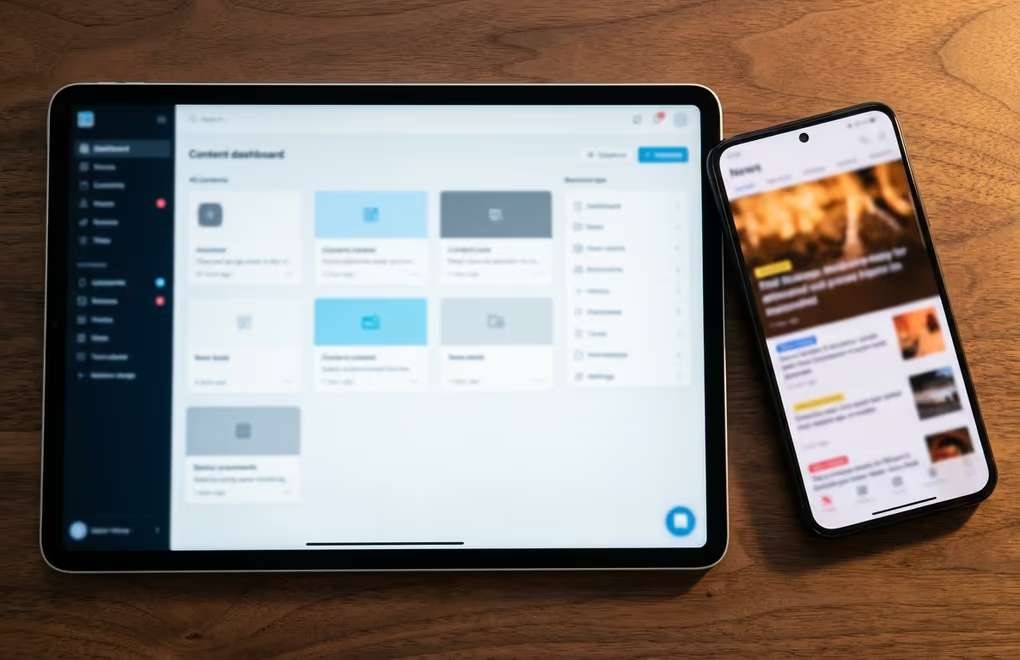
The most talked-about use case is headless WordPress, where WordPress handles all the content creation and management while a separate front-end framework renders the actual pages visitors see. In a headless setup, you write posts and organize content in the familiar WordPress admin dashboard, but a React, Next.js, Vue, or Nuxt application fetches that content via the REST API and displays it with full control over the design, layout, performance characteristics, and user experience. Publishers like USA Today have used headless WordPress architectures to distribute content from a single WordPress installation to multiple platforms and output formats at the same time.
Mobile apps are another natural application of the REST API. If you run a WordPress-powered blog, membership site, or digital product store and want a native iOS or Android companion app, the REST API provides every piece of data the app needs without forcing you to build a separate back-end system from scratch. The official WordPress mobile app itself works exactly this way, using REST API calls to communicate with self-hosted WordPress installations and WordPress.com sites using the same set of endpoints.
Plugin and theme developers depend on the REST API in ways you interact with every single day without noticing it. When DigiCommerce processes a digital product purchase on your site, REST API endpoints handle the license validation, download link delivery, and transaction recording behind the scenes. The Gutenberg block editor fires dozens of REST API requests during every editing session, persisting draft changes, uploading media files, fetching available block patterns, and loading post metadata through API calls rather than through traditional PHP form submissions.
Custom dashboards and internal tools are a practical use case that most REST API writeups skip entirely. Imagine you manage eight WordPress sites for different clients and want a single dashboard showing recent posts, pending comment counts, and update status across all of them at once. A small application that queries each site’s REST API can pull that data together in one unified view without requiring admin-level access to eight separate WordPress installations or any complex server-side orchestration.
Automated workflows tie everything together in a practical way. Connecting WordPress to tools like Zapier, Make, or n8n through the REST API lets you trigger actions without manual intervention: publish a post when a Google Sheet row gets added, send a Slack message when a new comment arrives, or sync WordPress user registrations with your CRM database automatically. These integrations treat WordPress as both a data source and a data destination rather than a closed, self-contained CMS that nothing else can communicate with.
How do you fix common REST API errors?

The REST API communicates problems through standard HTTP status codes, and the vast majority of issues you’ll encounter fall into a handful of well-documented categories. Knowing what each code actually means saves you from hours of aimless plugin toggling and guesswork.
A 401 Unauthorized response means your authentication credentials are missing, malformed, or simply wrong. If you’re using application passwords, verify that you’re sending them as Basic Auth in the request header (not as a URL query parameter), that your site has HTTPS active and enforced, and that the specific application password hasn’t been revoked from the user’s profile page. WordPress returns a 401 even when the password itself is correct if the connection uses plain HTTP instead of HTTPS, which regularly catches developers testing on localhost without a local SSL certificate configured.
A 403 Forbidden response means the credentials are valid but the authenticated user doesn’t have sufficient capabilities for the action being requested. A user assigned the Subscriber role can’t create posts through the REST API for the same reason they can’t create them through the WordPress admin dashboard: WordPress enforces the exact same capability-based permission model across both interfaces without exception. Check the user’s assigned role in the admin panel and confirm it includes the capability the endpoint requires, such as edit_posts for creating content or delete_posts for moving items to the trash.
A 404 Not Found response can mean either that the endpoint itself doesn’t exist on your site or that the specific resource ID you requested is wrong or deleted. If you’re getting 404 errors on a standard built-in endpoint like /wp-json/wp/v2/posts, the most common fix involves your permalink settings and .htaccess rewrite rules. WordPress needs “pretty permalinks” enabled (any option other than “Plain” in Settings > Permalinks) for REST API routes to resolve at all. Visit the Permalinks settings page and click “Save Changes” without modifying anything to flush and regenerate the server rewrite rules.
The rest_no_route error appears when you’re requesting an endpoint path that WordPress doesn’t recognize. This typically results from a typo in the URL, or from trying to access a custom post type that wasn’t registered with the show_in_rest => true argument in its registration function. You can view the complete list of all registered endpoints on your site by navigating to /wp-json/wp/v2/ in any browser, where WordPress returns every available route as part of its built-in API discovery response.
A 500 Internal Server Error points to a PHP error on your server rather than any problem with the request you sent. Enable WordPress debug logging by setting WP_DEBUG and WP_DEBUG_LOG to true in your wp-config.php file, then check wp-content/debug.log for the specific error message. The most frequent causes are plugin conflicts, insufficient PHP memory limits, outdated PHP versions, and malformed JSON in the request body that WordPress can’t parse.
Slow responses or outright timeouts usually aren’t REST API problems at all. They’re hosting performance issues or database bottleneck problems showing up through the API layer. If your API calls consistently take more than a few seconds to return, look at your hosting plan, server-side caching configuration, and database query performance before blaming the API code. The REST API itself adds minimal overhead compared to a standard WordPress page load; the real bottleneck is almost always an expensive database query or a poorly-written plugin hooking into the response pipeline and running additional logic on every single request.
Start with one request
The WordPress REST API isn’t something you need to install, activate, or configure before you can use it. It’s been running on your site since WordPress 4.7, quietly powering the block editor, the mobile app, and every plugin that reads or writes data behind the scenes. The question isn’t whether you have access to it, because you already do with every WordPress installation.
Try something concrete right now: open https://yoursite.com/wp-json/wp/v2/posts in any browser tab and look at the JSON response that comes back. Add ?per_page=1 to see a single post with all of its fields and metadata exposed in full detail. From there, pick up cURL or a tool like Postman and experiment with authenticated requests using an application password: create a test draft, update its title, then delete it. Every major WordPress integration in 2026, from AI-powered content workflows to headless publishing pipelines, runs through these same endpoints using the same HTTP methods.



0 Comments on "WordPress REST API: What It Does and How to Use It"