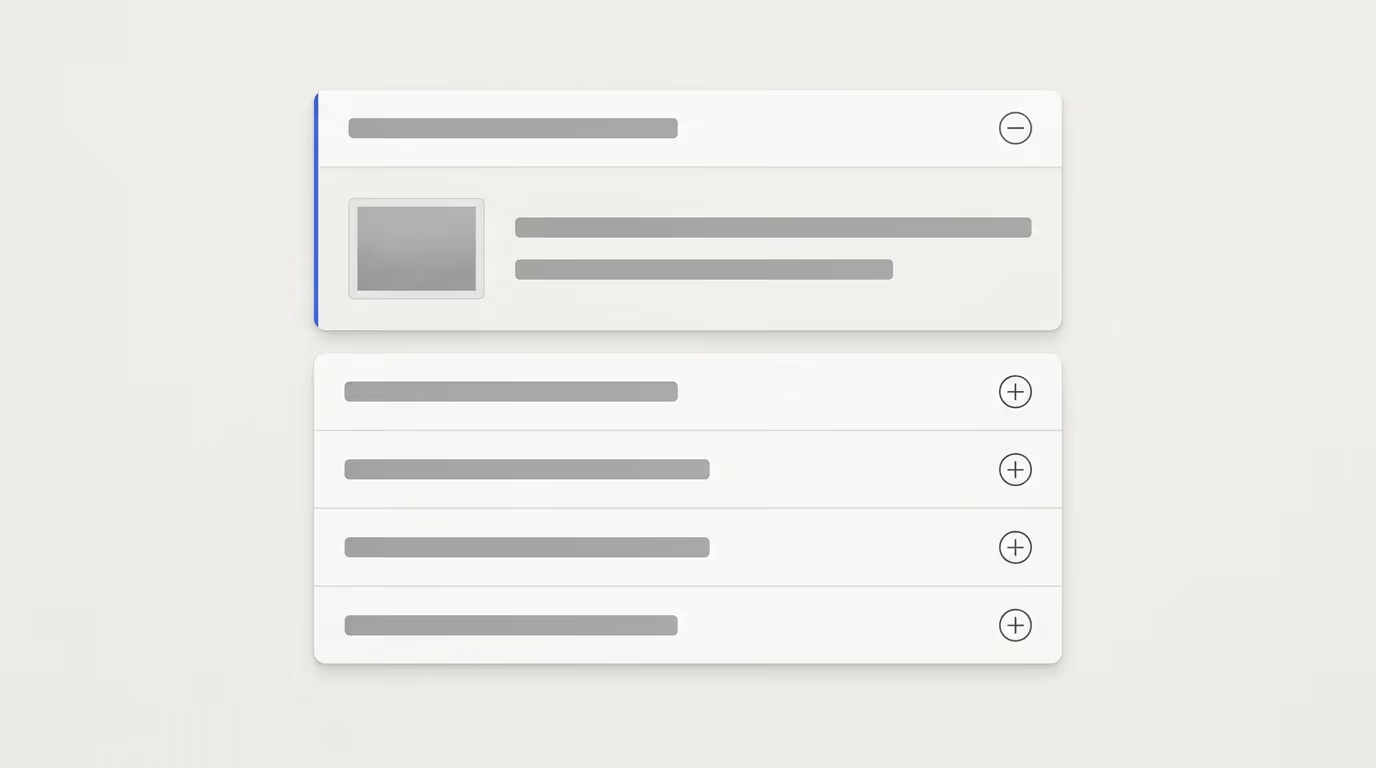
You can add an accordion in WordPress in three ways, and the right one depends on how much control you want over the design. The quickest option is the native Accordion block, which shipped with WordPress 6.9 and needs no plugin at all. For a single expandable section you can use the older Details block, and for styled FAQ accordions that also output schema you can install a blocks plugin such as DigiBlocks. All three build the same thing, a set of collapsible panels that open when a visitor clicks the heading.
An accordion keeps a long page feeling short. It hides content behind clickable headings so readers open only the parts they actually care about, which is why FAQ pages, product documentation, and detailed pricing sections lean on them so heavily. Done well, an accordion turns a wall of text into something people will genuinely scan.
This guide walks through all three methods and shows when each one makes the most sense. Then it covers the two things most accordion tutorials skip entirely, how to handle schema on an FAQ accordion after Google’s 2026 changes, and how to keep the whole component working for keyboard and mobile visitors. By the end you’ll know which route fits your site instead of just copying the first one you find.
What is a WordPress accordion, and when should you use one?
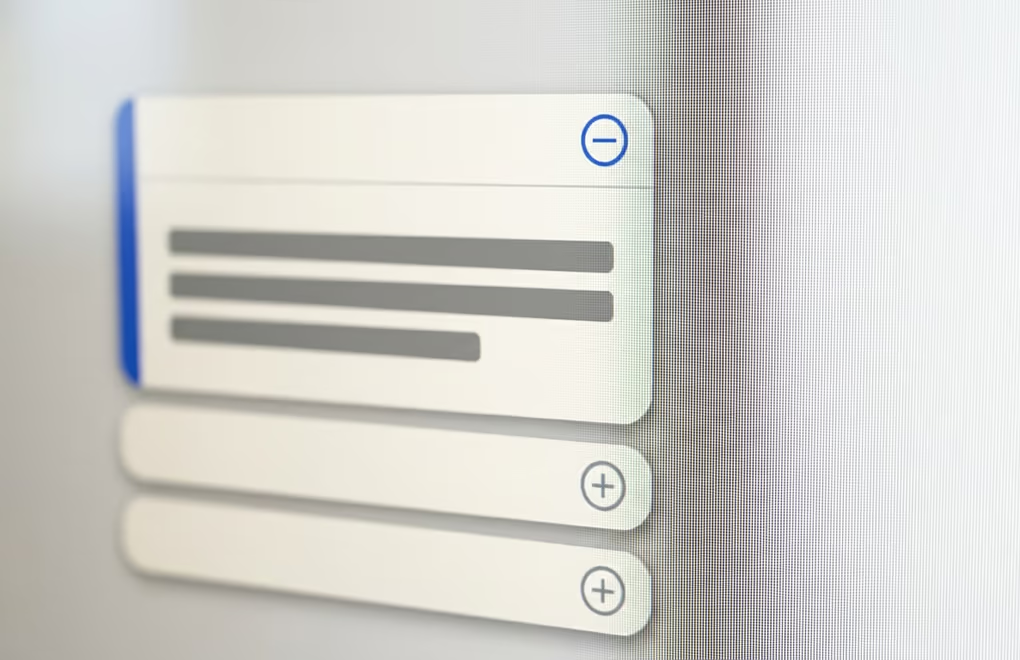
A WordPress accordion is a stack of collapsible sections where clicking a heading expands its panel and, in most setups, closes the others. People reach for it on FAQ pages, support docs, product specs, and long tutorials, anywhere a full page of text would scare readers away before they find what they need. The pattern earns its keep on mobile especially, where vertical space is tight and scrolling past content nobody asked for is the fastest way to lose a visitor.
The honest test for whether you need one is simple. If your page has several distinct chunks a reader might want to jump between, and showing them all at once makes the page feel exhausting, an accordion helps. Common wins are a return-policy page, a course syllabus, a plugin’s feature breakdown, or a pricing page where each tier hides its fine print until someone clicks. When the content is short or every reader needs all of it, skip the accordion and just show the text.
Hiding text inside a collapsed panel does not hide it from Google. Search engines render and index accordion content normally, so your SEO doesn’t suffer from putting answers behind a click. The risk is human, not technical. If you bury something critical like a refund deadline three panels deep, plenty of visitors will never expand it, so keep anything essential visible and reserve the accordion for the detail that supports it.
It also helps to know how an accordion differs from its cousins. A single Details toggle is one collapsible box, good for a lone read more section. Tabs put content side by side and suit parallel categories a reader compares at a glance, like Description and Reviews on a product. An accordion is the vertical, one-at-a-time option that reads best on phones and for question-and-answer content. If your goal is a scannable long page, an accordion often pairs well with a table of contents that links straight to each section.
How do you add a WordPress accordion without a plugin?
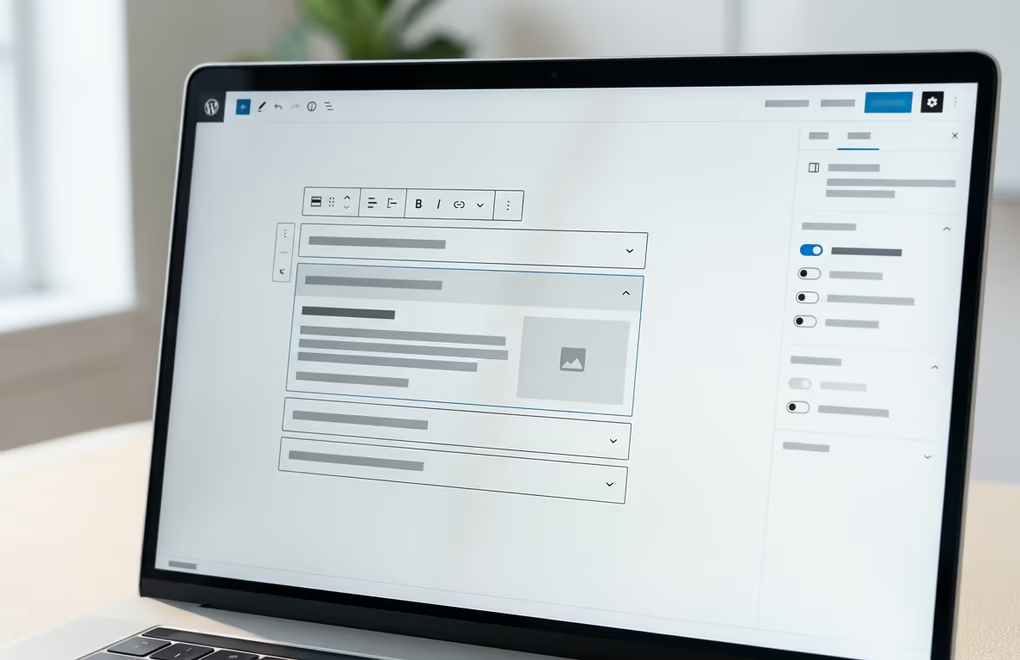
The built-in Accordion block is the no-plugin way to add an accordion in WordPress, and you drop it in by typing /accordion in the editor or picking it from the block inserter. It arrived in WordPress 6.9 in December 2025, so update your site first if you can’t find it. Once inserted, the block holds a list of Accordion Item blocks, and each item is made of an Accordion Heading, the part visitors click, and an Accordion Panel that expands below it.
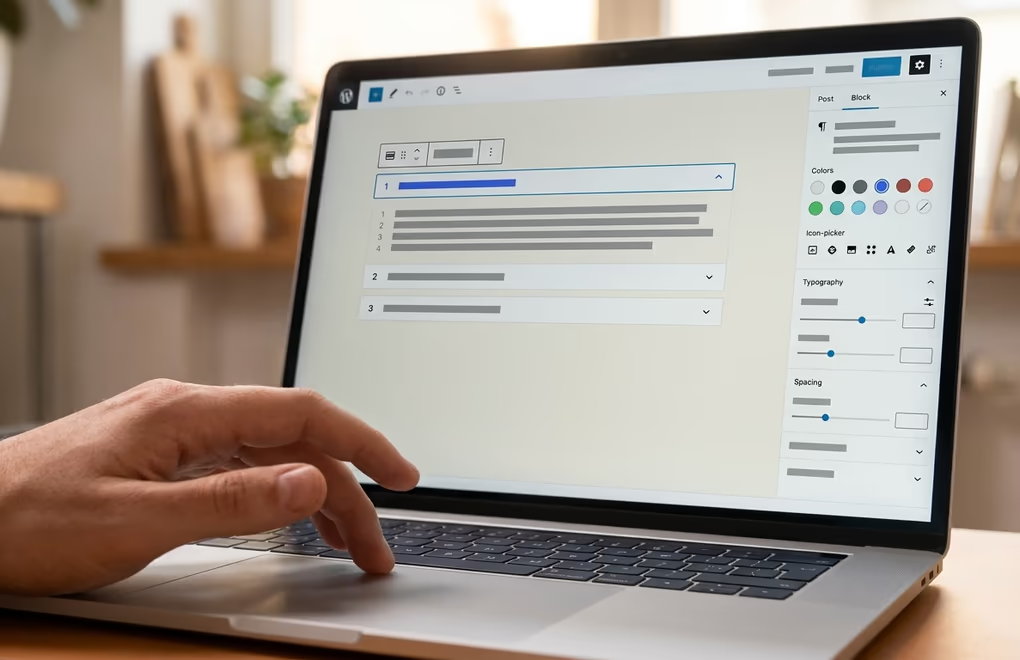
Building one out is quick and mostly visual work. Click the heading and type a short, clear title, then click into the panel and add whatever you need, since panels accept any blocks including paragraphs, images, lists, and embeds. To add the next entry you press the + Add item button inside the block, and you reorder items by dragging them in List View. Because the heading is a real heading, you also get to pick its level so it fits your page outline instead of breaking it.
The settings sidebar is where the behavior gets decided. An auto-close toggle makes the accordion close whichever panel is open when a reader opens a new one, so only one shows at a time, and turning it off lets several stay open together. You can show an expand icon and move it to the left or right of the title, and each individual item has an initially-open option if you want one panel visible by default. The block toolbar even lets you transform the whole accordion into Columns, a Details block, or a Group if you change your mind about the layout.
For a single collapsible box rather than a set, the older Details block is the leaner choice. It gives you one summary line that toggles one panel, with no items to manage. The rule of thumb is that Details covers one lone toggle, while the Accordion block is for a coordinated list where you care about how the items open in relation to each other. Both are free, native, and add no third-party code to your site.
Which accordion plugin gives you the most control?
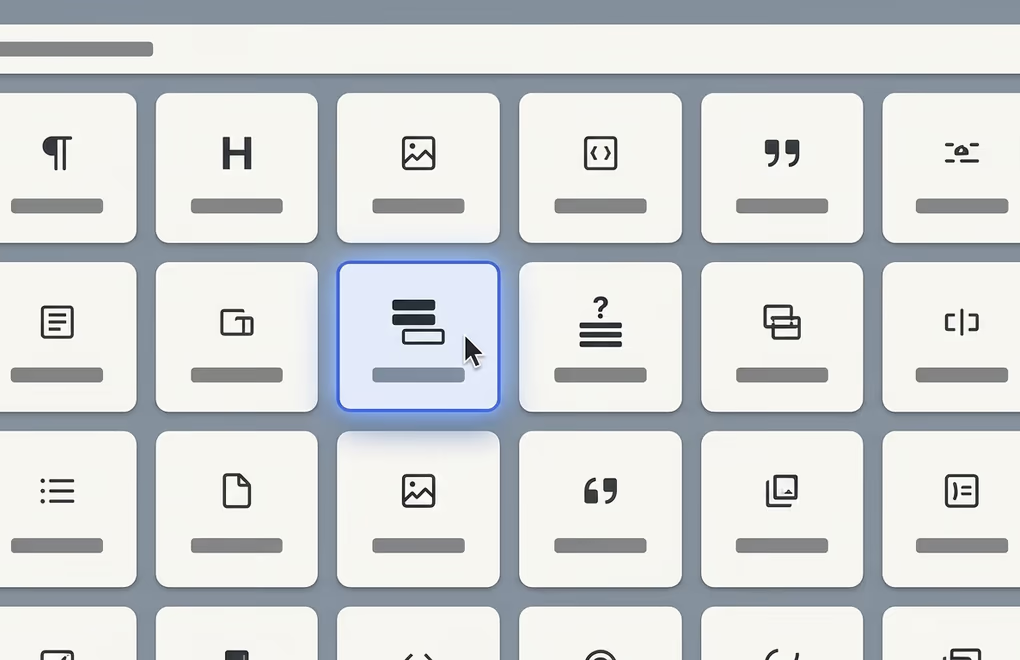
A blocks plugin is worth installing when the native Accordion block can’t match your design, or when you want an FAQ accordion that also outputs structured data. Plugins like DigiBlocks, Stackable, Easy Accordion, and the Advanced Accordion block each add accordion blocks with far deeper styling controls than core gives you, from custom icons and animations to per-state colors and preset layouts. The trade-off is that every plugin adds a little weight, so add one only when the built-in block genuinely falls short.
DigiBlocks is a good fit here because it bundles both an Accordion block and a dedicated FAQ block inside one library of more than sixty Gutenberg blocks, with a free version on WordPress.org and a Pro tier for the advanced controls. That means you can style a content accordion and build a schema-ready FAQ without stacking two single-purpose plugins on top of each other. If you’re weighing options, our roundup of the best Gutenberg blocks plugins compares the main libraries side by side, and the DigiBlocks product page lists exactly which blocks are in the free build.
Stackable and the other dedicated accordion tools are worth a look too, and each has its own strengths. Easy Accordion has been around a long time and focuses purely on FAQ-style layouts, while Stackable folds its accordion into a broader block suite similar to DigiBlocks. There isn’t one correct answer, so match the plugin to what you already run. If your theme and other blocks come from one ecosystem, staying inside it keeps your styling consistent and your load lighter.
Whatever you pick, install it the way you would any block plugin and then check one thing before you commit. Add a test accordion, open your page on a phone, and confirm the panels expand smoothly and the icons line up. A plugin that looks perfect in the editor but janky on mobile isn’t worth the extra kilobytes, and swapping it out later means rebuilding every accordion you made with it.
How do you build an FAQ accordion with schema markup?
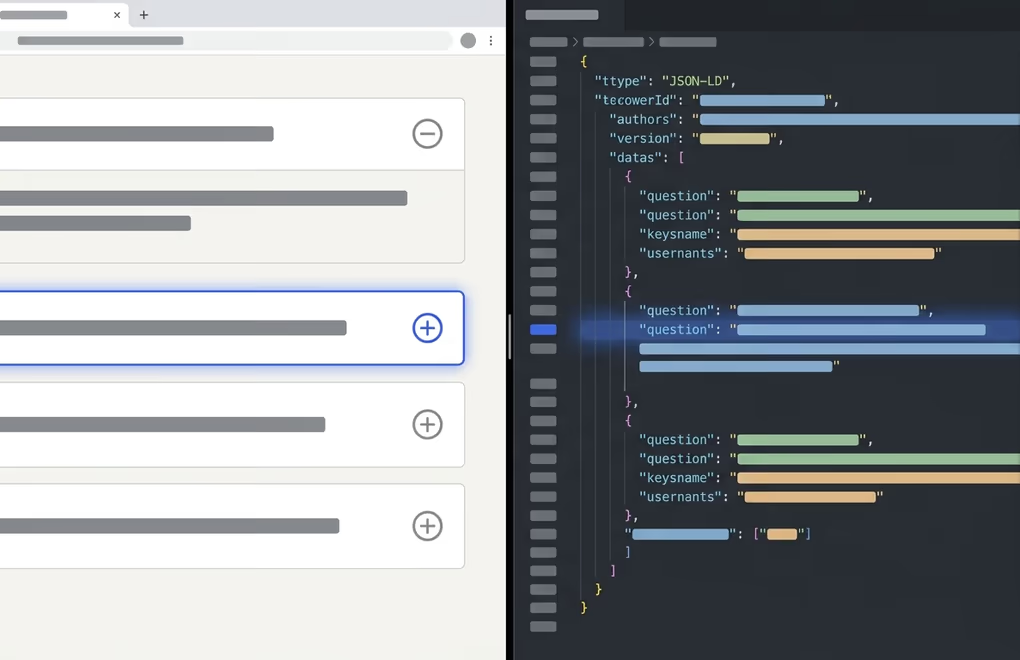
An FAQ accordion is just an accordion whose items are questions and answers, so you build it exactly like any other accordion and then decide whether to add FAQPage schema on top. That schema is structured data that tells search engines and AI assistants your page is a list of questions with matching answers. One important change landed in 2026 though. Google removed FAQ rich results from Search in May 2026, so that markup no longer earns the expandable FAQ snippet it used to show under a result.
This matters because most older accordion tutorials still promise those rich snippets, and that advice is now out of date. Google had already limited FAQ rich results to well-known government and health sites back in August 2023, and the May 2026 change retired the feature completely. FAQPage stays a valid Schema.org type, and Google has said it still reads the markup to understand a page, but the visible SERP decoration is gone for everyone.
The schema is still worth adding for most sites, just for different reasons than before. Structured data still helps search engines and the AI answer engines like ChatGPT and Perplexity parse your questions cleanly, which matters more every year as those tools quote pages directly. A tidy FAQ accordion also answers real questions in one scannable place, which keeps readers on the page and can win the plain-text featured answer even without the old rich result. If you want the schema handled automatically, the DigiBlocks FAQ block writes valid FAQPage markup for you as you fill in each question. For the wider picture on structured data, our guide to schema markup in WordPress covers the types that still drive results.
The one habit to drop is padding a page with fake questions to look thorough. That abuse is exactly why Google clamped down in the first place, and thin, invented Q&A now does nothing for rankings and annoys readers. Write questions your visitors actually ask, answer each one in a couple of honest sentences, and let the accordion keep the page compact.
How do you keep your accordion accessible and mobile-friendly?
An accessible accordion lets keyboard users tab to each heading and open it with Enter or Space, and it announces to screen readers whether a panel is currently expanded or collapsed. The native WordPress Accordion block builds this behavior in for you, with headings that act as buttons and panels that report their state to assistive technology. Many older plugins and hand-coded, custom-CSS accordions skip this entirely, so if you go that route, test with your keyboard before you publish.
Heading structure is the part people get wrong most often. Each accordion item’s title should use a heading level that fits your page outline rather than a random size chosen for looks, so an accordion inside a section led by an H2 usually wants H3 titles. Keeping those levels consistent helps both screen-reader users navigating by heading and search engines mapping your content. The native block lets you set the level directly, which is one more reason to prefer it over a plugin that hard-codes the markup.
Mobile deserves its own check because accordions live or die on small screens. Make sure each heading is a big enough tap target that thumbs hit it cleanly, that panels reflow to full width instead of forcing a sideways scroll, and that the expand icon stays visible next to the title. A quick test on a real phone catches problems the desktop editor hides, and it’s the single most useful thing you can do before shipping an accordion to a mostly-mobile audience.
Styling is the easy part once the structure is sound. The native block and every serious plugin let you set the heading colors, panel background, typography, borders, and icon from the block settings, so you can match your brand without touching code. When you do need something the settings can’t reach, a few lines of custom CSS in WordPress will do it, though it’s worth resisting the urge to over-animate. A calm, fast open-and-close reads as polished, while a slow bounce just makes people wait.
Picking the right accordion for your WordPress site
For most sites, the native Accordion block is now the answer, and that’s a genuine shift from a year ago. It’s free, accessible out of the box, handles auto-close and initial state without fuss, and adds zero third-party code, so reach for it first and only look further if it can’t do what you need. When all you want is a single expandable box, the Details block is even simpler and there’s no reason to install anything.
Move to a plugin when design or FAQ schema is the priority. If you want animated icons, preset layouts, or a schema-ready FAQ block that handles the markup for you, a suite like DigiBlocks gives you the accordion and the FAQ block together without piling on single-use plugins. Whichever you choose, test it on a phone and with your keyboard, write real questions instead of filler, and keep anything critical out of a collapsed panel. Get those basics right and your accordion will do its actual job, making a long page easy to read.



0 Comments on "How to Add a WordPress Accordion (3 Ways)"