

A WordPress table of contents is a clickable list of a post’s headings that sits near the top of the page, so readers can jump straight to the section they want. On long tutorials and guides it earns its place, because most people scan a page before they decide to read it. You can add one in three reliable ways, and only one of those needs a plugin.
What WordPress does on its own is where the confusion starts. WordPress still doesn’t ship a ready-to-use table of contents block in a normal install, even in the current WordPress 7.0 release. A block named Table of Contents does exist in the code, but it’s marked experimental, so it only appears when you run the separate Gutenberg feature plugin. Plenty of guides skip over that fact, which leaves people hunting through the block inserter for something that isn’t there.
This article gives you the current, accurate picture of what the software can and can’t do by itself, then walks through every method that works today. One of them is completely free, needs no plugin, adds nothing to your page load, and works on any WordPress site no matter which theme you use. The other two trade a little setup or a little page weight for the convenience of automatic updates.
The right choice depends on how many posts you publish and how much you care about speed. By the end you’ll know which method fits your site, and you’ll have the exact steps to set it up. Heading structure, mobile display, and the real search impact all come up along the way, because those are the details that decide whether a table of contents helps or just sits there.
Why add a WordPress table of contents to your posts?

A table of contents helps readers find what they came for without scrolling through everything else, which keeps them on the page longer. On a 2,500-word guide, that jump list is often the difference between someone reading one section and someone leaving after a few seconds. Search behavior rewards that patience, because a visitor who finds their answer quickly is less likely to bounce back to Google and click a competitor.
A few concrete reasons explain why it works so well on longer content.
- Readers can scan every section heading in one glance and jump straight to the part they need.
- Long tutorials and comparison posts feel less intimidating when the structure is visible up front.
- Google sometimes shows those anchor links under your result, so people can click straight to a section.
- Building the list forces you to check that your headings actually follow a logical order.
That last point matters more than it looks. A table of contents is only as clear as the headings it pulls from, so the act of building one exposes messy structure fast. If two sections say almost the same thing, or a heading is too vague to mean anything, you notice it immediately when they sit next to each other in a plain list.
Placement and mobile display are worth a moment’s thought as well. Most tables of contents sit right after the opening paragraph, where a reader lands before they start scrolling, and that spot works for almost every post. On phones, where screen space is tight, a long list of links can push your actual content well down the page, so many people set the table to collapse behind a tap on small screens. Whichever method you choose below, check how the list looks on a narrow window before you call the job done.
There’s a limit worth knowing before you add one everywhere. On a short post of 600 or 700 words, a table of contents usually adds clutter rather than value, because the whole piece fits on a screen or two anyway. Save it for content where a reader genuinely benefits from skipping ahead, like step-by-step guides, long reviews, and reference pages. For a wider look at guiding people through a site, our guide on WordPress internal linking covers the same idea at the whole-site level.
Does WordPress have a built-in table of contents block?
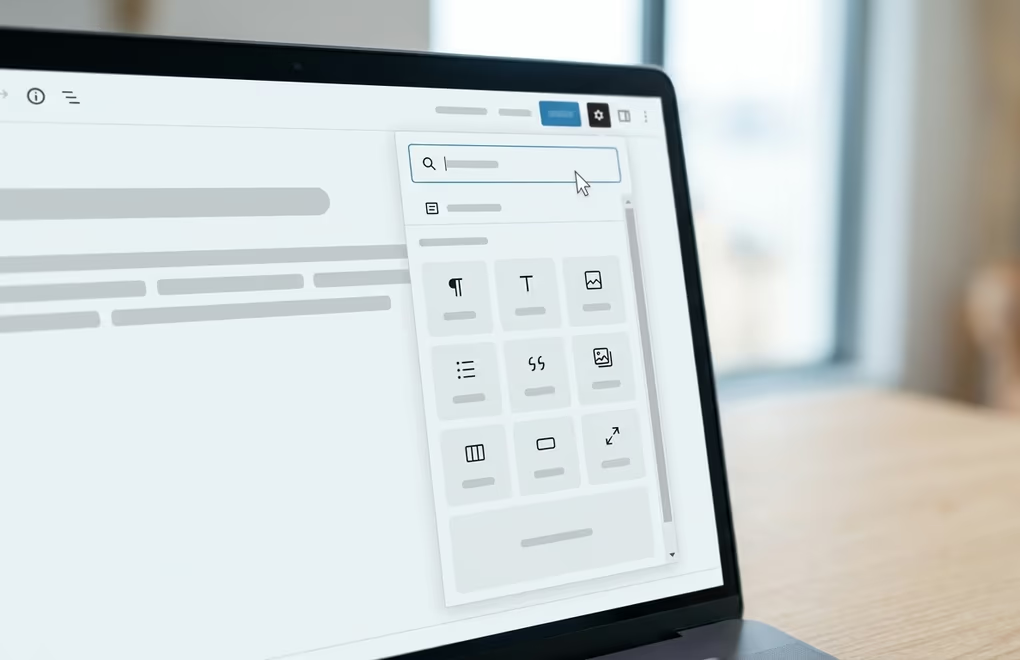
Not in the way most people expect. A standard WordPress install, right up to the current 7.0 release, has no table of contents block you can just drop into a post. If you open the block inserter and search for it on a normal site, nothing comes up, and that blank result is where a lot of confusion starts.
The block does exist in the code. WordPress ships a block registered as core/table-of-contents, and the official block reference still lists it as experimental. Experimental means it stays switched off in the software that everyone downloads from WordPress.org. The only way to get it is to install the Gutenberg feature plugin, which is the testing ground where new editor features live before they graduate into core.
That plugin comes with a real catch, and WordPress documents it plainly. If you build a page with the native block and later deactivate the Gutenberg plugin, the block shows a warning in the editor and falls back to a plain list on the front end. So the automatic, self-updating table quietly turns into a static list the moment you switch the plugin off. For a site you rely on, tying your content structure to a beta plugin is a genuine trade-off, not a detail to wave away.
This is why so many WordPress users reach for a plugin or a manual method instead. Both give you a table of contents that keeps working no matter what happens to any beta feature. The next sections cover those options in order, starting with the one that costs nothing and touches no plugin at all.
How do you add a table of contents in WordPress without a plugin?
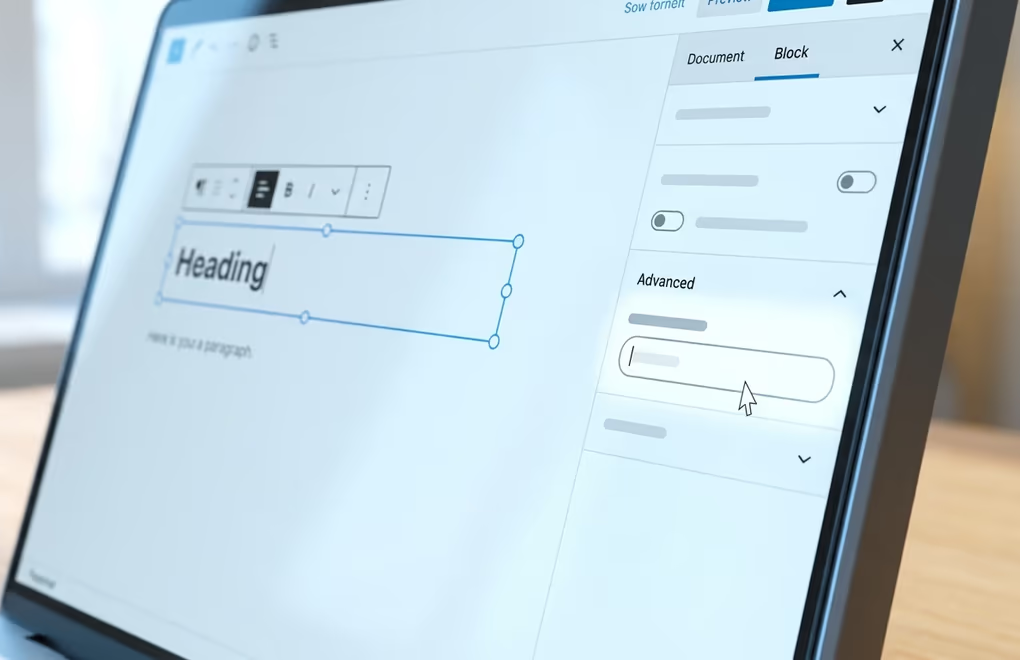
You add anchor links by hand, using nothing but the blocks WordPress already gives you. The idea is straightforward, since every heading gets a short HTML anchor and you build a list at the top of the post where each item links to one of those anchors. It takes a few minutes, adds zero extra code to your site, and works on any theme or WordPress version.
Here is the process step by step.
- Click a heading block, open the Block settings sidebar, and expand the Advanced panel at the bottom.
- In the HTML anchor field, type a short unique word for that section, such as pricing or setup.
- Repeat for every heading you want in the list, keeping each anchor lowercase and free of spaces.
- Add a List block at the top of the post, and write one line for each section.
- Select each line, click the link button, and enter a hash followed by the anchor, so the pricing section becomes hash pricing.
Once the links are in, save the post and test them on the live page. Clicking a list item should jump the browser straight to that heading. If a link does nothing, the anchor and the reference almost always disagree on spelling or capitalization, so check that the two match each other exactly.
One more quirk catches people out with anchor links. If your theme keeps a header fixed at the top of the screen while you scroll, a jump can land with the target heading tucked up behind that bar. Most themes that ship a sticky header already account for it, but it’s worth a quick check once your list is live. If a heading lands partly hidden, adding a little scroll-margin to your headings in CSS pushes the landing point down so the title clears the bar cleanly.
This method has one honest downside. It doesn’t update itself, so when you add or rename a section later, you have to edit the list by hand. For posts you write once and rarely touch, that’s a fair price for a table of contents that adds no page weight and can never break on its own. It also rewards clean heading structure, which is where a solid blocks plugin helps. Tools like DigiBlocks give you well-built heading and list blocks with proper controls, so the structure your table of contents depends on stays tidy. If you want more block options in general, our roundup of the best Gutenberg blocks plugins compares the main choices side by side.
Which table of contents plugin should you use?
Pick a plugin when you want the table to build and update itself automatically. A good one scans your headings every time you save, so the list always matches the post without any manual work. That convenience is the whole reason plugins stay popular, especially on sites where the person writing isn’t always the person who set things up.
Easy Table of Contents is the most widely used free option, and it’s a reasonable default. You install it, choose which post types and heading levels it should read, and it inserts the list automatically near the top of each post. It also gives you a shortcode if you’d rather place the table somewhere specific instead. For most blogs, that covers everything you need without touching any code at all.
If you already build posts with a blocks plugin, check whether it includes a table of contents block before you add anything new. Spectra and Ultimate Blocks both ship one, and PublishPress Blocks offers a Summary block that generates the list from your headings inside the editor. Using a block you already have is cleaner than loading a second plugin whose only job is one small feature.
Every plugin route shares one cost worth weighing. Each one loads its own CSS, and often a little JavaScript, on every page where the table appears. On a fast, lean site that extra weight is small, but it’s not nothing, and it stacks up when you run many single-purpose plugins together. If speed is a priority, our guide on ways to optimize your WordPress site speed explains how to keep additions like this from dragging down your load times. When a plugin only saves you a manual list, the free method from the previous section is often the lighter call.
How do you turn on the native Gutenberg Table of Contents block?
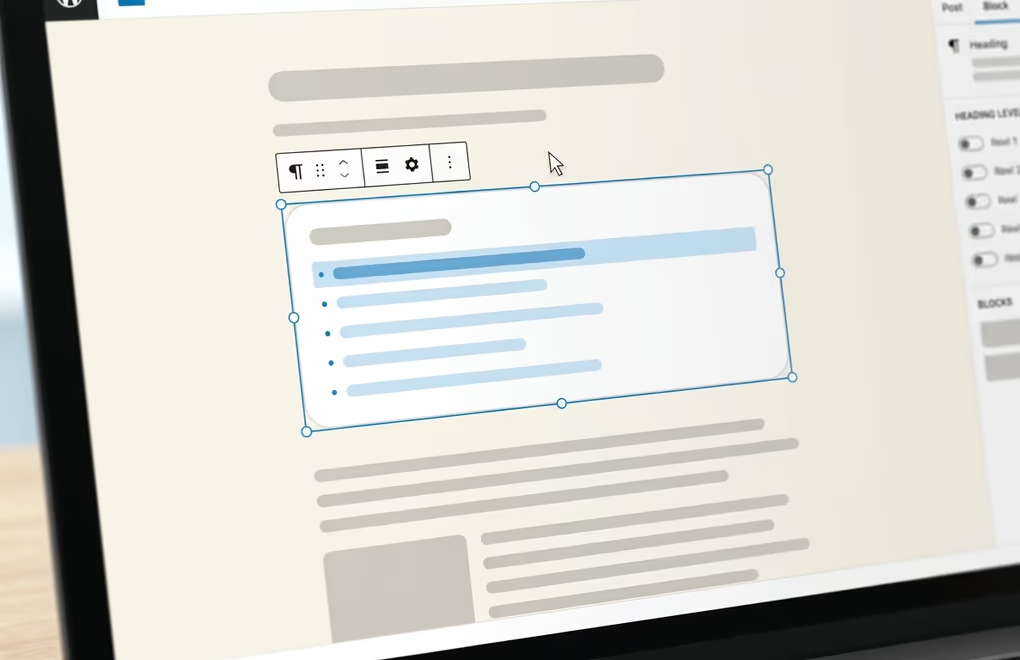
Install the Gutenberg feature plugin first, since that block won’t appear without it. Go to Plugins, then Add New, search for Gutenberg, and install the one published by the WordPress.org team. Once it’s active, open any post, click the block inserter, and search for Table of Contents. The block now shows up in the results, and you drop it wherever you want the list to sit.
The block reads every heading on the page and turns them into links automatically. In the block settings you can limit it to certain heading levels, so a post with H2 and H3 sections can show only the H2s for a shorter list. On posts split across several pages, it can pull headings from the current page alone or from the whole post. The styling controls cover color, typography, spacing, and borders, so the list can match the rest of your theme.
There’s a reason this section comes last. The Gutenberg plugin is a live testing ground, and it updates far more often than WordPress itself, sometimes changing or removing features between versions. Running it on a production site means you’re opting into that pace of change on the pages your visitors actually see. For a personal blog where you enjoy trying new editor features, that risk is easy to accept. For a business site or a client build, it’s usually the wrong call.
So the native block is worth knowing about, but it’s the option to reach for only when you specifically want it and understand what you’re running. If you just need a dependable table of contents, the manual method or a stable plugin will serve you better and outlast any single beta release of the editor.
Choosing the right method for your site
The best method depends on how you work, not on which one is newest. For most people, the manual anchor approach is the smartest starting point, because it costs nothing, adds no page weight, and keeps working forever. It suits posts you write and largely leave alone, which describes most evergreen guides and reference pages.
Reach for a plugin like Easy Table of Contents when you publish often, manage several authors, or simply don’t want to maintain a list by hand. The automatic updates pay for the small amount of extra page weight once you’re producing content at real volume. Keep an eye on how many single-purpose plugins you stack up, and lean on the block your builder already provides whenever it has one.
Leave the native Gutenberg block for cases where you actively want to test upcoming editor features and accept the beta plugin behind it. Whichever route you pick, the real work is clean, logical headings, since every table of contents is only ever as useful as the structure it reflects.



0 Comments on "WordPress Table of Contents: How to Add One in 2026"