

To duplicate a page in WordPress you have four dependable options, and the best one depends on what you plan to do with the copy. You can copy every block with the built in editor, install a one click duplication plugin like Yoast Duplicate Post, save the layout as a synced pattern you reuse anywhere, or clone the design inside your page builder. A quick one off copy calls for the native method, while a layout you reuse across many pages is better handled by a synced pattern.
Most tutorials tell you to install a plugin and stop there. That advice works, but it hides two things worth knowing before you rely on it. WordPress already copies content on its own without any plugin, and no method copies everything by default. A featured image, an SEO title, a page template and custom fields do not always travel with the content, which is why a freshly duplicated page can look half finished the first time you try it.
This guide walks through every method that works in WordPress 7.0.2, the current release as of 2026. You will see the exact steps for each one, what each method actually copies, when a plugin earns its place, and how to avoid the duplicate content problem that can quietly split your search rankings. Knowing which option sits behind which click matters more than any screenshot, so the steps below name every button by its real label.
Duplicating a page feels trivial until you need the copy to behave a certain way. Someone rebuilding a services page wants the same layout with fresh wording. A shop owner testing two versions of a sales page wants an identical starting point. A team building ten near identical location pages wants one master they can update in a single place. Each of those goals points to a different method, and sorting that out is the whole point of this article.
Why would you duplicate a page in WordPress?
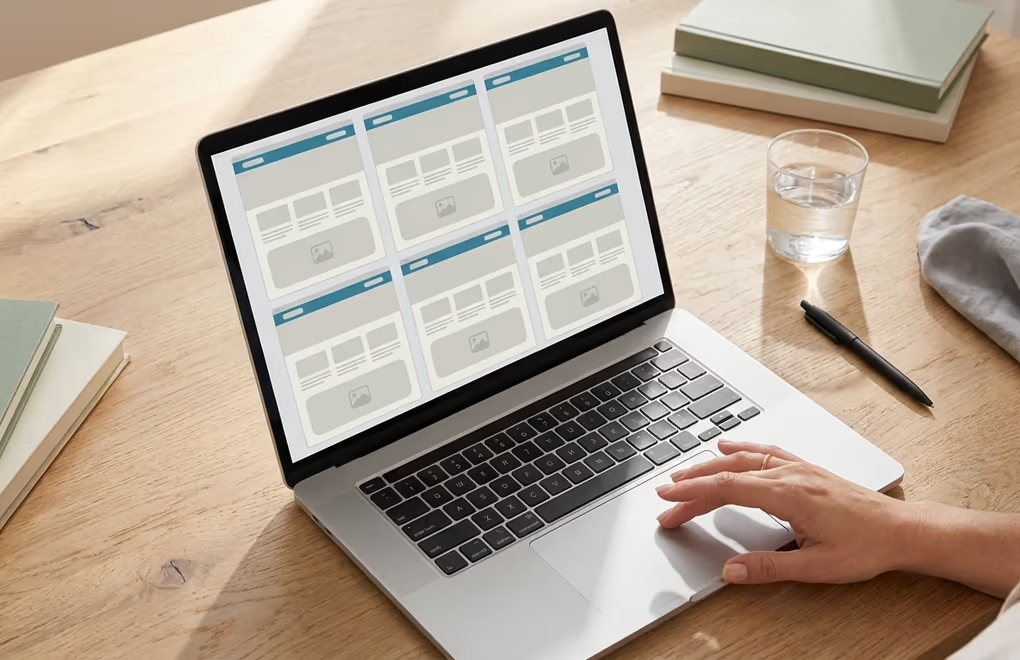
People duplicate a page in WordPress to reuse a layout that already works instead of rebuilding it block by block. Once you have a page with the right structure and section layout, copying it is far faster than starting from an empty canvas, and the copy keeps your design consistent across the whole site.
The most common reason is safe editing. When you want to redesign a live page, working directly on the published version is risky, since every save is instantly public and a mistake shows up for visitors right away. Duplicating the page gives you a private draft to rework at your own pace, and you only replace the original once the new version is genuinely ready to go live.
Building similar pages is the next big use. Location pages and service pages usually share the same skeleton with different words and images, and so do most product landing pages. Rather than recreate that skeleton every time, you duplicate a finished page and swap the content, which keeps a whole batch of pages visually identical even when different people edit them over several months.
Testing is another honest reason to make a copy. If you want to compare two versions of a sales page or a landing page, you need a clean copy as your baseline before you change the headline or the call to action. Anyone running that kind of comparison wants both versions to start from exactly the same layout, so the only real difference is the part they are actually testing.
There is a quieter reason too. Some site owners duplicate a page before a big change simply as a backup they can fall back on. WordPress already keeps revisions in the background, but a full duplicate is easier to find and restore in a hurry, especially when a client asks you to undo a redesign a week after it went live.
How do you duplicate a page in WordPress without a plugin?

You can duplicate a page in WordPress without any plugin by copying all of its blocks and pasting them into a new page. The block editor has a built in option for exactly this, so you do not need to install anything, and it behaves the same way on posts and pages.
Open the page you want to copy in the block editor. Click the three dot Options menu in the top right corner of the screen, then choose Copy all blocks near the bottom of that menu. WordPress copies every block on the page to your clipboard in one go. Now create a new page from Pages then Add New, click once inside the empty content area, and paste with Control and V on Windows or Command and V on a Mac. Every section and heading lands in the new page in the same order, along with any images you had placed.
The native copy has one important limit worth understanding before you rely on it. It copies the content blocks and nothing else. The page title stays empty, the URL slug is brand new, and the featured image, the page template, the parent page setting and any custom fields do not come across. Your SEO title and meta description from Rank Math or Yoast also stay blank on the copy. None of that is a bug, it is simply the difference between copying content and cloning a whole page.
So the native method suits a genuine one off. If you need a single copy today and you are happy to set the title, featured image and SEO fields again by hand, copying all blocks is the fastest route and it keeps your install lean. The blocks you paste keep whatever custom blocks your layout was built from, so if your design leans on a strong library, choosing the best Gutenberg blocks plugins for your build pays off here, because the duplicated page carries those same blocks with no extra work.
One caveat trips people up more than any other. Copy all blocks lives in the block editor, so a page built entirely inside a page builder like Elementor or Divi will not expose its sections to this menu. Those builders keep their own duplicate feature instead, usually a clone button on the layout or a save as template option, and you use that rather than the WordPress copy tool.
Which plugin duplicates a WordPress page in one click?

A duplication plugin like Yoast Duplicate Post duplicates a WordPress page in one click, and it copies the parts the native method leaves behind. Yoast Duplicate Post is the most widely used option, with more than three million active installations, and it stays tested against the current WordPress release rather than sitting abandoned.
Once the plugin is active, you get a duplicate control right where you need it. Hover over any page in the Pages list and three new links appear. Clone makes an instant copy as a draft with no extra clicks at all. New Draft makes a copy and opens it in the editor straight away so you can start changing it. Rewrite and Republish makes a working copy of a live page, and when you finish editing it merges your changes back into the original, which keeps the same URL and its ranking history intact.
The reason people reach for a plugin is coverage. A one click clone can bring across the featured image, the taxonomies, the page template and, once you switch it on in the settings, the custom fields and the SEO meta as well. You control exactly what copies from the plugin settings screen, so a page cloned this way arrives almost complete rather than as a bare stack of blocks. That saves real time when you clone the same template dozens of times a month.
Yoast Duplicate Post is not the only choice, and a couple of alternatives do the same core job well. Duplicate Page is a lighter plugin focused purely on cloning to a draft, and Post Duplicator handles custom post types cleanly if you sell products or run a directory. Any of them is safe to run, so the deciding factor is usually how much control you want over what gets copied rather than raw speed.
There is also a no plugin route for people who dislike adding another plugin. You can paste a short function into your theme functions file that adds its own duplicate link to the Pages list. It works, but it puts custom code in a place that a theme update can wipe, and a small mistake in that file can take the whole site down. For most people a well maintained plugin is the safer trade, and you can always remove it once the cloning work is finished.
How do synced patterns reuse a layout instead of duplicating?

Synced patterns let you reuse one saved layout across many pages, which often beats duplicating a page outright. Instead of making separate copies that drift apart over time, you keep a single master block that you drop onto any page, and you decide whether edits to it should ripple everywhere or stay local to one page.
WordPress renamed reusable blocks to synced patterns back in version 6.3, and the idea is simpler than the name suggests. A synced pattern is a saved group of blocks. When you edit a synced pattern in one place, every page that uses it updates automatically, which is perfect for a call to action box or a pricing panel that has to stay identical everywhere. You change it once and the whole site follows along.
You also get the opposite behaviour whenever you want it. An unsynced pattern drops the same starting layout onto a page as an independent copy you can freely rewrite, and changing one copy leaves the others alone. That is closer to classic duplication, except you are pulling from a clean saved template rather than hunting for an old page to copy. For building those near identical service pages, an unsynced pattern is often tidier than duplicating a live page at all.
Creating one takes only a few seconds. Select the blocks you want to save, open the same three dot menu on the toolbar, and choose Create pattern. You name it, decide whether to keep it synced, and from then on it lives in the block inserter under Patterns, ready to add to any page. Managing all of them happens in the Site Editor, and if you already use full site editing, patterns and template parts sit right next to each other there.
This is where a strong block suite pays off. DigiBlocks ships a library of ready made section patterns, so instead of building a hero or a pricing table from scratch and saving it, you start from a designed pattern and adjust it to fit. Combined with synced patterns, that turns repeated layout work into a one time setup, and it removes most of the reasons you would have duplicated a page in the first place.
Does duplicating a page hurt your SEO?
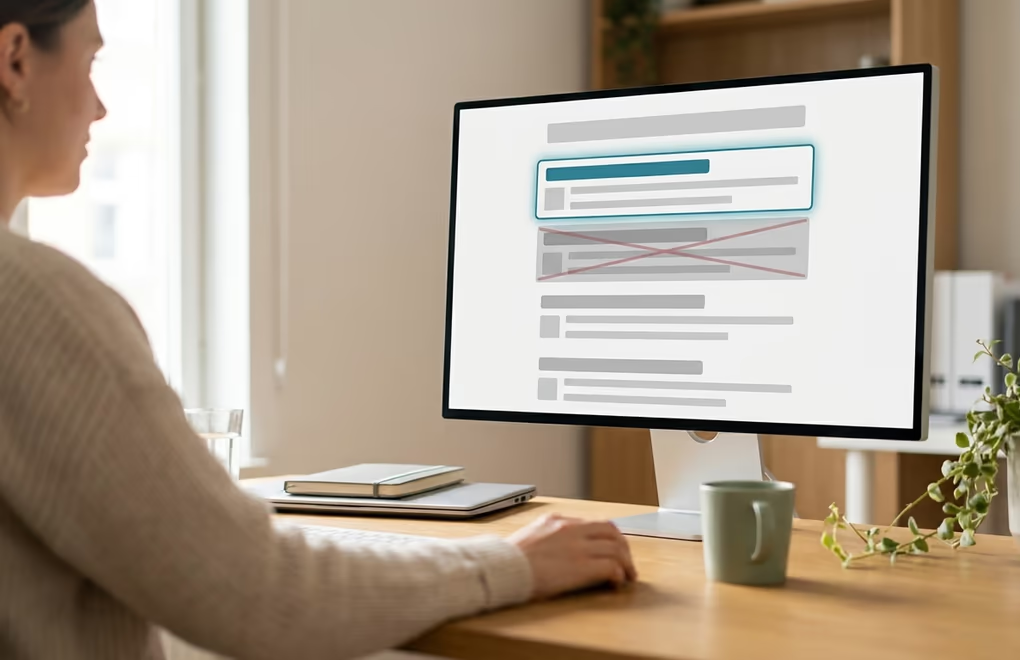
Duplicating a page only hurts your SEO if you publish two live pages with the same content and give search engines no way to tell which one matters. The act of copying is completely safe on its own. The risk appears the moment both copies are public, indexable and nearly identical, because then Google has to guess which version to rank and may split the signals between them.
The cleanest habit avoids the problem entirely. Keep the copy as a draft while you work on it, since a draft is never crawled or indexed, so it cannot compete with the original page. Most duplication is temporary anyway, a redesign or a quick test, and by the time you publish the new version you usually delete or replace the old one. Handled that way, there is never a window where two identical pages sit live at the same time.
Sometimes both pages genuinely need to stay online, and there is a proper way to handle that case. If you keep a near duplicate on purpose, set a canonical tag on the copy that points back to the original, which tells search engines the original is the version they should rank. When even that is not enough, add a noindex tag to the copy so it stays available to visitors but drops out of search results cleanly. Both settings take one dropdown each inside a good SEO plugin.
This is where an SEO plugin earns its keep. Rank Math and Yoast both let you set the canonical URL and the noindex option per page from a simple box in the editor, so you never have to touch code to fix a duplicate content issue. If you clone pages often, it is worth checking those two settings on every copy before it goes live, because an accidentally indexed duplicate is the single most common way this goes wrong.
One myth deserves a direct answer here. A duplicated draft, or a copy you delete right after a test, does no harm at all to your rankings, and WordPress will not penalise you for making copies. Search engines only care about what is publicly live and indexable, so as long as you control that final state, you can duplicate as freely as your workflow needs.
Picking the right method for your workflow
The right way to duplicate a page in WordPress comes down to how often you expect to reuse it. A single copy today is a job for the native Copy all blocks option, since it needs no plugin and takes under a minute, and you simply reset the title and featured image afterward.
When you clone pages regularly and want the featured image, template and SEO meta to come along, a plugin like Yoast Duplicate Post saves that repeated setup and gives you the Rewrite and Republish flow for safely reworking live pages. For a layout you reuse and want to update in one place, synced patterns or a designed pattern from DigiBlocks are the better long term answer, because they replace copying with reusing. Match the method to the goal and duplicating a page stops being a chore and becomes a two minute step inside a bigger job.
Whatever route you pick, keep the SEO side in mind before you hit publish. Work on copies as drafts and set a canonical or noindex tag on any duplicate that has to stay live, then delete the copies you only made for a test. Do that and you get all the speed of duplication with none of the ranking risk, on any WordPress site you happen to manage.



0 Comments on "How to Duplicate a Page in WordPress"