

You are tired of your WordPress site that is rowing? To see your visitors leave before they even say “WordPress”? I understand you, WordPress loading speed is a subject that is particularly close to my heart, and for cause: a slow site is like a store with an endless queue in front of the checkout. Customers leave in frustration.
In my job as a web developer, I often saw WordPress sites that could be real rockets, but they crawl like snails. The worst? Most of the time, a few simple optimizations would be enough to optimize your site speed. According to Google’s studies, 53% of visitors leave a mobile site that takes more than 3 seconds to load. That is to say, with a slow site, you literally throw your traffic out the window.
But don’t worry, I’m not here to scare you. On the contrary! I will share with you 8 proven and simple techniques to optimize the speed of your WordPress site. Solutions that I apply with amazing results. And the best in all of this? You don’t need to be a programming genius to set them up.
Choose a Quality Hosting Provider

The choice of hosting is fundamental for WordPress loading speed. The performance of your site depends directly on the available server resources: CPU, RAM, storage type and server configuration.
In the case of low-end shared hosting, you share these resources with hundreds of other sites. Result? Server response times that can exceed 1 second, while the ideal is below 200ms.
The following are the different hosting options, classified by performance:
Shared hosting :
- Suitable for sites with little traffic
- Resources shared with other sites
- Performance varies according to time and load
- Limited server configuration
- Good starting point for small budgets
VPS (Virtual Private Server) :
- Guaranteed and dedicated resources
- Better isolation from other customers
- Customizable server configuration
- Ideal for medium to large sites
- Excellent price/quality ratio
Dedicated Server :
- Maximum performance
- Full control of configuration
- 100% dedicated resources
- Suitable for large e-commerce sites
- Requires technical skills
The essential criteria for choosing your host :
- Automatic backups included
- Servers located in your country for better latency
- Responsive and competent technical support
- Modern infrastructure (SSD, recent PHP, nginx)
- Bandwidth guaranteed
- Availability rate > 99.9%
Hosting benchmarks (tests performed on a standard WordPress site) :
Shared hosting :
- Average response time: 800ms – 1.5s
- Time to first byte: 500ms
- Peak load: degraded performance
Optimized VPS :
- Average response time: 200-400ms
- Time to first byte: 100ms
- Stable performance even under load
Dedicated server :
- Average response time: 100-200ms
- Time to first byte: 50ms
- Consistent performance
Recommended server configurations :
PHP-FPM :
- memory_limit = 256M
- max_execution_time = 300
- max_input_vars = 3000
- upload_max_filesize = 64M
- post_max_size = 64M
- opcache.enable = 1
- opcache.memory_consumption = 256
MariaDB vs MySQL :
MariaDB :
- Better read performance (15-20% faster)
- Support of the latest optimizations
- Improved memory management
MySQL :
- More stable
- Extended support
- Best performance in writing on large volumes
Recommended hosts :
Hostinger :
✓ Very attractive prices
✓ Modern user interface
✓ One-click WordPress installation
✓ Solid performance
✓ Multilingual 24/7 support
✓ Free SSL and CDN
✓ WordPress staging environment
Bluehost :
✓ Official WordPress.org recommended host
✓ One-click WordPress installation
✓ Free domain for first year
✓ 24/7 expert support
✓ Automatic WordPress updates
SiteGround :
✓ Exceptional speed optimization
✓ Advanced security features
✓ Free SSL and CDN
✓ Daily automatic backups
✓ WordPress staging environment
✓ Premium WordPress migration tool
✓ Expert WordPress-specific support
If you feel the need to change hosting providers, feel free to check the migration article to easily switch from your current host to your new one.
Install a Powerful Cache Plugin
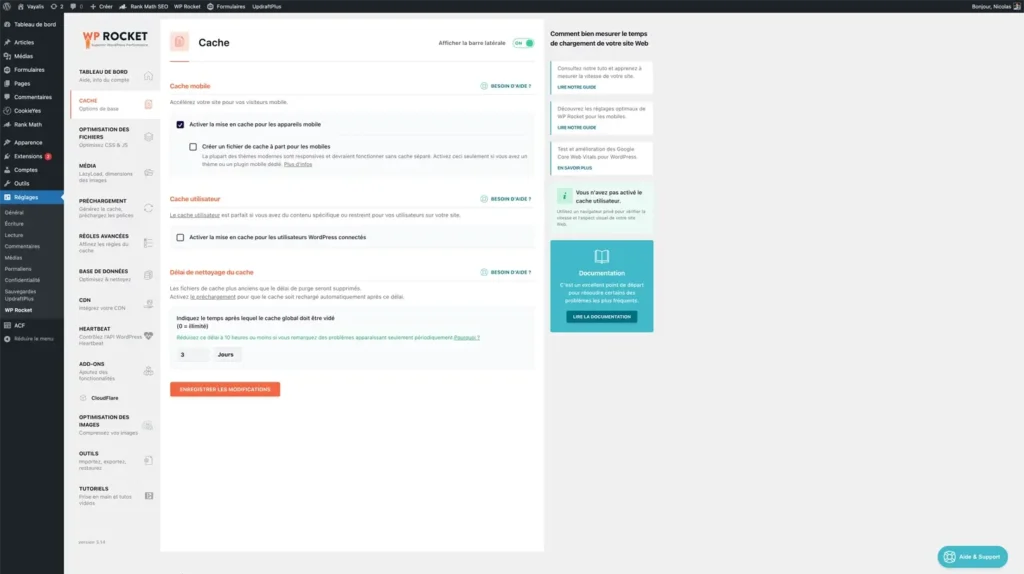
The cache is a crucial element of WordPress optimization. Without a cache, WordPress must run dozens of PHP and MySQL queries each time it generates a page. The cache allows to store the final result and serve it directly to subsequent visitors. For a full breakdown of the top options, see our best WordPress caching plugins comparison.
WP Rocket is our #1 choice for several reasons:
Advanced configuration:
- Full page cache with configurable duration
- Intelligent preloading of pages
- Cache database queries
- CSS/JS Minification and Concatenation
- Google font optimization
- Defer JavaScript
- Optimized browser cache
The essential settings to configure:
- Enable the mobile cache
- Configure exclusions (shopping cart, user account)
- Enable gzip precompression
- Optimize browser cache (expire headers)
- Set up lazy loading
- Enable minification with care
Free alternatives :
- WP Fastest Cache: The best free cache plugin
- WP Super Cache: Simple but effective
- LiteSpeed Cache: Great if your host uses LiteSpeed
- W3 Total Cache: Very complete but complex and has become a gas plant for your site
Small comparison of 4 big cache plugins and why I recommend WP Rocket:
Feature | WP Rocket | WP Fastest Cache | WP Super Cache | W3 Total Cache |
|---|---|---|---|---|
Price | $59/year | Freemium | Free | Freemium |
Easy configuration | ||||
Desktop Cache | ||||
Mobile Cache | ||||
Database Cache | ||||
Minify CSS | ||||
Combine CSS | ||||
Minify JS | ||||
Combine JS | ||||
Lazy Loading | ||||
GZIP | ||||
Browser Caching | ||||
Support | Premium | Community | Community | Community |
Optimize your images

The optimization of images is a major lever for WordPress loading speed. Studies show that images represent on average 50% of the total weight of a web page. Efficient optimization can reduce this weight by 40 to 80% without any visible loss of quality. Our WebP vs AVIF image optimization guide covers modern formats in more detail.
Optimization before upload :
- Dimensions adapted to the use (do not upload images of 4000px)
- Removing unnecessary metadata (EXIF data)
- Compression with dedicated tools
- Choosing the right format for the image type
Recommended formats according to usage :
- WebP: Modern format supported by 95% of browsers
- SVG: Vector logos and icons
- JPEG: Photos and images with lots of colors
- PNG: Images with transparency or few colors
Recommended optimization tools :
Automatic :
- Imagify ($0,009/image)
- ShortPixel (around $0,08/image)
- EWWW Image Optimizer (free)
Manual :
- TinyPNG (free)
- Squoosh.app (free, great for WebP)
- ImageOptim (free, Mac only)
Advanced configuration :
- Lazy loading native or via WP Rocket
- Setting up srcset for responsive
- Using a CDN for images
- Compression on the fly via nginx
Clean your Database

A well-maintained database is essential to maintain good performance. Over time, WordPress accumulates data that can significantly slow down queries.
Tables to clean regularly:
wp_posts Table :
- Article revisions (limit to 5 maximum)
- Abandoned draft articles
- Articles in the trash
wp_postmeta Table :
- Orphan metadata
- Data from uninstalled plugins
wp_options Table :
- Uninstalled plugin options
- Expired transients
wp_comments Table :
- Spam comments
- Pending comments old
Secure cleaning procedure :
- Perform a full backup
- Use WP-Optimize or Adminer
- Analyze the tables one by one
- Repair and optimize tables
- Check integrity after cleaning
Automated maintenance :
// Limit revisions
define('WP_POST_REVISIONS', 5);

// Empty the trash after 15 days
define('EMPTY_TRASH_DAYS', 15);

// Transients Expiration
define('TRANSIENT_TIMEOUT', 86400);
Minimize HTTP Requests

The number of HTTP requests has a direct impact on WordPress load speed. Each CSS, JavaScript, image or external font file requires a separate connection to the server. Tests show that a 50% reduction in queries can improve loading times by up to 30%.
Query reduction strategies:
CSS files :
- Combine multiple style sheets
- Inline critical CSS
- Remove unused styles
- Load non-critical CSS asynchronously
JavaScript :
- Group scripts
- Delay loading (defer/async)
- Load only on the necessary pages
- Disable unnecessary scripts per page
Good practices :
1. Audit regularly with :
- Chrome DevTools
- GTmetrix
- WebPageTest
2. Identify problematic scripts :
- Poorly optimized WordPress plugins
- External social widgets
- Analytics and tracking tools
- Ad scripts
3. Technical solutions :
- Use HTTP/2
- Enable GZIP compression
- Set up a good browser cache
Use a CDN (Content Delivery Network)

A CDN is crucial for WordPress performance, especially for sites with an international audience. The data shows an average 50% improvement in load time for remote visitors from your main server.
Types of CDN available :
CDN Pull (the simplest) :
- Automatic configuration
- Passive synchronization
- Example: Cloudflare
- Ideal for small sites
CDN Push (more efficient) :
Price :
- Cloudflare (Free or $20/month)
- BunnyCDN ($0.01/GB)
- KeyCDN ($0.04/GB)
Optimize your WordPress Theme
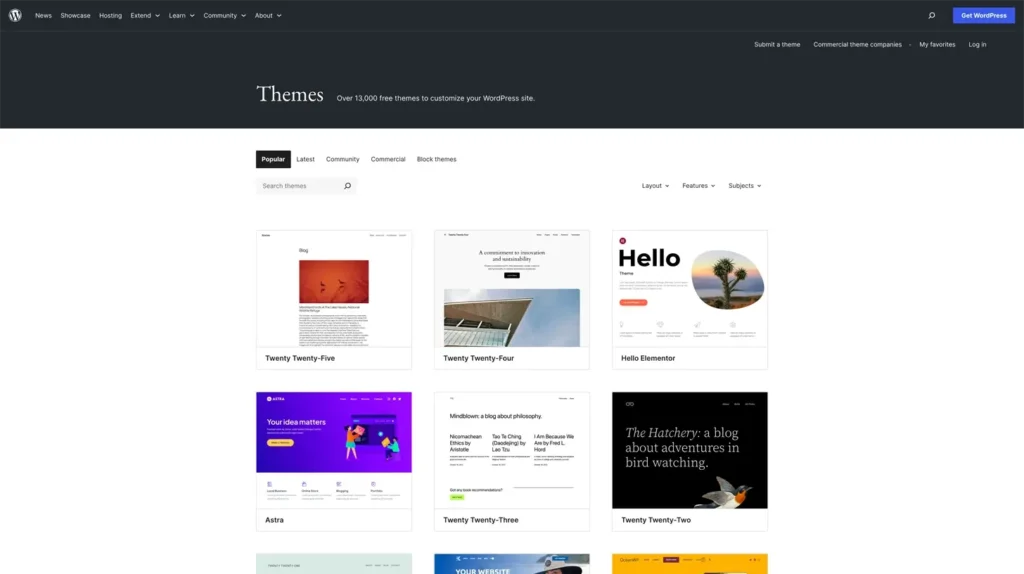
The architecture of your WordPress theme is crucial for the performance of your site. A poorly designed theme can multiply by three your loading times, regardless of the quality of your hosting. If you’re looking for faster options, check our fastest WordPress themes roundup.
Criteria for assessing a theme:
Technical structure:
- Total file weight < 2MB
- Number of requests < 50
- Initial render time < 1.5s
- Core Web Vitals Score > 90
Critical points to check :
- Modular architecture
- Conditional loading of resources
- Support for the latest PHP versions
- Native image optimization
- Gutenberg compatibility
Good development practices :
// Load scripts correctly
wp_enqueue_script('my-script', 'path', array(), '1.0', true);

// Load styles in an optimized way
wp_enqueue_style('my-style', 'path', array(), '1.0', 'all');

// Disable WordPress emoji
remove_action('wp_head', 'print_emoji_detection_script', 7);
remove_action('wp_print_styles', 'print_emoji_styles');
Keep your website up to date
Regular maintenance is essential to maintain optimal WordPress performance. An unmaintained site can lose up to 30% of its performance in one year.
Complete maintenance plan:
Weekly updates:
- Core WordPress
- Plugins and themes
- PHP and MySQL
- SSL and security
Monthly maintenance :
1. Performance :
- Speed tests
- Log analysis
- Database optimization
- Cache check
2. Security :
- Scan malware
- Access Check
- Audit of users
- Permissions control
3. Backups :
- Check for backups
- Restoration test
- Rotation of archives
- External storage
Common mistakes to avoid
Mistake #1: Too many optimization plugins
Impact: Conflicts, server overload
Solution: Maximum 2-3 essential plugins
Mistake #2: Cache configuration is incorrect
Impact: Invalid cache, display issues
Solution: In-depth test on staging environment
Mistake #3: Images not optimized before upload
Impact: Server overload, slow
Solution: Systematic optimization process
Mistake #4: Theme too heavy
Impact: Code blocked, performance reduced
Solution: Custom theme or light theme
Mistake #5: No performance tracking
Impact: Invisible progressive degradation
Solution: Monthly monitoring with appropriate tools
Conclusion
Optimizing the speed of your WordPress site is not just an option, it’s an absolute necessity in a web where every millisecond counts. The data is clear: a 0.1 second speed improvement can increase your conversions by 8%, while a slow site can drop your traffic by 50%.
Frequently Asked Questions
What is the real impact of speed on SEO?
Do I need to install all the optimization plugins available?
How do I know if my site is really slow?
– Google PageSpeed Insights for Core Web Vitals
– GTmetrix for detailed analysis
– WebPageTest for geolocated tests A score of less than 80/100 on these tools indicates a need for optimization.
I have a popular premium theme, is it enough to have a fast site?
How often should I optimize my WordPress site?
– Weekly performance check
– Monthly database optimization
– Quarterly full audit
– Annual infrastructure review





0 Comments on "8 simple ways to optimize your WordPress site speed"