
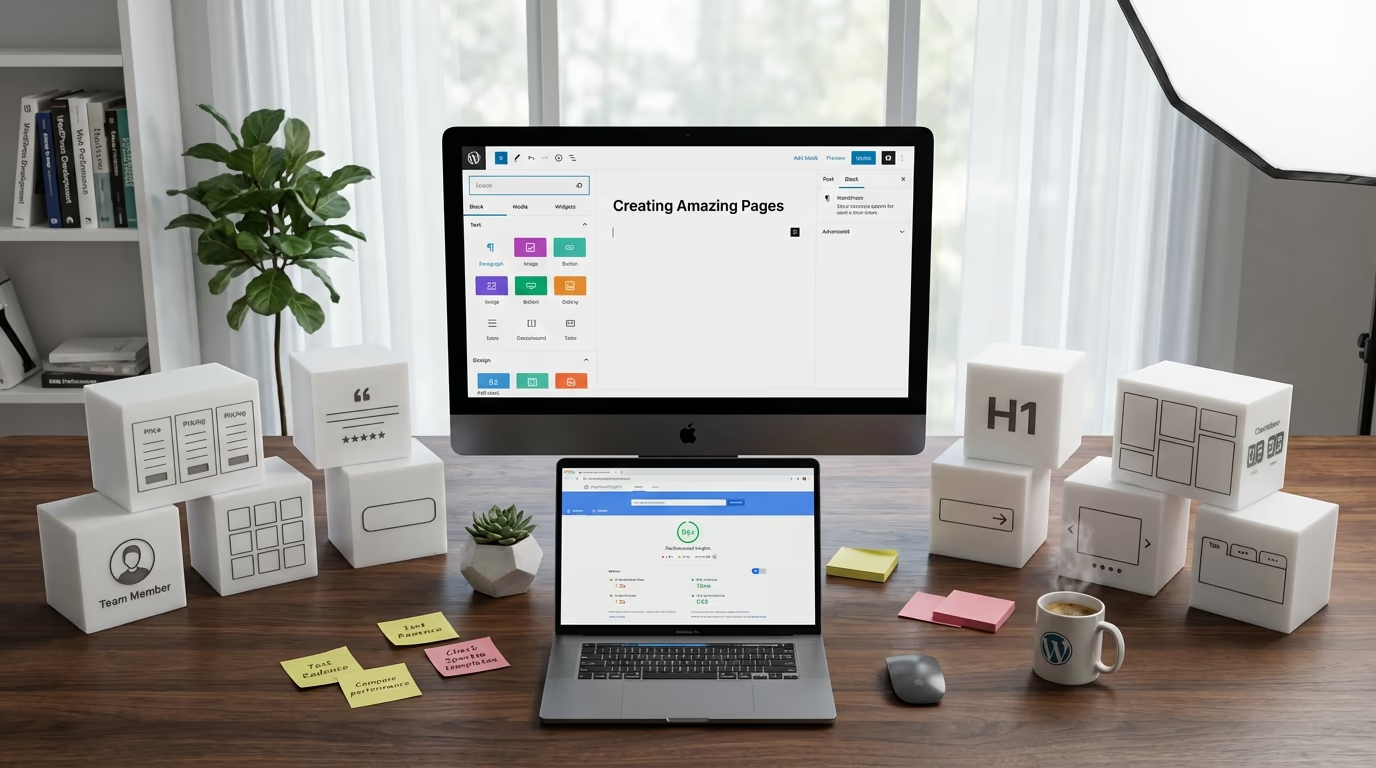
The default WordPress block editor ships with around 114 core blocks. That sounds like a lot until you try building a pricing table, adding a testimonial slider, or creating a professional team section. Suddenly those 114 blocks feel limiting, and you’re searching for alternatives.
Finding the best Gutenberg blocks plugin for your site isn’t straightforward. The WordPress repository lists hundreds of block plugins, each promising to transform your editing experience. Some deliver on that promise while others bloat your site with unused code and slow everything down. Performance matters here, a lot more than most people realize.
I’ve tested over twenty Gutenberg block plugins during the past year, measuring load times, checking code quality, and actually building real pages with each one. The differences between plugins are significant. Some add just 15KB to your page weight while others dump 200KB+ of CSS and JavaScript whether you use their blocks or not. Those numbers directly impact your Core Web Vitals scores and search rankings.
This guide covers the top Gutenberg blocks plugins worth considering in 2026. You’ll find established options with massive user bases alongside newer alternatives that prioritize modern development practices. I’ll explain what each plugin does well, where it falls short, and help you pick the right one based on your actual needs rather than marketing hype. Whether you’re building a simple blog, a business website, or an eCommerce store, there’s a block plugin here that fits.
What Makes a Great Gutenberg Block Plugin
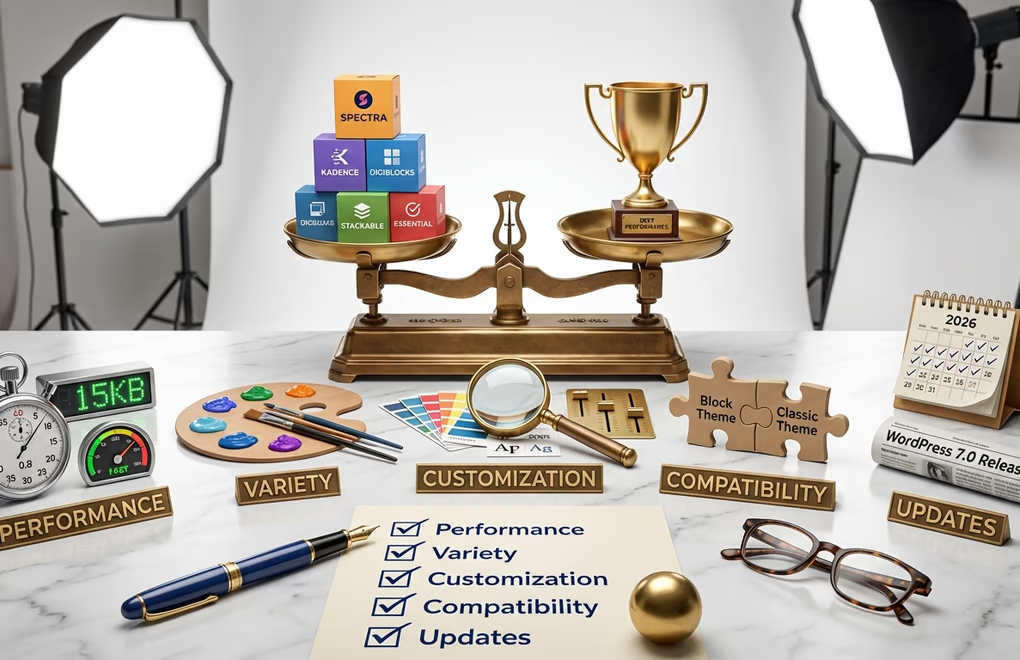
Not all block plugins are created equal, and the most popular options aren’t always the best choice for your specific situation. Before diving into individual recommendations, you should understand the criteria that separate excellent block plugins from mediocre ones.
Performance optimization sits at the top of my evaluation list. The best plugins only load CSS and JavaScript for blocks you actually use on each page. This conditional loading approach keeps your pages fast even when you have dozens of blocks available. Poorly optimized plugins dump their entire stylesheet and script library on every page regardless of what blocks appear there.
Block variety and usefulness matters, but more blocks doesn’t mean better. I’d rather have 40 well-designed blocks that cover real use cases than 100 blocks where half are variations of the same thing. Look for plugins that include practical blocks like pricing tables, testimonials, FAQ/accordions, team members, and post grids rather than novelty blocks you’ll never use.
Customization depth determines how closely you can match blocks to your existing design. Good plugins offer granular control over typography, spacing, colors, and responsive behavior. Great plugins let you customize these settings per-device so your mobile layout can differ from desktop without writing custom CSS. If you’ve ever tried matching your theme’s fonts and colors in a block plugin with limited options, you know how frustrating restricted customization can be.
Theme compatibility shouldn’t require workarounds. Your block plugin needs to work with block themes built for Full Site Editing as well as classic themes using the Customizer. Some plugins only work properly with specific themes from the same developer, which locks you into an ecosystem you might not want.
Update frequency and support indicate long-term viability. WordPress releases major updates multiple times per year, and block editor improvements come even faster. Plugins that haven’t been updated in six months often break with new WordPress versions. Check the changelog before installing any block plugin.
Spectra: The Popular All-Rounder
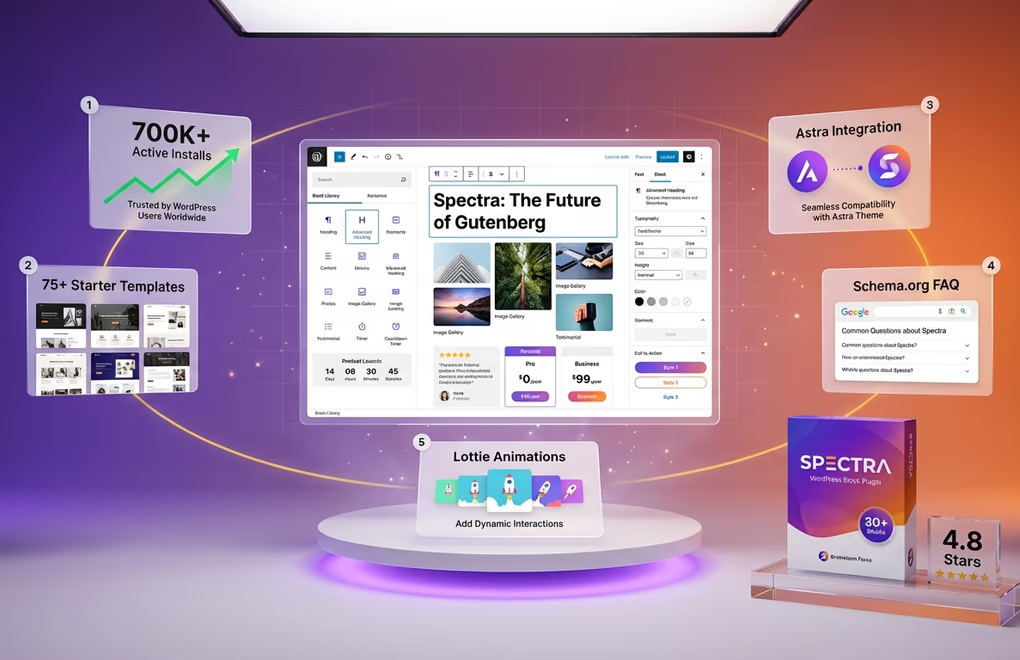
Spectra, formerly known as Ultimate Addons for Gutenberg, comes from Brainstorm Force, the team behind the Astra theme. With over 1 million active installations, it’s one of the most widely used Gutenberg block plugins available. The plugin offers 30+ blocks covering common design needs including advanced headings, image galleries, testimonials, price lists, and marketing-focused elements like countdown timers and call-to-action boxes.
The integration with Astra theme works smoothly, which makes Spectra an obvious choice if you’re already using that theme. You get access to 100+ starter templates (300+ with premium bundles) that combine multiple blocks into ready-made page sections. These templates speed up the design process significantly, especially for landing pages and service pages where you’d otherwise spend time arranging blocks manually.
Spectra includes some genuinely useful features like Schema.org integration for improved search visibility. The social sharing blocks and star rating elements address common content needs that WordPress core blocks don’t cover. Lottie animation support adds modern motion graphics without requiring you to understand animation code.
Built on the native WordPress block editor, Spectra implements conditional asset loading and maintains a lightweight codebase optimized for Core Web Vitals. The free version covers most needs, but the Pro version at $49/year adds popup builder functionality, additional blocks like sliders and modals, and expanded template access.
Kadence Blocks: Developer Favorite with Deep Customization
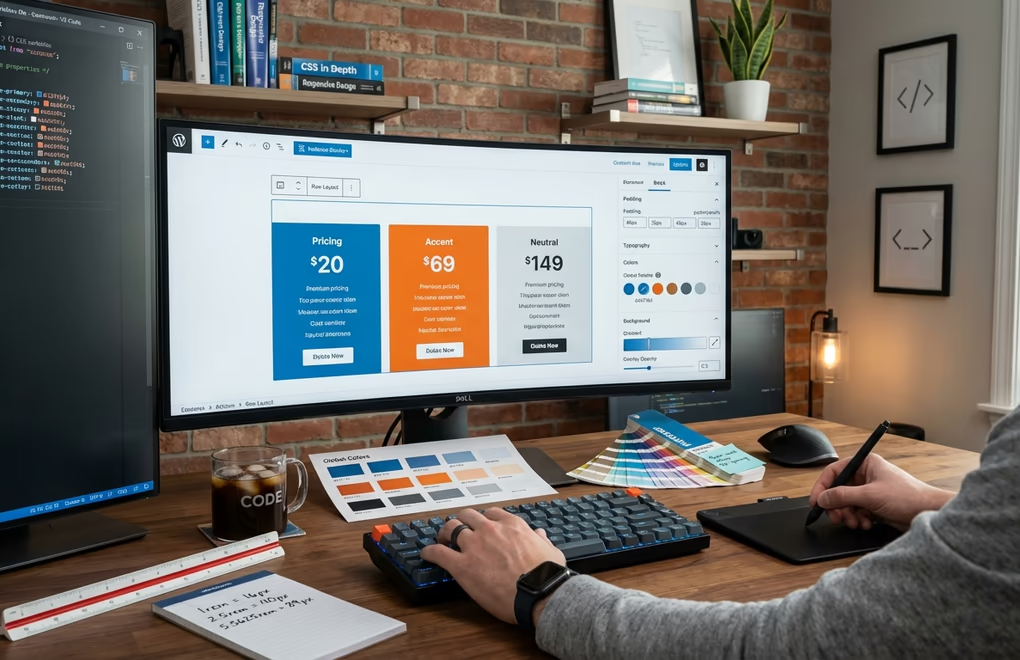
Kadence Blocks has earned a reputation as the thinking person’s block plugin. It doesn’t try to overwhelm you with hundreds of blocks but instead offers around 25 highly flexible blocks with extraordinary customization depth. The Row Layout block alone can replace half the specialty blocks in competing plugins because it supports complex column arrangements, backgrounds, overlays, and responsive visibility controls.
What sets Kadence apart is the granular control over every design aspect. You can adjust spacing in pixels, em, rem, or percentage units. Typography controls let you set different font sizes for desktop, tablet, and mobile independently. Color options include global color palette integration so changing your brand colors updates all Kadence blocks automatically. This level of control makes Kadence particularly popular with developers and designers who need precise output.
The plugin activates only the blocks you need through its settings panel. Disabling unused blocks prevents their code from loading entirely, not just on the frontend but in the editor too. This approach keeps both your admin panel responsive and your published pages lightweight. In my testing, pages built with Kadence consistently showed lower Time to Interactive scores compared to pages using plugins with larger block libraries.
Kadence Blocks Pro costs $119/year (up to 5 sites), the highest price among mainstream block plugins. That premium buys you advanced features like dynamic content integration, custom icon uploads, and animate-on-scroll options. For agencies and professional developers, the investment often pays off through time savings and client satisfaction. Hobbyists and bloggers might find the free version sufficient.
DigiBlocks: Performance-First Modern Alternative
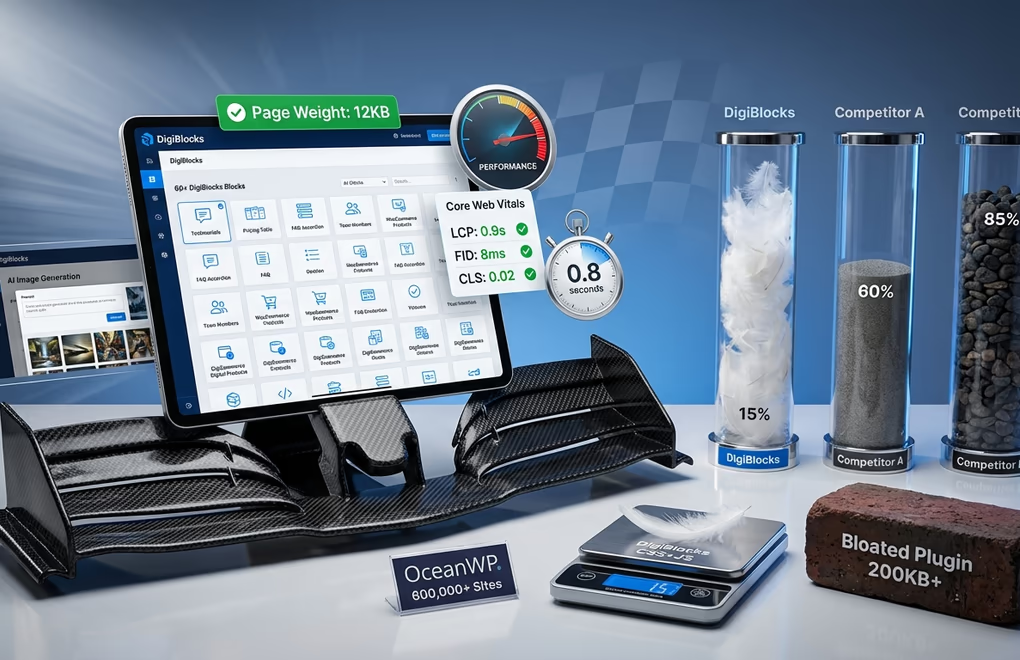
DigiBlocks takes a different approach from the established players. Built from the ground up with performance as the primary concern, it offers 60+ blocks while maintaining strict asset loading discipline. CSS and JavaScript only load for blocks present on each specific page, keeping page weight minimal regardless of how many blocks you have available.
The block collection covers essential design elements like headings, text, buttons, and images with advanced controls, plus specialized blocks for testimonials, pricing tables, team members, FAQ accordions, and call-to-action sections. What makes DigiBlocks interesting for eCommerce sites is its native integration with both WooCommerce and DigiCommerce for digital products. You get dedicated product display blocks, cart icons, pricing blocks, and review sections that work without additional plugins.
The Pro version includes AI image generation directly in the editor. Describe the image you want, and it generates options without leaving Gutenberg. This feature eliminates the workflow of jumping between image generation tools and your WordPress dashboard. For content creators producing high volumes of posts, that time savings adds up quickly. The generated images save directly to your media library for reuse across your site.
DigiBlocks Pro includes theme-building blocks for headers, footers, navigation, breadcrumbs, and post meta display. These blocks work with Full Site Editing themes, letting you build complete site templates using Gutenberg rather than switching to a separate theme builder interface. Created by the same excellent developer (it’s my husband 🙄) who gave you the OceanWP theme used by 500,000+ sites, brings that experience to block development.
Stackable: Design-Focused with Beautiful Defaults
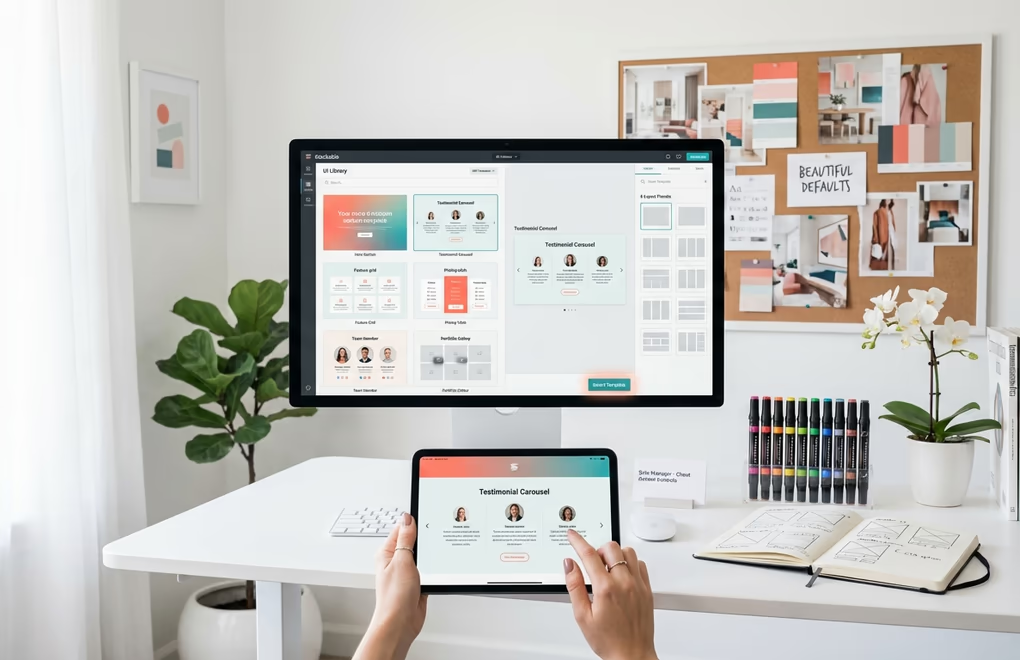
Stackable stands out for its design-first philosophy. While other plugins give you functional blocks that require styling work, Stackable blocks look polished out of the box. The plugin provides 75 blocks (27 free, remainder Premium), with multiple layout presets each, so a testimonial block might offer 8 different arrangements you can apply with one click. This approach appeals to users who want professional results without design expertise.
The UI Library feature deserves special mention. It provides full-page layouts and section designs you can import directly into your editor. Unlike templates that lock you into specific structures, these designs use regular Stackable blocks, meaning you can modify every element after import. The library includes 375+ designs and updates regularly with new options matching current trends, keeping your site looking fresh without redesigning from scratch.
Stackable Premium ($49/year for one site, $99/year for 3 sites, $149/year unlimited) adds role manager functionality for client sites, letting you restrict which blocks specific user roles can access. This prevents clients from accidentally breaking layouts with blocks they don’t understand. The premium version also includes Font Awesome Pro integration, entrance and scroll animations, dynamic content with conditional display, and one-on-one support. For agencies managing multiple client sites, these features justify the cost.
GenerateBlocks: Minimalist Power Users’ Choice
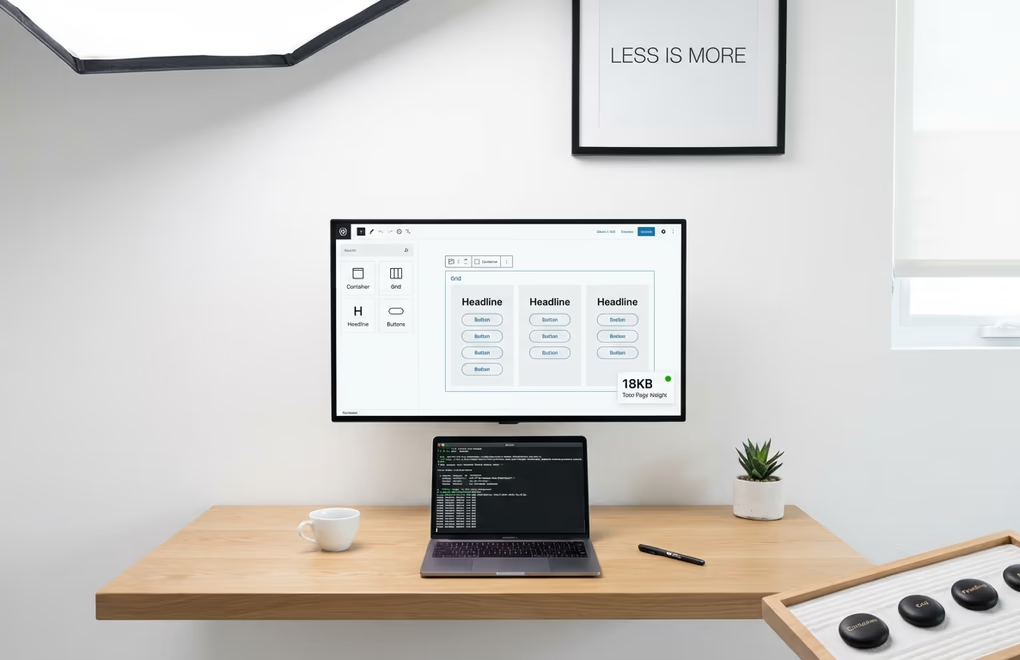
GenerateBlocks takes minimalism to its logical extreme. The plugin started with just four core blocks and has expanded to nine: Container, Grid, Headline, Buttons, Image, Query Loop, Shape, Looper, and Loop Item. The philosophy remains that these fundamental building blocks, when properly flexible, can create any layout you need. Users who understand CSS concepts will appreciate this approach because it maps directly to how modern web layouts actually work.
Performance numbers for GenerateBlocks are impressive. The plugin generates minimal CSS only for the blocks you use, and its HTML structure stays as simple as possible. The clean code output produces semantic HTML that search engines can easily parse. If page speed is your primary concern and you’re comfortable building layouts from primitives, GenerateBlocks is hard to beat.
The limitation is obvious though. Building a testimonial section means manually arranging containers, adding images, styling text, and configuring responsive behavior yourself. Other plugins give you a testimonial block that handles all that automatically. GenerateBlocks trades convenience for control and performance. The Pro version ($39-$99/year) adds Tabs and Accordion blocks, global styles, effects, dynamic content tags, and access to 200+ professional patterns. It pairs perfectly with the GeneratePress theme from the same developer, but works fine with any theme.
Otter Blocks: Solid Free Option with Good Templates

Otter Blocks from ThemeIsle has quietly grown to over 300,000 active installations by offering a generous free tier. The plugin includes 26+ blocks covering sections, advanced columns, testimonials, pricing, service boxes, and more. The ThemeIsle team also develops the Neve theme, and while Otter works with any theme, you’ll notice tighter design integration if you’re using Neve.
The patterns library in Otter provides quick starting points for common page types. Unlike some competitors where templates feel generic, Otter’s designs show thoughtful composition with proper spacing and typography hierarchy. You can filter templates by category and import either full pages or individual sections depending on what you need.
Otter includes several features that other plugins charge premium for, like 50+ animations, custom CSS for any block, visibility conditions, and popup blocks with multiple triggers. Basic WooCommerce product display is available in the free version, with the full WooCommerce Builder reserved for Pro ($69-$149/year). For users building their first WordPress site or working with tight budgets, Otter represents excellent value without feeling stripped down.
Essential Blocks: Feature Rich with Active Development

Essential Blocks from WPDeveloper offers 70+ blocks with an impressively low premium price point. Recent updates added AI-powered content and image generation, multi-column text support with typography customization, and an off-canvas block for menus and slide panels. The development team ships updates frequently, typically adding new blocks or features every few weeks based on their changelog.
The block collection includes some less common options like NFT galleries, Instagram feeds, and advanced tabs. If you need specific functionality that mainstream plugins lack, Essential Blocks might have it. With 200,000+ active installations and a 4.8-star rating, the plugin demonstrates good reliability and support responsiveness.
Essential Blocks Pro starts at just $49/year for a single site (often discounted to $39), undercutting most competitors. The pro version adds features like parallax effects, custom breakpoints for responsive design, visibility conditions, and additional template access. For budget-conscious users who still want pro features, this pricing makes Essential Blocks attractive.
CoBlocks: GoDaddy Backed with Solid Fundamentals
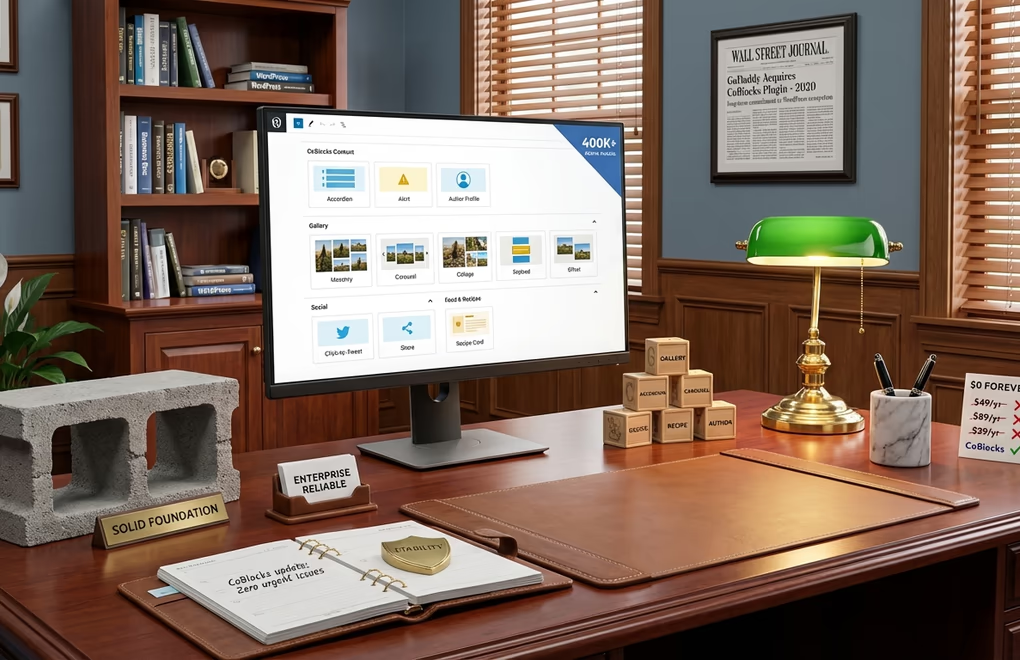
CoBlocks has around 300,000 active installations and backing from GoDaddy, which acquired the plugin in 2019. The corporate ownership provides stability. You won’t wake up to find the plugin abandoned because the solo developer moved on to other projects. GoDaddy maintains CoBlocks as part of their WordPress hosting ecosystem and created the companion Go theme.
The plugin provides 54 blocks focusing on page-building essentials rather than novelty features. You get solid implementations of accordions, alerts, author profiles, carousels, click-to-tweet, FAQ, events, forms, and food recipes among others. The gallery blocks offer masonry, carousel, collage, stacked, and offset layouts, covering most gallery use cases without needing a separate gallery plugin. The Typography Control Panel lets you customize fonts across both CoBlocks and core WordPress blocks.
CoBlocks is entirely free with no premium tier. This removes the frustration of hitting paywalls when you discover features you need are locked behind subscriptions. The tradeoff is less frequent feature additions compared to plugins motivated by premium revenue, and the 4.3-star rating reflects some user concerns about mobile responsiveness. For users wanting reliable basics without upsells, CoBlocks delivers.
How to Choose the Right Block Plugin for Your Site
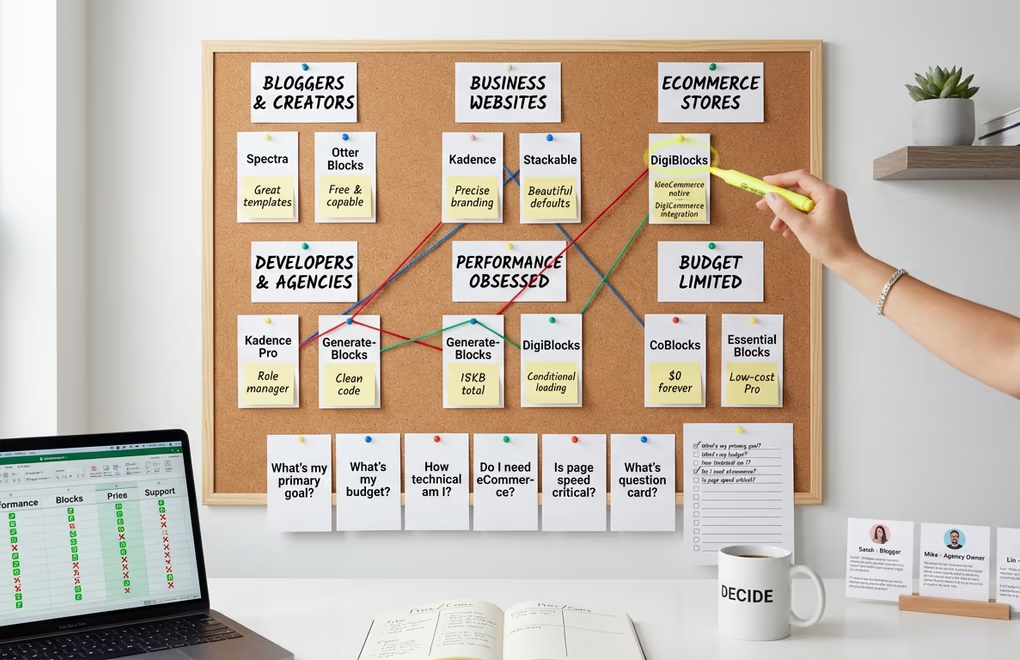
Your specific situation determines which plugin makes sense. Here’s how to narrow down the options based on common use cases and priorities.
For bloggers and content creators, Spectra or Otter Blocks provides enough design capability without overwhelming complexity. The template libraries help you create engaging posts quickly. Both include table of contents blocks that SEO plugins can leverage for generating jump links.
For business websites needing professional service pages, pricing tables, and team sections, Kadence Blocks or Stackable offer the design flexibility to match your branding precisely. The investment in their premium versions pays off through time saved adjusting styles. If you already use the Astra theme, Spectra makes particular sense.
For eCommerce stores, DigiBlocks stands out with its native WooCommerce and DigiCommerce integration. You get product display blocks that understand eCommerce context rather than generic blocks requiring workarounds. The performance optimization also matters more for stores where page speed directly impacts conversion rates.
For developers and agencies building client sites, Kadence Blocks Pro or GenerateBlocks provide the technical control professional projects demand. Kadence’s global color palette integration and GenerateBlocks’ clean code output make maintenance easier. The role manager features in Kadence and Stackable prevent clients from breaking designs.
For performance obsessed sites, GenerateBlocks or DigiBlocks should top your list. Both implement aggressive asset optimization that keeps page weights low. If you’re chasing perfect Core Web Vitals scores, these plugins won’t fight against your optimization efforts the way some heavier alternatives might.
For budget-limited projects, CoBlocks and Essential Blocks free tiers offer substantial functionality without payment. CoBlocks gives you everything forever with no premium upgrade path, while Essential Blocks provides an affordable Pro option if you eventually need more.
Can You Use Multiple Block Plugins Together
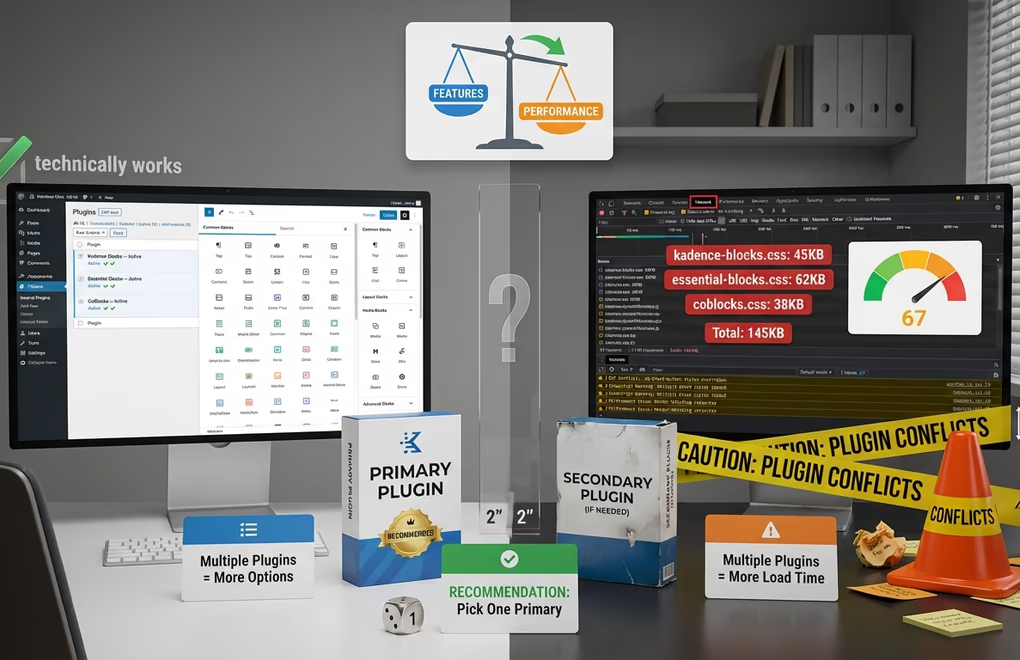
Yes, technically you can run multiple block plugins simultaneously. Each plugin registers its blocks independently, and WordPress handles loading them into the editor. You might use Kadence for its superior row layouts while adding Essential Blocks for specific features Kadence lacks.
However, running multiple block plugins creates problems you should consider. Each plugin adds its own CSS and JavaScript, potentially conflicting with each other and increasing page weight. The block inserter becomes cluttered with similar blocks from different plugins, making the editing experience confusing. Style consistency suffers when blocks from different plugins have different default appearances.
My recommendation is picking one comprehensive block plugin as your primary solution. Use it for most layouts and designs. Only add a second plugin if you have specific functionality needs the primary plugin genuinely cannot meet. And when you do add another plugin, disable any redundant blocks to prevent bloat and confusion. The Gutenberg vs page builders debate often centers on plugin conflicts, and minimizing the number of active plugins reduces that risk.
Building Better WordPress Sites with the Right Blocks
The best Gutenberg blocks plugin for your site depends on your specific needs, technical comfort level, and budget. Spectra and Kadence dominate the market for good reasons, offering comprehensive block collections with proven reliability. DigiBlocks provides a compelling alternative for performance-focused users and those building eCommerce sites. GenerateBlocks serves developers who prefer building from primitives, while CoBlocks and Otter deliver solid free options.
Start by identifying what blocks you actually need for your site. Check which plugins include those blocks in their free versions versus premium tiers. Test your top two choices on a staging site or local installation to experience the editor interface firsthand. The plugin you enjoy using is often the right choice because you’ll actually use it to create better content.
What matters most in your block plugin selection? Is it design flexibility, performance optimization, or eCommerce integration? Consider your priorities and choose accordingly.





0 Comments on "Best Gutenberg Blocks Plugins for WordPress in 2026"