

The WordPress white screen of death is a blank page that replaces your entire website, your admin panel, or both. It happens when a PHP error stops WordPress from rendering anything at all, and it gives you zero feedback about what went wrong. The term sounds dramatic, but the fix is usually straightforward once you know where to look.
Most white screen errors come from one of four sources: a plugin conflict, a broken theme, a PHP memory limit that got exhausted, or a corrupted core file. The tricky part isn’t the fix itself, but figuring out which of those four categories you’re dealing with. That’s why this article walks through diagnosis first, then the specific repairs for each root cause, and finally the habits that keep it from happening again.
If your site just went blank and you’re looking for the fastest path back, start with the debug mode section below. Turning on WP_DEBUG in your wp-config.php file will usually show you the exact error, and from there you can jump straight to the matching fix. For everyone else, reading through the full sequence will help you understand why the white screen happened and how to make sure it doesn’t come back.
One reassuring fact before we start: the white screen of death almost never means your data is gone. Your database, your posts, your media files are all still there. The problem is in the code layer, which sits on top of your content. Even in the worst case, where you need to recover a WordPress site from scratch, the content itself is recoverable.
What causes the WordPress white screen of death?

The white screen of death happens when PHP encounters a fatal error and WordPress can’t finish building the page. Instead of showing a half-rendered mess, PHP kills the output entirely, which leaves you staring at a completely blank browser tab. In some cases, you’ll see “There has been a critical error on this website” instead of a blank page, which is WordPress 5.2+ catching the fatal error and showing a minimal recovery message.
Plugin conflicts are the single most common trigger. When two plugins try to modify the same WordPress function, or when a plugin update introduces code that’s incompatible with your PHP version, the result is often a fatal error that blanks the screen. Theme updates cause the same problem, especially when a theme relies on deprecated PHP functions or when a parent theme changes a function signature that a child theme still calls the old way.
Memory exhaustion is the second most frequent cause. WordPress and its plugins consume server memory while building each page. If the total memory required exceeds what your PHP configuration allows (the default is often 64MB or 128MB, which many plugin-heavy sites outgrow), PHP throws a fatal error and the page goes white. You can learn more about this in the WordPress memory limit article, which covers how to check your current limit and raise it safely.
Beyond plugins and memory, several less obvious causes exist. A failed WordPress core or plugin auto-update can leave files in a half-written state that PHP can’t parse. A corrupted .htaccess file can create redirect loops that look like a white screen. Database table corruption, while rare, can prevent WordPress from loading its configuration at all. And simple PHP syntax errors, introduced by editing a theme file through the built-in editor, are still one of the classic ways to trigger an instant white screen.
The important distinction is between errors that affect the frontend only (visitors see a blank page but you can still log in) and errors that affect both the frontend and wp-admin. Frontend-only errors almost always point to a theme problem. When both sides go blank, the issue is in a plugin, in wp-config.php, or at the PHP/server level.
How do you diagnose the white screen with WordPress debug mode?
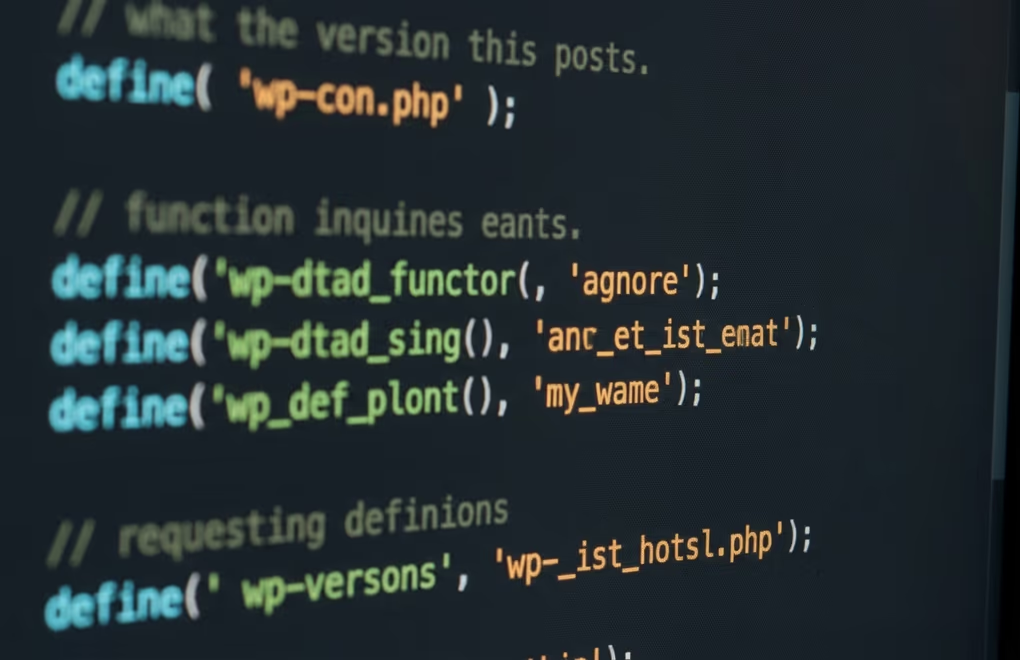
The fastest way to identify the exact error behind a white screen is to enable WordPress debug mode. This tells PHP to display error messages instead of silently failing, and it writes those messages to a log file you can read even when the screen itself stays blank.
To enable it, open your wp-config.php file through FTP, SFTP, or your hosting provider’s file manager. Find the line that says define(‘WP_DEBUG’, false); and change it to three lines: define(‘WP_DEBUG’, true); followed by define(‘WP_DEBUG_LOG’, true); and define(‘WP_DEBUG_DISPLAY’, false);. The third line keeps error messages out of your public-facing pages (which is important for security), while the second line writes them to a file at wp-content/debug.log. After saving the file, reload your site, and then check that log file for the specific error.
The debug.log entries tell you exactly what went wrong if you know how to read them. A line containing “Fatal error: Allowed memory size of X bytes exhausted” means you’ve hit your PHP memory ceiling, and the fix is in the memory section below. A line with “Fatal error: Uncaught Error: Call to undefined function” followed by a plugin’s file path tells you that specific plugin broke, usually after an update. “Parse error: syntax error, unexpected” followed by a theme file path means someone (or a failed update) introduced a typo in a PHP file. And “Fatal error: Maximum execution time exceeded” means a script ran too long, which is common during imports or heavy database operations.
When you can’t access your site through a browser at all, you can still read debug.log through FTP or SSH. If even FTP access is blocked (which can happen with .htaccess redirect loops), most hosting control panels provide a file manager that bypasses the web server entirely. The log file grows every time an error occurs, so look at the most recent entries at the bottom of the file, not the old ones at the top.
After you’ve identified the error, leave WP_DEBUG_LOG on but keep WP_DEBUG_DISPLAY off while you fix the problem. The log continues recording errors during your troubleshooting, which helps you confirm that your fix actually worked. Once the site is running cleanly again, set WP_DEBUG back to false so the log file doesn’t grow indefinitely on a production server.
Which plugins and themes cause white screen errors?
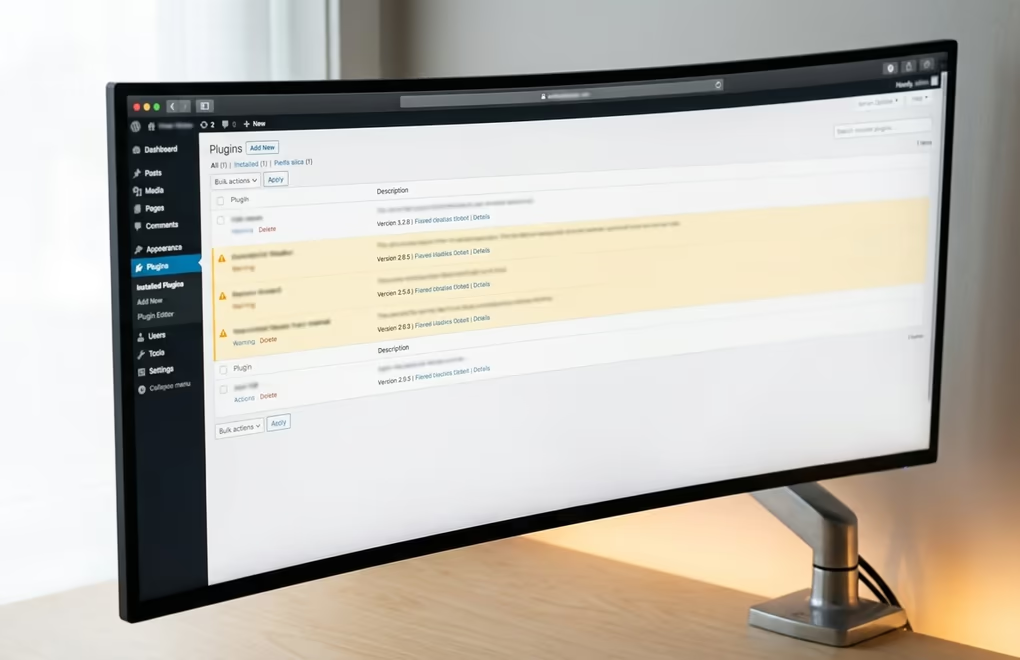
Any plugin or theme can cause a white screen, but the pattern is almost always the same: something changed. Either a plugin updated, WordPress core updated, your PHP version changed, or you activated a new plugin or theme. If your site was working yesterday and it’s white today, the trigger is whatever changed between then and now.
When you can still access wp-admin, the fix is simple: go to the Plugins page and deactivate every plugin at once. If the site comes back, you know a plugin was the cause. Reactivate them one by one, checking the frontend after each one, until the white screen returns. The last plugin you activated is the problem. Either roll it back to the previous version, contact the plugin developer, or find an alternative.
When wp-admin is also blank, you need to deactivate plugins through the file system. Connect to your site via FTP or your hosting file manager, go to wp-content, and rename the “plugins” folder to something like “plugins-disabled”. This deactivates every plugin at once because WordPress can’t find them. Reload the site, and if it works, you’ve confirmed a plugin is responsible. Rename the folder back to “plugins”, which will leave all plugins deactivated but visible in wp-admin, and then reactivate them individually to find the culprit.
Theme conflicts follow the same logic. If deactivating all plugins didn’t fix the white screen, switch to a default WordPress theme (like Twenty Twenty-Five) by renaming your active theme’s folder in wp-content/themes. WordPress will fall back to the first default theme it finds. If the site comes back with the default theme, your previous theme is the problem, often because of a PHP version incompatibility or a conflict with a required plugin.
A specific scenario worth mentioning: when a theme update breaks a child theme. Parent themes sometimes remove or rename functions between major versions, and child themes that call those old functions will throw a fatal error. If your debug.log shows an error in your child theme’s functions.php referencing a function that “does not exist”, check whether the parent theme renamed or removed that function in a recent update. The fix is to update the child theme’s code to match the parent’s new function names. For sites that depend heavily on customization, this is one of the strongest arguments for keeping regular backups before running any updates.
How do you fix memory and server errors that trigger the white screen?
When debug.log shows “Allowed memory size exhausted”, the immediate fix is to increase the PHP memory limit. Open wp-config.php and add define(‘WP_MEMORY_LIMIT’, ‘256M’); before the line that says “That’s all, stop editing!”. For the admin area specifically, you can also add define(‘WP_MAX_MEMORY_LIMIT’, ‘512M’);, which gives admin-side operations more room. These values tell WordPress to request more memory from PHP, though your hosting provider’s PHP configuration also needs to allow it. If your host caps memory at 128MB regardless of what wp-config says, you’ll need to contact them or edit the php.ini file if you have access.
File permission errors are a less obvious server-level cause of white screens. WordPress needs specific permissions to read its own files: 755 for directories and 644 for regular files. If permissions get changed (often by a poorly-written plugin or a misconfigured server migration), PHP can’t read the files it needs and the result is a blank page. You can check and fix permissions through FTP or SSH. Look at the wp-admin, wp-includes, and wp-content directories first, since those are the ones WordPress reads on every page load.
PHP version mismatches cause white screens more often than most site owners expect. A plugin that worked fine on PHP 7.4 might throw fatal errors on PHP 8.2 because of deprecated functions or changed default behaviours. If your host recently upgraded your PHP version (some do this automatically), check whether your plugins and theme are compatible with the new version. Your hosting control panel usually lets you switch PHP versions, so you can temporarily go back to the previous version to confirm that’s the problem, and then update or replace the incompatible plugins before switching back.
The PHP max execution time limit can also produce a white screen, particularly on resource-heavy pages or during WooCommerce order processing. The default is usually 30 seconds, and if a page takes longer to generate, PHP kills the process. You can increase this by adding set_time_limit(120); in wp-config.php or by setting max_execution_time = 120 in php.ini. But a page that routinely takes more than 30 seconds to build has a deeper performance problem that deserves investigation, often a slow database query or an un-cached external API call. Good caching eliminates most execution-time issues by serving pre-built pages instead of rebuilding them from scratch on every request.
PHP text processing limits are another hidden trigger. WordPress sometimes needs to process large blocks of content (long posts, complex shortcode outputs, or serialized data), and PHP’s PCRE backtrack limit and recursion limit can be too low for these operations. Adding ini_set(‘pcre.backtrack_limit’, ‘500000’); and ini_set(‘pcre.recursion_limit’, ‘500000’); to wp-config.php resolves this on most hosts.
What database and core file problems cause the white screen?
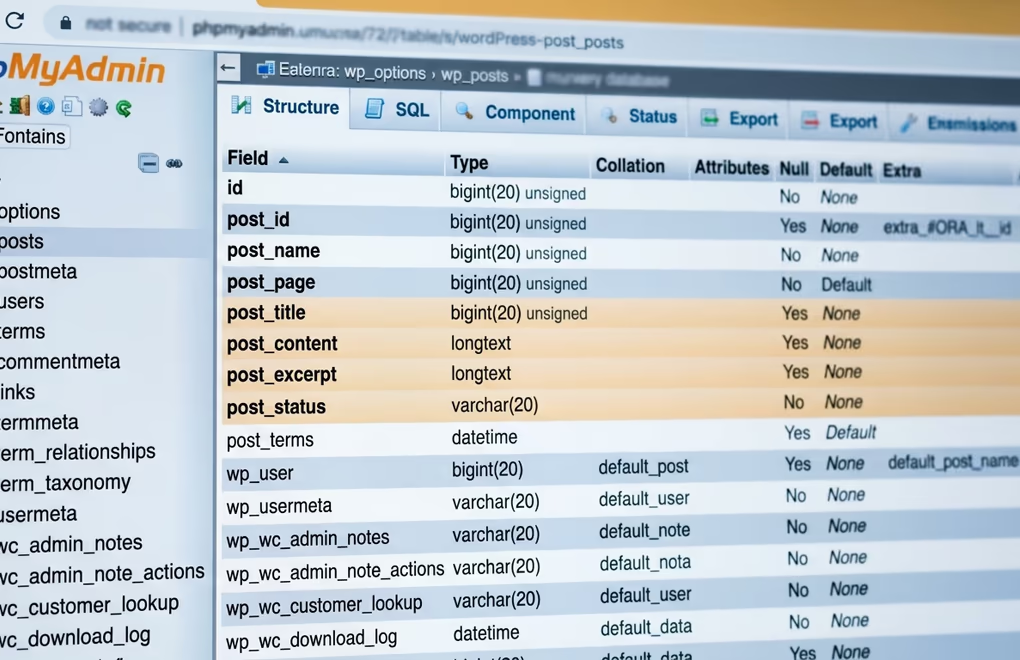
While plugins, themes, and memory account for most white screen errors, database corruption and damaged core files are the causes that the other guides tend to skip. They’re less common, but when they happen, none of the standard plugin-deactivation steps will help.
WordPress stores its settings in the wp_options table, and a corrupted row in that table can prevent the entire site from loading. The most telling symptom is a white screen that persists even after deactivating all plugins and switching to a default theme. If you have phpMyAdmin access through your hosting panel, run a repair on the wp_options table: click on the table, go to the Operations tab, and click “Repair table”. You can also run REPAIR TABLE wp_options; directly in SQL. If the site comes back after the repair, the table had a corrupted row. For ongoing database health, some hosts offer automated repair tools, and the WP-CLI command wp db repair does the same thing from the command line.
A bloated wp_options table with too many autoloaded entries can also cause white screens by exhausting memory. Run SELECT SUM(LENGTH(option_value)) as autoload_size FROM wp_options WHERE autoload = ‘yes’; in phpMyAdmin. If the result exceeds 1-2MB, you have plugins or themes storing large serialized blobs that load on every single page request. Identify the heaviest entries with SELECT option_name, LENGTH(option_value) as size FROM wp_options WHERE autoload = ‘yes’ ORDER BY size DESC LIMIT 20; and decide whether those entries belong to plugins you still use. Cleaning out stale autoloaded data from deactivated plugins can reduce memory usage enough to eliminate the white screen.
Failed auto-updates leave a .maintenance file in the WordPress root directory. While this file exists, WordPress shows a “Briefly unavailable for scheduled maintenance” message or a blank page instead of your site. If an update crashed partway through, this file never gets deleted. The fix is simply to delete .maintenance via FTP. But if the update actually failed to complete, you may also have partially-written plugin or core files. In that case, re-upload a fresh copy of WordPress core from wordpress.org (delete and replace only wp-admin and wp-includes, never wp-content) and reinstall the plugin that was being updated.
The .htaccess file is another common culprit that most site owners forget to check. A corrupted .htaccess can create infinite redirect loops that look like a white screen. Rename the file to .htaccess-backup through FTP, reload the site, and if it works, you know the .htaccess was the problem. WordPress will regenerate a basic .htaccess when you visit Settings > Permalinks and click Save. If you had custom rules in the old file (for security hardening or caching), add them back one block at a time so you can identify which rule caused the conflict.
How do you prevent the white screen from happening again?
The white screen of death is almost always caused by something that changed, which means prevention is really about controlling how and when things change on your site. A few habits make the difference between a site that goes down regularly and one that runs for years without a blank page.
Automated backups are the foundation of everything else. If you have a backup from before the problem started, you can restore it in minutes instead of spending hours troubleshooting. Set your backup plugin to run daily and keep at least 14 days of history so you can go back far enough to find a clean state. Test the restore process at least once, because a backup you’ve never tested is a backup you can’t trust. The WordPress backup plugin comparison covers the options worth considering.
Staging environments let you test updates before they touch your live site. Most managed WordPress hosts include a one-click staging feature. When a major plugin or WordPress core update comes out, apply it to staging first, check every critical page (homepage, checkout, contact forms), and only push to production when you’re confident nothing broke. This single habit eliminates the majority of white screen events because you catch the conflict before visitors ever see it.
Keep your PHP version current but don’t rush it. When your host offers a new PHP version, wait a few weeks for your plugins and themes to release compatibility updates, test on staging, and then switch production. Running an outdated PHP version is a security risk, but jumping to a brand-new version before your plugins catch up is how you get white screens. The sweet spot is staying one minor version behind the latest release.
Finally, don’t install plugins you don’t actively use, and remove (not just deactivate) the ones you’ve stopped needing. Every plugin in your wp-content/plugins folder is code that can break, regardless of whether it’s active. A lean plugin stack with 10-15 well-maintained plugins will always be more stable than a stack of 40+ where half are abandoned or overlapping in functionality. When you do choose plugins, check the “Last updated” date and the “Tested up to” version on wordpress.org, and be cautious about any plugin that hasn’t been updated in over a year.



0 Comments on "WordPress White Screen of Death: How to Find the Cause and Fix It"