
WordPress runs on PHP, and the version your server uses affects everything from page speed to security patches. If your hosting dashboard shows anything below PHP 8.3, your site is running on code that no longer receives official fixes, and it’s probably slower than it should be.
Updating PHP in WordPress isn’t something you do inside the WordPress dashboard. The change happens at your hosting provider’s control panel, and it usually takes about two minutes once you know where to click. The risk of something breaking is real but small, and you can undo it just as fast if a plugin or theme doesn’t cooperate with the newer version.
This article walks through the full process: checking your current PHP version, preparing your site so nothing breaks, running the actual update on every major hosting platform, and fixing things if they go wrong. Every version number and support date below was verified against php.net and wordpress.org in July 2026.
Why does your WordPress site need a current PHP version?
PHP is the programming language that powers WordPress. Every time a visitor loads a page, your server runs PHP code to pull content from the database, apply your theme, assemble the layout, and send back the finished HTML. Newer PHP versions execute that same code faster because the PHP team rewrites the engine internals with each release.
Speed is the most visible benefit. PHP 8.4 and 8.5 handle more requests per second than 8.1 or 7.4 ever could, because each version ships with a JIT compiler and runtime improvements that reduce the time your server spends on each page. The result is faster load times without touching your WordPress configuration at all.
Security is the other half of the story. When a PHP version reaches end-of-life, it stops getting security patches. PHP 8.0 hit end-of-life in November 2023, and PHP 8.1 followed in December 2025. If your server still runs either of those versions, known vulnerabilities stay open with no fix coming. WordPress core can only protect you so far when the language underneath it has unpatched holes.
There’s a practical compatibility angle worth knowing about. Plugin and theme developers test against current PHP versions first. As older versions lose support, new plugin releases may drop compatibility with PHP 7.4 or 8.0 entirely. Staying current means you won’t wake up to a white screen after a routine plugin update because the new code uses a PHP feature your server doesn’t support.
Search engines factor page speed into their ranking decisions, so a faster server response from a newer PHP version can also help your search visibility. Google’s Core Web Vitals include server response time (Time to First Byte), and that number improves when your PHP processes pages faster. If you’re already optimizing your images and using a caching plugin, updating PHP rounds out the performance picture on the server side.
Which PHP version should you use with WordPress in 2026?
WordPress.org recommends PHP 8.3 or higher as its baseline. That’s the minimum for good performance and active security support. But “recommended minimum” and “best choice” aren’t the same thing, so here’s the full picture as of July 2026.
PHP 8.5 is the latest stable release, shipped in November 2025. It’s in active support, meaning it gets both bug fixes and security patches. PHP 8.4, released in November 2024, is also actively supported through December 2028. Either version is a solid choice for production WordPress sites right now.
PHP 8.3 still receives security-only fixes through December 2027, so it’s safe to run, but you’re leaving performance gains on the table. PHP 8.2 is in security-only mode until December 2026, which means its clock is running out this year. And anything below 8.2 is officially dead, with no patches or fixes on the way.
For most WordPress sites, PHP 8.4 is the practical sweet spot in mid-2026. It’s mature enough that major plugins have had over a year to fix compatibility issues, and it still has a long support runway. PHP 8.5 is the forward-looking choice if your plugins and theme already work with it, since it gives you active support through December 2027 and security patches through 2029.
The simplest way to decide is to update to 8.4 first and test your site. If everything runs clean, you can jump straight to 8.5 and get an even longer support window. If one plugin causes trouble on 8.5 but works fine on 8.4, stay on 8.4 until the plugin developer ships a fix, and check back in a few months.
How do you check your current PHP version?

WordPress has a built-in tool for this. Log into your admin dashboard, then go to Tools and open Site Health. Click the Info tab at the top, and scroll down to expand the Server section. The PHP version line shows exactly what your server is running.
If that number reads 8.3 or higher, you’re on a supported version. Anything below 8.3 means you should plan an update soon. Anything below 8.0 is urgent, because those versions stopped receiving security patches years ago.
You might also see a notice on your WordPress dashboard or inside Site Health that says “PHP Update Required” or “PHP Update Recommended”. WordPress started showing these warnings when it detects your server runs a version below its recommended baseline, and they disappear automatically once your host bumps the PHP version.
Some hosting providers also show the PHP version in their own control panel, usually under a “PHP Settings” or “Software” section. If you can’t find the Site Health page (some security plugins hide admin menus), check your host’s dashboard instead.
If you manage multiple WordPress sites, checking each one individually gets tedious fast. Tools like ManageWP or MainWP let you see the PHP version across all your sites from a single dashboard, so you can spot which ones need attention without logging into each admin separately.
What should you do before updating PHP?
Updating PHP is low-risk when you prepare properly, and high-risk when you skip the prep. These four steps take about fifteen minutes and save you from the one scenario everyone dreads: a live site that breaks on a Friday evening.
First, create a full backup of your site. That means both the database and all files (wp-content, plugins, themes, uploads). If the PHP update causes a fatal error, this backup lets you restore the site exactly as it was. Most backup plugins like UpdraftPlus or BlogVault handle both in one click.
Second, update WordPress core, every plugin, and every theme to their latest versions. Developers ship PHP compatibility fixes in these updates, and running old plugin code on new PHP is the number one cause of post-update errors. Go to Dashboard, then Updates, and update everything listed there.
Third, test on a staging site if your host provides one. A staging environment is a private copy of your site where you can switch PHP versions without touching the live version. SiteGround, Kinsta, WP Engine, and most managed WordPress hosts include staging tools. Create the clone, bump PHP there, and browse every page. If something breaks, you’ll see it before your visitors do.
Fourth, check plugin and theme compatibility. Install the PHP Compatibility Checker plugin from wordpress.org and run a scan against the PHP version you plan to target. It flags code that might fail on the newer version. The plugin isn’t perfect, so a clean scan doesn’t guarantee zero problems, but it catches the obvious ones.
How do you update PHP on your hosting platform?
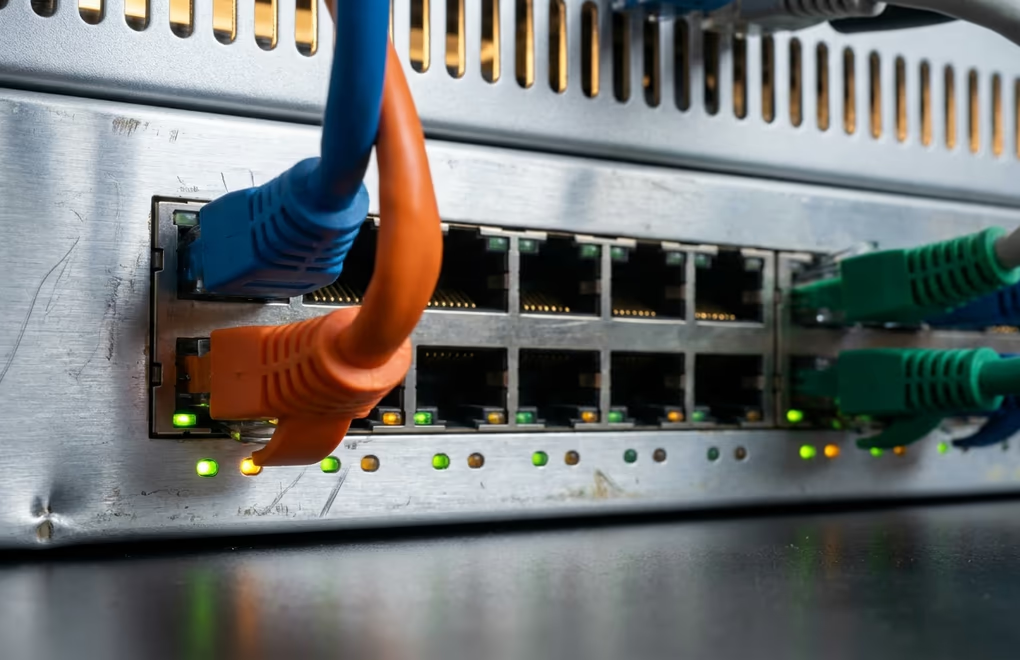
PHP runs on your web server, not inside WordPress. You change the version through your hosting provider’s control panel. The exact steps depend on who hosts your site, but every major platform puts the option in roughly the same place. Here are the steps for the most common setups.
On cPanel hosts (Bluehost, HostGator, Namecheap, A2 Hosting, and many shared plans): log into cPanel, find the Software section, and click “MultiPHP Manager” or “Select PHP Version”. Pick your domain from the list, choose the new PHP version from the dropdown, and click Apply. The change takes effect within a few seconds.
On SiteGround: log into your Site Tools dashboard, go to Devs, then PHP Manager. Click the pencil icon next to your current version, select the version you want, and confirm. SiteGround also lets you set PHP per folder if you need different versions for subdomains.
On Kinsta: open MyKinsta, go to Sites, select your site, and click the Tools tab. Find the PHP Engine section and click Modify. Choose 8.4 or 8.5 from the dropdown and save, and Kinsta applies the change within seconds.
On WP Engine: log into the User Portal, select your site, and open the Overview tab. The PHP version listing shows a change option. Click it, choose your target version, and confirm. WP Engine updates the environment without downtime.
On Plesk: log into Plesk, go to Websites and Domains, and click “PHP Settings” for your domain. Change the PHP version in the dropdown and click OK. Plesk also lets you configure PHP extensions from this same screen if a plugin needs something specific.
If your host uses a custom control panel and you can’t find the PHP version setting, contact their support team. Most providers will change it for you within a few hours if you send them a short email asking them to switch your PHP version to 8.4 or 8.5.
What if the PHP update breaks your site?
A broken site after a PHP update is almost always one plugin or theme that uses deprecated PHP code. It looks alarming, typically a white screen or a “critical error” message, but the fix is straightforward and your data is safe.
Step one: roll back the PHP version. Go to the same hosting control panel where you changed it, select your previous PHP version, and apply. Your site will come back online within seconds. This buys you time to figure out which piece of code caused the problem.
Step two: enable WordPress debug mode to find the culprit. Connect to your site via FTP or your host’s file manager, open wp-config.php, and find the line that says define( ‘WP_DEBUG’, false ); and change false to true. Add a second line below it: define( ‘WP_DEBUG_LOG’, true ); and save the file. Now bump PHP back to the newer version. The site will break again, but this time WordPress writes the exact error to a file called debug.log inside your wp-content folder.
Step three: open debug.log and read the error message. It names the file that failed, and that file path tells you which plugin or theme is responsible. For example, a line like “Fatal error in /wp-content/plugins/old-gallery/includes/render.php” points directly at the old-gallery plugin.
Step four: disable the incompatible plugin or theme. Using FTP or the file manager, rename its folder (change “old-gallery” to “old-gallery-off”). Switch PHP back to the newer version. The site should load now without that plugin. Log into WordPress, find a modern replacement that supports the current PHP version, and keep everything updated going forward.
If you made a full backup before starting, you always have the option to restore it and try again later. The important thing is that PHP version changes are instantly reversible, so there’s no lasting damage even in the worst case.
One pattern that catches people off guard is updating PHP after months of ignoring plugin updates. The plugin was already incompatible with the new PHP, but since the old PHP version masked the issue, the site kept running. The fix is always the same: update your plugins and themes BEFORE touching the PHP version, so you’re working with code that was actually built for the version you’re switching to.
Keep PHP current and your WordPress site stays fast
Updating PHP in WordPress is a five-minute task that pays off for months. Your server handles more requests with less work, security patches keep arriving on schedule, and plugins stay compatible without workarounds. The process is the same every time: check what you’re running in Site Health, back up, test on staging, and flip the switch in your host’s control panel.
PHP 8.6 is scheduled for November 2026, so this cycle repeats at least once a year. Set a calendar reminder to check your PHP version every six months, and you’ll never fall behind. Pair it with a regular backup schedule and a performance check on your site speed, and your WordPress install stays in good shape with minimal effort.
If your host still locks you to PHP 7.4 and won’t upgrade, that alone is a strong reason to switch providers. A modern host with proper caching and current PHP support will do more for your site’s speed than any optimization plugin ever could.
PHP 8.4 is the best version for most WordPress sites in mid-2026 because it’s been stable for over a year and all major plugins support it. PHP 8.5 is also a strong choice if your theme and plugins pass a staging test on it, since it offers the longest remaining support window. WordPress.org lists PHP 8.3 as its recommended minimum, but 8.4 or 8.5 give you better performance and a longer security patch timeline.
Yes, as long as you follow a basic prep routine. Back up your site first, update all your plugins and themes, and test on a staging site if your host provides one. The vast majority of WordPress sites update PHP without any issues at all. When problems do occur, they’re caused by a single outdated plugin, and rolling back the PHP version takes seconds.
It will, because each new PHP version includes performance improvements to the engine, and those translate directly to faster page generation on your server. The speed gain varies depending on the complexity of your pages, your plugins, and your current PHP version, but moving from PHP 7.4 to 8.4 or later produces a noticeable improvement in server response time.
Your site keeps running for a while, but the risks grow over time. End-of-life PHP versions don’t receive security patches, so any vulnerability discovered after the cutoff date stays open permanently. Eventually, WordPress plugins will drop support for your PHP version, and plugin updates may break your site or simply refuse to install. Your hosting provider may also force-upgrade you at some point with little warning.
WordPress doesn’t control which PHP version your server runs, because PHP is installed at the server level by your hosting provider. You need to change the PHP version through your host’s control panel (cPanel, Plesk, or a custom dashboard). WordPress can only detect and report which version is active, through its Site Health tool, but it can’t change it for you.





0 Comments on "How to Update PHP in WordPress Safely"