
WordPress full site editing lets you design every part of your site, including the header, footer, and page templates, using the same block editor you already use for posts. Instead of hunting through a theme’s PHP files or a separate Customizer panel, you edit the whole site visually in one place called the Site Editor. It arrived in core with WordPress 5.9 and has matured steadily since, and by 2026 it is the default way new WordPress themes are built.
If you have only ever edited posts and pages with blocks, full site editing can feel like a big jump, because it hands you control over parts of the site that used to be locked away in the theme. That new level of control is the whole reason the feature exists. You get to change your logo placement, your navigation, your post layouts, and your color palette without writing code or paying a developer for small tweaks.
This guide explains what full site editing actually is, how the Site Editor works, whether it is ready for a real business site in 2026, and how it compares to the page builders many people still rely on. It also walks through how to get started without breaking your current site, so you can decide whether the switch is worth it for you.
What is WordPress full site editing?
WordPress full site editing is a collection of features that let you build and edit your entire website with blocks, not just the content area of individual posts. The name covers the Site Editor interface, block themes, template editing, global styles, and reusable patterns. Together they replace the old split system where your content lived in the block editor while your header, footer, and layout lived in theme files and the Customizer.
The key requirement is a block theme. A block theme is built from HTML templates and a configuration file rather than the PHP templates a classic theme uses, and only a block theme unlocks the full Site Editor. If you run a classic theme, you will not see the Site Editor at all, which is the single most common reason people think full site editing is missing from their install. You can browse solid options in our roundup of the best WordPress block themes if you want to test it on a fresh theme first.
Once a block theme is active, a new Editor menu item appears under Appearance, and opening it drops you into the Site Editor. From there you can edit templates like the single post layout or the 404 page, adjust template parts like the header and footer, and change site-wide styles from one panel. Every change uses the same blocks and controls you already know from writing posts, so the learning curve is shorter than it first appears.
The idea behind all of this is consistency. When your header is a block template part, you edit it once and it updates everywhere it appears, and when your colors and fonts live in global styles, a single change ripples across the whole site. That is a real shift from the classic model, where matching styles across the theme, the Customizer, and individual pages often meant repeating yourself in three places.
It helps to think of full site editing as the merger of two tools that used to be separate. The old WordPress split your work between the block editor for content and the Customizer for design, and the two rarely spoke to each other, so a change in one place often failed to show up in the other. The Site Editor collapses that divide into a single visual workspace, where the header, the post layout, and the article text all live under the same set of controls. For anyone who spent years bouncing between the Customizer, widget areas, and theme options, that consolidation is the change that makes the whole system worth learning.
How does full site editing work in WordPress?
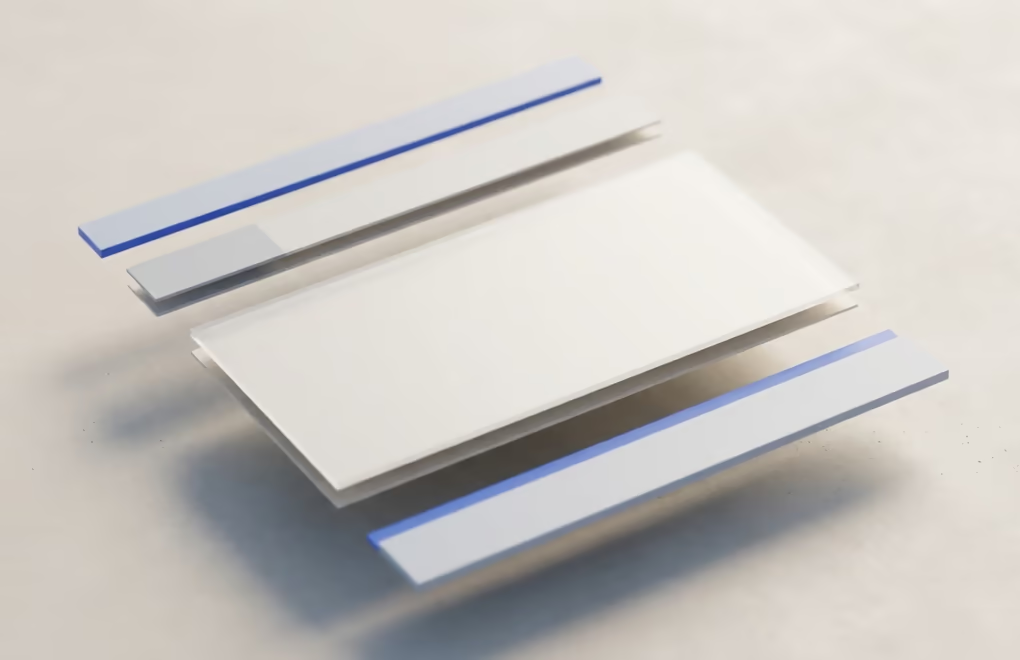
Full site editing works through four connected pieces: templates, template parts, global styles, and patterns. Understanding how they fit together is what makes the Site Editor click, because each one handles a different layer of your site and they all use the same block interface.
Templates control the layout of a type of page. Your site has a template for single posts, another for pages, one for the blog index, and one for search results and 404 errors. When you edit the single post template, every post on your site inherits that layout, which is how you set things like where the featured image sits or whether comments appear.
Template parts are reusable chunks that live inside templates, and the header and footer are the obvious examples. Because a template part is defined once and pulled into every template, editing your footer in the Site Editor updates it across the entire site in a single step. This is the piece that saves the most time for anyone who used to edit headers by hand.
Global styles hold your site-wide design: the color palette, the typography, spacing, and the default look of each block. You reach them through the styles panel in the Site Editor, and developers can set the same values in a theme’s theme.json file. Many block themes ship several style variations, so you can switch the entire look of your site from one menu without touching a line of code.
Patterns are pre-built arrangements of blocks you can drop into any page, such as a pricing section, a testimonial row, or a call to action. Synced patterns update everywhere at once when you edit them, while regular patterns give you a starting point you can then customize per page. If you want more building blocks to work with, a library like a good Gutenberg blocks plugin adds layouts and controls the core editor does not include on its own.
Moving around all of this is easier than the early versions made it look. The Site Editor opens on a preview of your site, and a sidebar lets you jump between templates, template parts, styles, patterns, and navigation menus without leaving the interface. A feature called browse mode lets you click straight into any part of the preview to edit it, while the list view shows the block structure of a template so you always know where you are. Once you learn to read that sidebar, editing a footer or swapping a template feels no harder than formatting a paragraph, which is a large part of why the tool finally won people over.
Is WordPress full site editing ready to use in 2026?
Yes, full site editing is ready for most real sites in 2026, and it is now the path WordPress itself is committed to. The rough early years are behind it. When the feature first shipped in 2022, the Site Editor was slow, buggy, and missing basic tools, which earned it a reputation that lingered far longer than the actual problems did. The version you get today is a different piece of software.
The current release is WordPress 7.0, codenamed Armstrong, which arrived in May 2026. The Site Editor in this version is fast, stable, and capable of running a production business site, and the default theme, Twenty Twenty-Five, is a well-built block theme that shows what the system can do out of the box. Block themes have been the default since Twenty Twenty-Two, so every recent WordPress install already points you toward full site editing.
It is worth being honest about what is still in progress. Real-time collaboration, the headline feature many people were waiting for, was pulled from the 7.0 release in May 2026 over stability concerns and is now planned for a later version. Some complex layouts are still faster to build with a dedicated tool, and teams with heavy custom-theme investments may not see a reason to migrate yet. None of that stops full site editing from handling a typical marketing site, blog, or small business site comfortably today.
What changed most between the early days and now is the surrounding ecosystem, not just the editor itself. Style variations let a single theme ship a handful of complete looks you can swap in one click, the pattern directory gives you ready-made sections to assemble pages quickly, and performance improved because block themes load only the code a page actually uses. These are the pieces that were missing in 2022, and their arrival is what moved full site editing from a promising experiment to a tool you can hand a non-technical client without apologizing for it.
The practical read for most site owners is simple enough to act on. If you are starting a new site in 2026, full site editing is the sensible default, because you get a visual editor, no dependence on a third-party page builder, and a system the whole WordPress project is building around. If you run an established site on a classic theme that works well, there is no urgency to switch this week, but the long-term direction is clear enough that learning the Site Editor now is time well spent.
Full site editing vs page builders: which should you use?
Full site editing and page builders solve overlapping problems, so the honest answer is that the right choice depends on where you are starting from. Page builders like Elementor and Divi became popular because classic WordPress gave you no visual way to design a full site, and they filled that gap for years. Full site editing now covers much of the same ground using native blocks, without adding a heavy plugin on top of your theme.
The case for full site editing is performance and independence. Because it uses the blocks already built into WordPress, it adds no extra rendering layer, so sites tend to load faster and ship less code than the same design in a page builder. You also avoid lock-in, since your content stays in standard blocks rather than a proprietary format that can be painful to leave later. Our comparison of Gutenberg versus page builders digs into these trade-offs in detail.
The case for a page builder is maturity and hand-holding. After years of development, tools like Elementor include polished template libraries, fine-grained design controls, and a large ecosystem of add-ons that the Site Editor has not fully matched. If you build client sites and rely on a specific builder’s workflow, that muscle memory has real value, and switching for its own sake can cost more time than it saves.
For a new site in 2026, full site editing is the choice that ages best, because it is native, lighter, and where the platform is heading. For an existing site that already runs smoothly on a page builder your team knows well, staying put is a perfectly reasonable decision. The worst option is running both at once, since layering a page builder over a block theme tends to create conflicts and slow everything down.
How do you get started with full site editing?
Getting started with full site editing takes three steps: back up your site, activate a block theme on a staging copy, and explore the Site Editor before you touch your live site. The order matters, because switching themes changes how your whole site renders, and you want a safe place to experiment first.
Start with a backup and a staging environment, which most good hosts now offer with one click. Test the switch on the staging copy so a surprise in the layout never reaches your visitors. Then activate a block theme, either one of the bundled Twenty Twenty themes or a purpose-built option like DigiFlash, a lightweight block theme designed for the Site Editor and fast page loads.
With a block theme active, open Appearance and then Editor to launch the Site Editor. Spend time in the four areas that matter: edit your header and footer template parts, open the styles panel to set your colors and fonts, edit the single post template to control how articles look, and try dropping a pattern into a page. Change one thing at a time and preview often, so you always understand what each control does before moving on.
Once you are comfortable, extend the editor with the blocks you actually need. The core set covers the basics, but real sites usually want richer layouts, and a blocks library like DigiBlocks adds advanced blocks, patterns, and design controls that plug straight into the Site Editor without a separate builder. The goal is to keep everything inside the native block system, so your site stays fast and portable while gaining the flexibility a builder used to provide.
A few first-timer mistakes are worth avoiding, because they cause most of the frustration people report. Do not edit your live site directly before you understand template inheritance, since a change to a template part can appear on far more pages than you expected. Do not mix a page builder into a block theme hoping to get the best of both, as the two design systems fight each other and slow the site down. And do not ignore global styles in favor of styling each block by hand, because setting your colors, fonts, and spacing once at the site level saves hours and keeps everything consistent as your site grows.
Where full site editing goes from here
Full site editing is no longer an experiment bolted onto WordPress, it is the foundation the platform is building on. The 7.0 release made the Site Editor genuinely production-ready, and the roadmap points to steady refinement rather than another disruptive overhaul. WordPress 7.1 is scheduled for August 2026, with the delayed real-time collaboration feature expected in a future version, which will make the editor genuinely multiplayer for teams.
For site owners, the takeaway is that the direction is settled. New themes are block themes, new features land in the Site Editor first, and the skills you build now will keep paying off as the system grows. Whether you switch today or ease into it over the coming months, learning full site editing is an investment in the version of WordPress that everyone will be using, so the sooner it feels familiar, the better positioned you are.



0 Comments on "WordPress Full Site Editing Explained (2026 Guide)"