
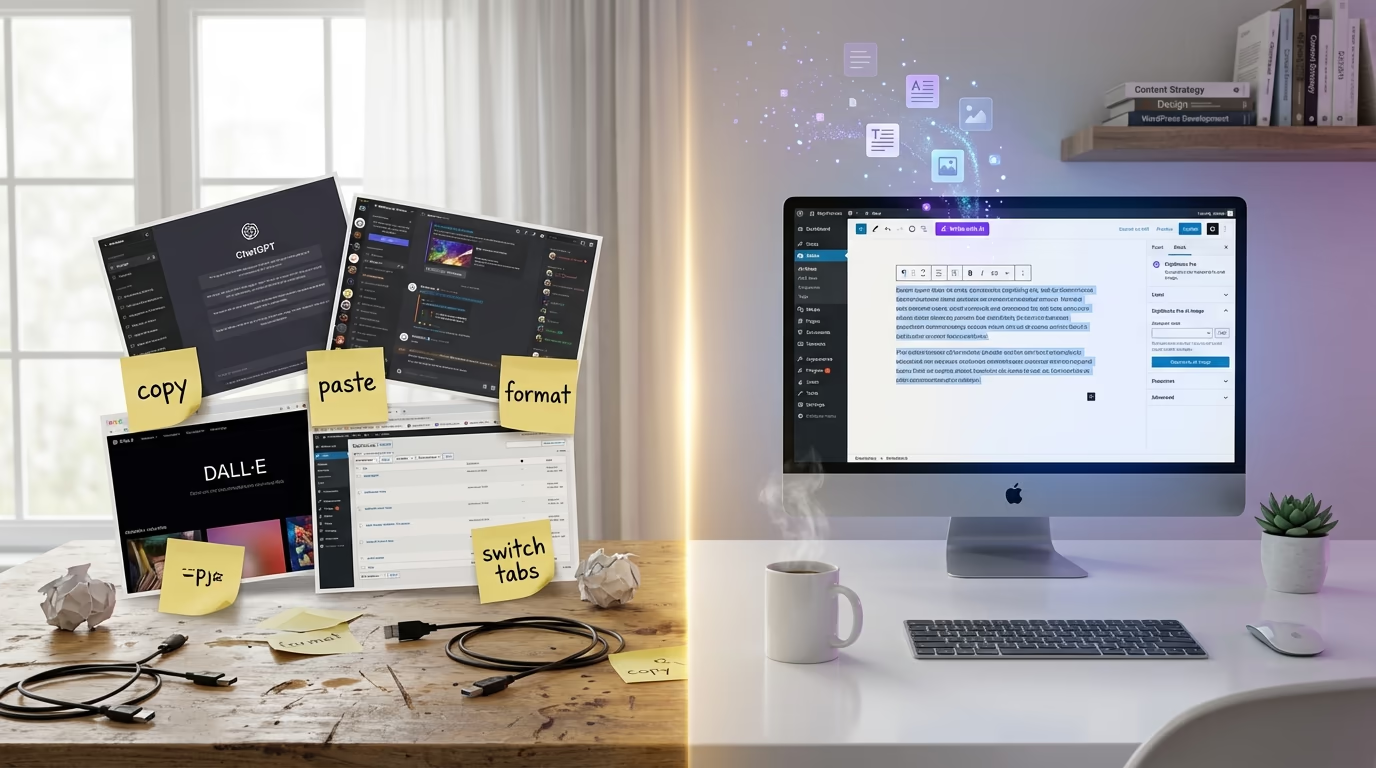
Creating content for WordPress used to be tedious. You’d open ChatGPT in one tab, write a prompt, wait for the response, copy it, switch back to WordPress, paste it in, format it manually, then do the whole thing again for images with Midjourney or DALL-E. Exhausting.
Native AI integration changes everything. Modern AI WordPress plugins let you generate text and images without leaving Gutenberg. Describe what you need. Click a button. Done. The content appears exactly where you want it, formatted and ready to publish.
This guide covers how to set up a complete AI-powered content workflow for WordPress in 2026. You’ll learn to configure DigiFlash Pro’s Write with AI feature for text generation, use DigiBlocks Pro’s AI Image block for visual content, and understand the API costs involved. Whether you’re a blogger, marketer, or agency managing multiple sites, these tools can cut your content production time significantly.
Understanding AI Content Creation for WordPress
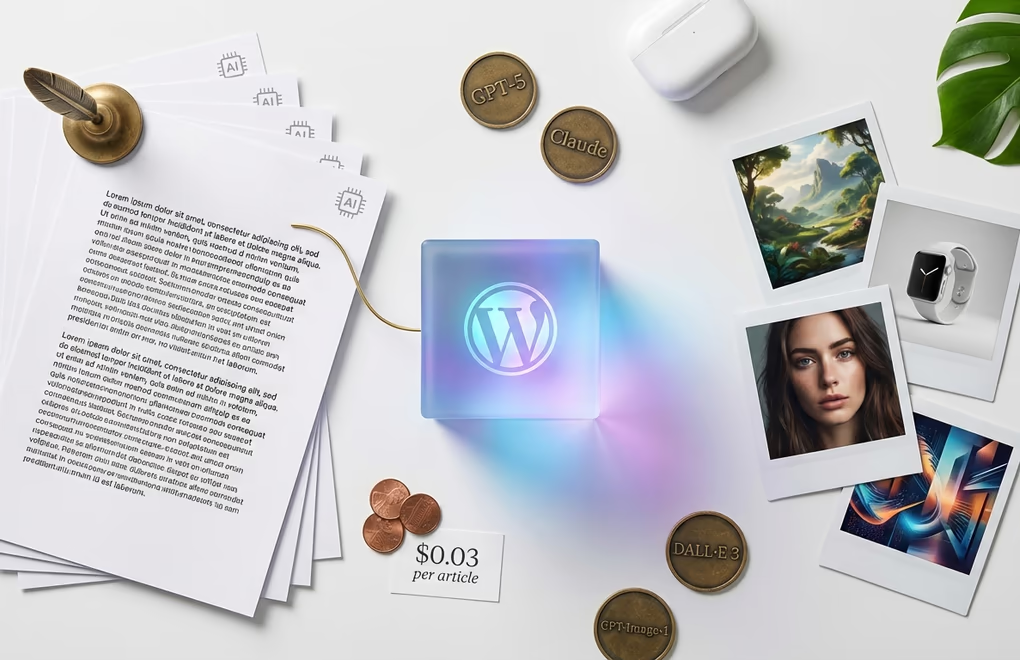
Two categories dominate AI content creation for WordPress: text and images. Text generation uses large language models. GPT-5, Claude, Gemini. These write blog posts, product descriptions, meta content, email sequences, landing page copy. Image generation is different. Models like DALL-E 3 and GPT-Image-1 turn text descriptions into visuals you can actually use.
Why does native WordPress integration matter? Context. When you generate content directly in the editor, you see immediately how it fits with surrounding blocks. No copy-pasting. No reformatting. No switching tabs. And generated images? They save automatically to your media library, properly named and ready for reuse anywhere on your site.
Both DigiFlash Pro and DigiBlocks Pro use a “bring your own API key” model. You’ll need accounts with OpenAI or Anthropic to access their AI models. This approach keeps plugin costs lower while giving you direct control over which models you use and how much you spend on API calls.
API costs vary significantly between models. OpenAI’s GPT-5 Nano costs just $0.05 per million input tokens and $0.40 per million output tokens, making it affordable for regular content generation. Claude Sonnet 4 runs $3.00 per million input tokens and $15.00 per million output tokens. For image generation, DALL-E 3 and GPT-Image-1 charge per image generated, typically between $0.02 and $0.12 depending on resolution and quality settings.
What does this mean in practice? A 1,000-word blog post with GPT-5 Mini costs about $0.01 to $0.03. Three cents. You could generate hundreds of articles before spending $10 on API calls. Compare that to hiring a freelance writer at $50-200 per article, or the three hours you’d spend writing it yourself. The math is obvious.
Writing Content with DigiFlash Pro’s AI Feature

DigiFlash Pro added a Write with AI capability that transforms the post editor into an AI-powered content machine. Price? $59 per year for one website. That includes the AI content generator, Code Editor, premium block patterns, and premium support.
The Write with AI feature adds a button directly to your post editor toolbar. When you click it, a modal opens where you can describe what content you want to generate. The AI processes your prompt and inserts the generated text at your cursor position, formatted and ready to edit.
Setting Up Write with AI
Setup takes five minutes. Maybe less. Go to Appearance → DigiFlash → Write with AI in your WordPress admin. The settings panel is clean and straightforward, with everything organized logically so you’re not hunting for options.
First, toggle Enable Write with AI to activate the feature. This adds the AI button to your editor toolbar for the post types you specify. By default, it only appears on Posts, but you can enable it for Pages, custom post types, or any public post type on your site.
Next, choose your AI Provider. DigiFlash Pro supports two options: OpenAI (ChatGPT) and Anthropic (Claude). Each provider offers different models with varying capabilities and pricing.
For OpenAI, you can select from four GPT-5 models:
- GPT-5 – Most advanced model with reasoning capabilities ($1.25/1M input, $10.00/1M output)
- GPT-5 Mini – Smaller, faster variant that balances cost and quality ($0.25/1M input, $2.00/1M output)
- GPT-5 Nano – Smallest, fastest, and cheapest option ($0.05/1M input, $0.40/1M output)
- GPT-5 Chat – Non-reasoning model optimized for conversational content ($1.25/1M input, $10.00/1M output)
For Anthropic, you get access to Claude models:
- Claude Opus 4.1 – Most capable model with enhanced coding and reasoning ($15.00/1M input, $75.00/1M output)
- Claude Opus 4 – Flagship model with advanced capabilities ($15.00/1M input, $75.00/1M output)
- Claude Sonnet 4 – High-performance with balanced cost ($3.00/1M input, $15.00/1M output)
- Claude 3.7 Sonnet – Previous generation, still excellent for most tasks ($3.00/1M input, $15.00/1M output)
My recommendation? Start with GPT-5 Mini or Claude Sonnet 4. Best balance of quality and cost for everyday content work. The expensive models like Claude Opus 4? Save those for complex writing that needs sophisticated reasoning. Technical documentation. Nuanced brand voice matching. Academic content. You’ll know when you need them.
Getting Your API Key
For OpenAI, visit platform.openai.com/api-keys and create a new secret key. You’ll need to add a payment method first, but OpenAI offers pay-as-you-go pricing with no minimum commitment. Copy the key immediately after creation since it won’t be shown again.
For Anthropic, go to console.anthropic.com to create an account and generate an API key. The process is similar to OpenAI. Anthropic also uses usage-based billing, so you only pay for what you use.
Paste your API key into the corresponding field in DigiFlash Pro settings. The plugin validates the key when you save, confirming it works before you try using it in the editor. Set your Max Tokens value between 500 and 2000 for typical content generation. Higher values allow longer outputs but cost more per request.
Practical Examples for Content Generation
Once configured, click the Write with AI button in your editor toolbar. The modal that opens lets you enter a content title, keywords, your prompt, and select a content tone and desired length. Being specific in your prompts produces better results.
For blog post introductions, try prompts like: “Write a 150-word introduction for a blog post about WordPress security best practices. Target audience is small business owners who aren’t technical. Mention the importance of protecting customer data.”
Product descriptions work well with structured prompts: “Create a product description for a handmade leather wallet. Include features: genuine cowhide leather, 6 card slots, RFID blocking, slim design. Tone should be sophisticated but approachable. Keep it under 100 words.”
For SEO meta descriptions, be explicit about character limits: “Write an SEO meta description for a page about WordPress speed optimization. Must be under 155 characters. Include the phrase ‘page load time’ and end with a call to action.”
The AI respects your tone settings and adjusts output accordingly. Professional tone produces formal language suitable for B2B content, while casual tone works better for lifestyle blogs and personal sites.
Generating Images with DigiBlocks Pro AI Image Block
DigiBlocks Pro extends the free DigiBlocks plugin with 43 additional blocks, bringing the total to 70. The free version covers essentials like accordions, testimonials, pricing tables, and forms. Pro adds site-building blocks (navigation, logo, breadcrumbs, search), dynamic content blocks (posts, related posts, table of contents, timeline), plus full WooCommerce and DigiCommerce integration. $59 per year gets you all of it, including AI-powered image generation built right into the editor.
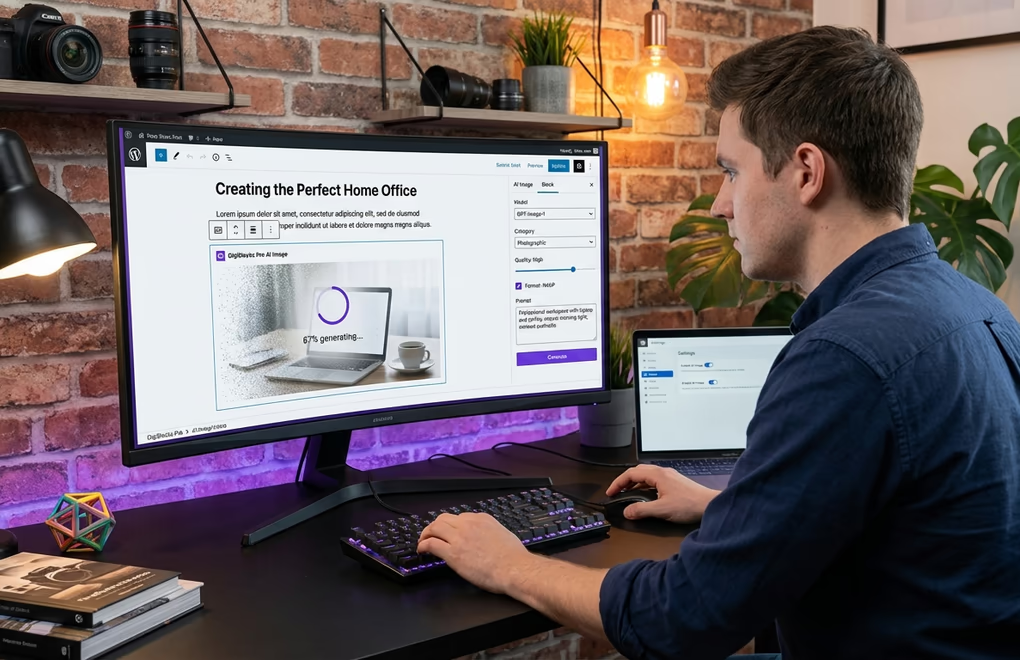
The AI Image feature adds a dedicated image generation tool to the block editor. You describe what you want, select your preferred model (GPT Image 1, DALL-E 3, or DALL-E 2) and settings, and the plugin generates the image directly in your post. Generated images automatically save to your WordPress media library with proper file naming based on your prompt.
Configuring AI Image Settings
Navigate to DigiBlocks → Settings → AI tab to configure image generation. The setup is straightforward with just three main settings to configure.
Toggle Enable AI Image to activate the feature. Enter your OpenAI API Key. DigiBlocks Pro uses OpenAI exclusively for image generation. Why? Their image APIs are one of the most mature in the industry. Already have an OpenAI key from DigiFlash Pro? Use the same one here. One key, two plugins, no extra accounts.
Set your Max Tokens for prompt processing. The default of 1500 tokens works well for most image descriptions. Higher values allow more detailed prompts but increase costs slightly.
Available Image Models and Settings
When generating images, you can choose from three OpenAI models:
- GPT-Image-1 – OpenAI’s latest image model with excellent prompt following and photorealistic capabilities
- DALL-E 3 – Previous generation but still produces high-quality creative images
- DALL-E 2 – Older model, fastest generation but lower quality
GPT-Image-1 offers the most options. You can set output format to PNG, JPEG, or WebP, adjust compression levels from 0-100, and choose background settings. The quality setting ranges from auto to high, with high quality taking longer but producing sharper results.
The plugin enhances your prompts automatically based on category and type selections. Choose from image categories like photographic, vector, digital-art, 3D rendered, product photography, background, and handmade artistic. Types include landscape, macro, portrait, and long-exposure. These options append relevant style descriptors to your base prompt.
Creating Effective Image Prompts
Good image prompts include specific details about composition, lighting, style, and subject matter. Vague prompts like “a website” produce generic results. Detailed prompts like “minimalist laptop on white desk, natural window lighting, shallow depth of field, modern home office setting” generate much better images.
For hero images, describe the mood you want: “Abstract technology background with soft blue gradients, flowing geometric shapes, subtle particle effects, professional corporate feel.” The model interprets descriptive language better than technical specifications.
Blog post illustrations benefit from context: “Person working on laptop with coffee cup nearby, cozy workspace, warm afternoon light through windows, focused productive atmosphere.” When using the photographic category setting, the model emphasizes realistic lighting and textures.
Generated images save to your media library with alt text automatically populated from your prompt. You can customize the alt text before inserting the image into your content, ensuring accessibility without extra steps.
Other AI WordPress Plugins Worth Considering
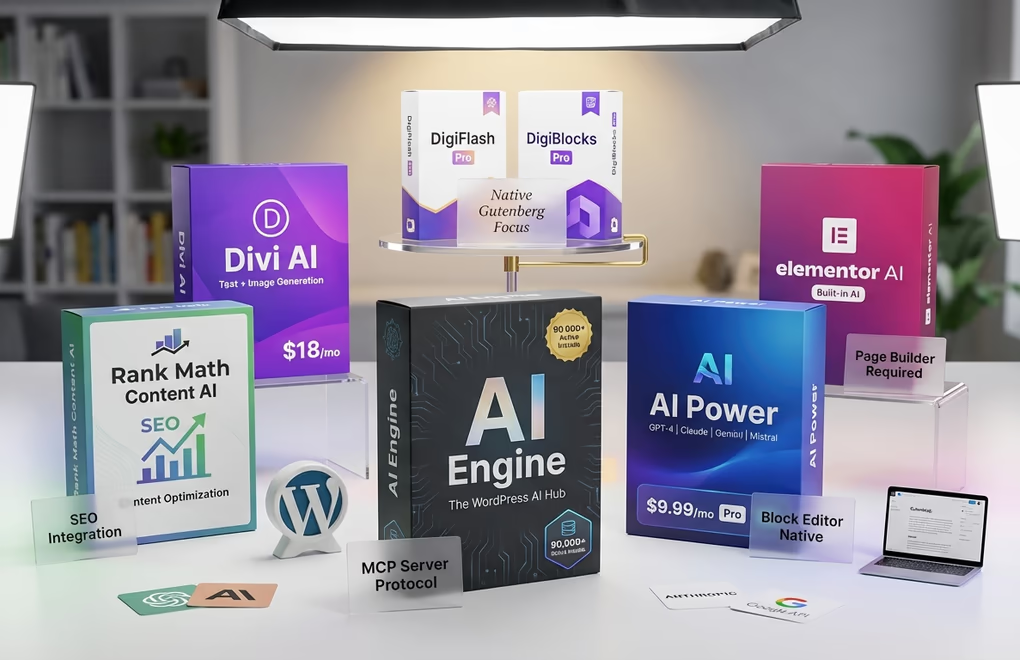
While DigiFlash Pro and DigiBlocks Pro offer excellent integrated solutions, other AI WordPress plugins exist for different use cases. The market has matured significantly by 2026.
AI Engine remains the most established WordPress AI plugin with over 100,000 active installations. It connects WordPress with OpenAI, Anthropic, Google, and Hugging Face models. The plugin’s standout feature is MCP (Model Context Protocol) server functionality, which allows external AI agents like ChatGPT and Claude to browse your content, edit posts, and manage media directly. This goes beyond simple content generation into true autonomous workflows. Pricing follows a freemium model with a Pro version for advanced features.
AIP provides a comprehensive AI toolkit supporting GPT-4, Claude, Gemini, Mistral, and more. It handles content generation, chatbots, forms, and image creation from a single plugin. The free version works with your own API key, while the Pro version costs $9.99 per month for advanced features and priority support.
Rank Math Content AI focuses specifically on SEO-optimized content. When you’re using generative AI for your content strategy, Rank Math analyzes your target keyword and suggests optimal word counts, heading structures, and keyword placements. It then helps generate content that follows those recommendations. The AI features integrate with Rank Math’s broader SEO toolkit.
Elementor AI and Divi AI build AI features directly into their respective page builders. If you’re already using Elementor or Divi for site design, these integrated solutions keep everything in one ecosystem. Divi AI costs $18 per month and handles both text and image generation within the Divi builder interface.
DigiFlash Pro and DigiBlocks Pro have one major advantage: native Gutenberg focus. No proprietary page builders required. If you’ve committed to the WordPress block editor, this is the cleanest approach available. Everything stays within the ecosystem you’re already using.
Best Practices for AI-Generated Content

AI accelerates content creation but doesn’t replace your brain. Every single piece of AI-generated content needs human review before you hit publish. Check the facts, verify claims against primary sources, and make sure the tone matches your brand. This isn’t optional, skip this step and you’ll publish embarrassing mistakes.
Google’s position on AI content has shifted dramatically. They don’t penalize AI-generated content, period. What they penalize is garbage, low-quality content tanks your rankings whether a human wrote it or GPT-5 did. Their guidelines focus on E-E-A-T: Experience, Expertise, Authoritativeness, Trustworthiness. Demonstrate those qualities and AI content ranks just fine.
Your unique perspective matters. I mean a lot. The model doesn’t know your experiences, your customer conversations, your industry insights, the weird edge cases you’ve encountered over the years. Add those. Weave in anecdotes from actual projects, case studies from your work, opinions that only come from doing this stuff daily. AI efficiency plus human expertise produces content that actually resonates with readers.
Image copyright is tricky. AI-generated images from DALL-E and GPT-Image-1 are yours to use commercially. OpenAI’s terms are clear on that. But you can’t copyright them. Most jurisdictions don’t protect AI-generated art. So you can use them freely, but so can anyone who finds them. For brand-critical visuals? Maybe commission original artwork instead.
Watch your API costs, especially at first. Both OpenAI and Anthropic provide usage dashboards with spending tracking and hard limits. Start conservative with a 1,000-token limit, it handles most blog content just fine. Only bump it up when you’re consistently hitting the ceiling and need longer outputs.
Quality standards matter more with AI, not less. Models produce repetitive phrasing, awkward transitions factual errors, hallucinated statistics. Read every generated piece like an editor who gets paid to find problems. Does it answer the actual question? Would you put your name on it? No? Then revise or regenerate or write that section yourself.
Setting Up Your Complete AI Workflow
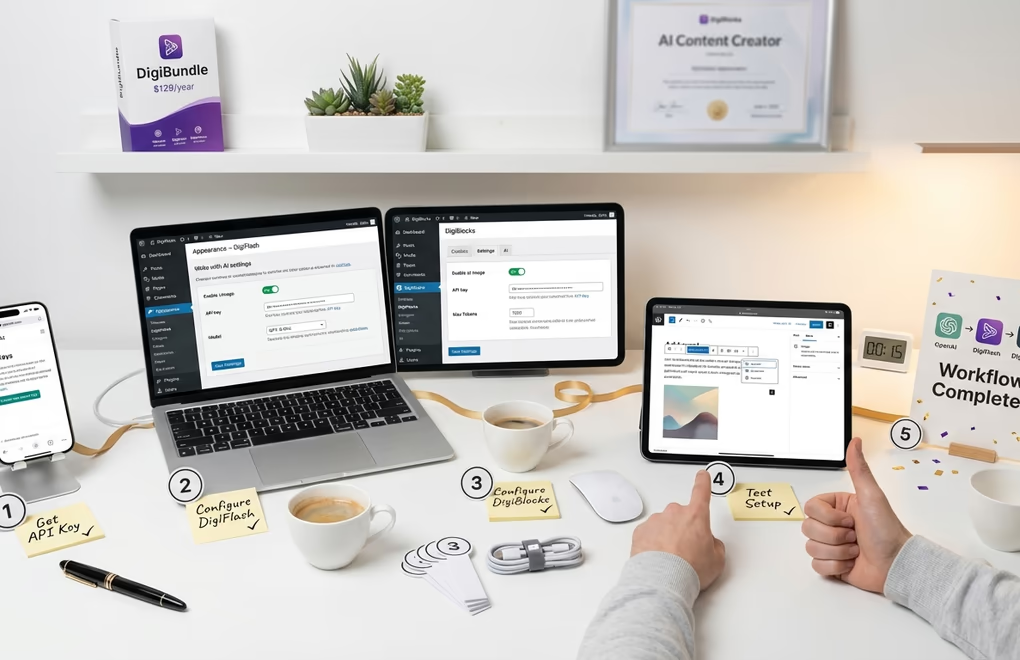
Ready to set this up? Ten minutes. That’s all you need to configure both plugins and have a working AI content workflow from scratch.
Step 1: Get your API key. Create an account at platform.openai.com if you don’t have one. Add a payment method, then generate an API key from the API Keys section and copy this key somewhere safe. You’ll use it for both plugins.
Step 2: Configure DigiFlash Pro. Go to Appearance → DigiFlash → Write with AI. Enable the feature, select OpenAI as your provider, choose GPT-5 Mini as your model, and paste your API key. Set Max Tokens to 2000. Select which post types should have the AI button. Save settings.
Step 3: Configure DigiBlocks Pro. Navigate to DigiBlocks → Settings → AI. Enable AI Image, paste the same OpenAI API key, and set Max Tokens to 1500. Save settings.
Step 4: Test your setup. Create a new post. You should see the Write with AI button in your toolbar. Click it and try generating a short paragraph. Then add an Image block and look for the AI generation option. Generate a test image to confirm everything works.
Step 5: Optimize for your workflow. After using the tools for a week, review your OpenAI usage dashboard. Adjust token limits based on actual needs. Consider whether you’d benefit from a different model. Claude Sonnet 4 often produces more nuanced writing, while GPT-5 models excel at following specific formatting instructions.
If you want both plugins plus additional tools, consider the DigiBundle at $129 per year. It includes DigiFlash Pro, DigiBlocks Pro, DigiCommerce Pro, DigiConsent Pro, and DigiFusion Pro. That’s a savings of $166 compared to buying each plugin separately. For agencies or developers managing multiple projects, the bundle provides a complete website building toolkit with AI capabilities built in.
Start Creating Content Faster Today
AI-powered content creation isn’t experimental anymore, thousands of WordPress sites use it daily. DigiFlash Pro handles text and DigiBlocks Pro handles images. Together, they give you a complete content production system that actually works, no more tab switching no more copy-paste formatting nightmares, just write, generate, and publish.
Gutenberg integration keeps you focused. No more browser tab chaos, content appears where you need it, and images save to your media library automatically. The workflow feels clunky for maybe a day, but after that? Natural. You’ll wonder how you worked any other way.
So what will you create first? Blog posts for your content calendar? Product descriptions for your store? Landing pages for your next campaign? These AI WordPress plugins handle all of it. But remember something important: AI assists your creativity, it amplifies what you bring to the table, it doesn’t replace the thinking, the expertise, or the unique perspective that only YOU can provide.




0 Comments on "How to Use AI for WordPress Content Creation: Write and Generate Images Automatically"