
Ever searched for a recipe and noticed star ratings, cooking times, and calorie counts right there in the Google results? That’s schema markup at work. Someone added a few lines of structured data to their page’s code, and Google turned it into an eye-catching, click-worthy listing that towers over the plain blue links around it. You can do the exact same thing on your WordPress site, and you don’t need a heavyweight SEO plugin to make it happen.
Most WordPress schema markup guides immediately point you toward a plugin. Rank Math handles it. AIOSEO handles it. Fine. But those plugins add overhead to your site, generate markup you might not fully understand, and lock you into a dependency you’ll carry around forever. If the plugin breaks or the company changes its pricing, you’re scrambling to find an alternative while your rich snippets vanish from search results overnight. For a site owner who wants full control over their structured data without worrying about third-party dependencies, plugin conflicts, or unnecessary database bloat, learning to add schema manually is a skill that pays for itself many times over.
The numbers make a compelling case for getting this right. Only about 31% of websites implement any schema markup at all, so the vast majority of your competitors aren’t even in the game. Pages with structured data see 20–40% higher click-through rates than standard listings, and 36.6% of Google searches now display at least one rich snippet.
And it goes beyond traditional search now. Both Google and Microsoft confirmed in 2025 that their generative AI features rely on schema markup to understand, verify, and cite web content. Sites with proper structured data get cited by Perplexity 67% more often and appear in ChatGPT responses 3.2 times more frequently. In this guide, you’ll learn how to add JSON-LD schema markup to your WordPress site without installing a dedicated schema plugin, with copy-paste code templates for the most common schema types and step-by-step instructions for testing everything with Google’s own tools. Whether you’re running a blog, a local business site, or an online store selling digital products, you’ll have working structured data by the time you finish reading.
What Is WordPress Schema Markup and Why Does It Matter in 2026?
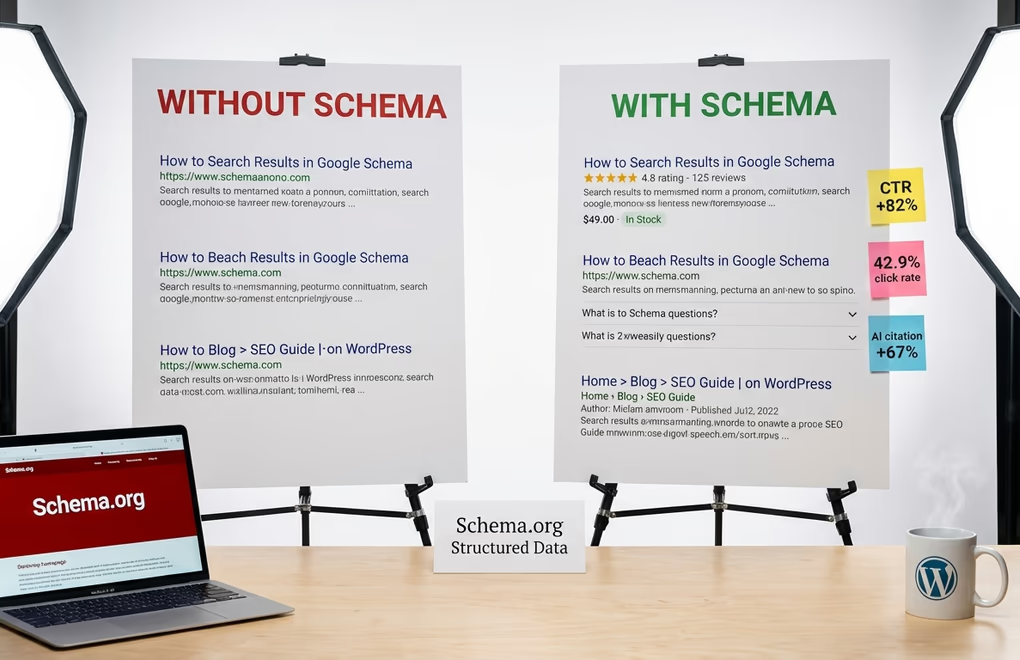
Schema markup is a standardized vocabulary of structured data maintained by Schema.org, and its purpose is deceptively simple: help search engines understand what your content actually means rather than just reading the words on the page. When you publish a blog post, Google sees raw text. It doesn’t automatically know that a number is a price, that a name belongs to an author, or that a paragraph answers a specific question. Schema tells it explicitly.
So what do you get out of it? Rich snippets. You’ve seen them everywhere: star ratings under product links, FAQ accordions that expand right on the search page, recipe cards with cooking times and calorie counts, event details with dates and venues, breadcrumb trails that replace messy URLs. These enhanced listings take up more visual real estate in search results, convey more useful information at a glance, and are far more clickable than the standard blue links surrounding them. Research shows the top rich result position earns a 42.9% click-through rate, which is higher than any other element on the search results page. Nestlé ran an internal study and found their pages appearing as rich results had an 82% higher CTR compared to non-rich counterparts.
What changed in 2026 is that schema now matters well beyond traditional Google results. AI-powered tools like Google’s AI Overviews, ChatGPT, and Perplexity all use structured data to understand, verify, and cite web content, so clean schema helps these platforms pull your information accurately and credit your site as a source.
One important update: Google deprecated seven structured data types in January 2026, including less-used ones like SiteNavigationElement and Speakable. But the core types that actually drive rich snippets remain fully supported. Article, Product, Review, LocalBusiness, FAQ, Recipe. Your WordPress SEO strategy should treat schema as foundational infrastructure, not something you bolt on later.
JSON-LD vs Microdata vs RDFa: Which Format Should You Use?
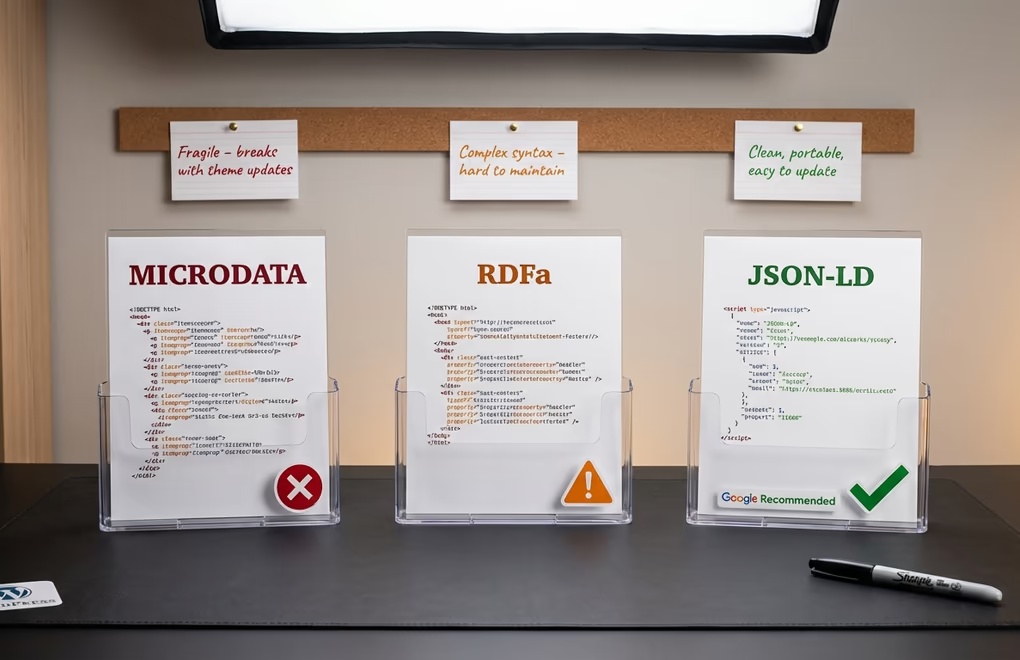
Google supports three structured data formats. They all accomplish the same fundamental goal, but they work very differently in practice.
Microdata embeds structured data directly into your HTML elements using special attributes like itemscope, itemtype, and itemprop. The problem? It’s deeply intertwined with your page’s markup, which makes it fragile and painful to maintain on WordPress sites where themes and page builders constantly modify the underlying HTML structure. RDFa works similarly, adding attributes to existing HTML elements but with different syntax. Both inline formats made sense a decade ago. They create real maintenance headaches today, especially on WordPress where a single theme update or page builder change can break your structured data without warning.
JSON-LD is the clear winner. Google explicitly recommends it, and for good reason. Instead of weaving structured data into your HTML, JSON-LD lives in a standalone <script> tag, typically in the <head> section. Completely separate from your visible content. You can add it, modify it, or rip it out without touching a single line of your page layout. Every method in this guide uses JSON-LD exclusively, and Google Search Central’s own documentation confirms it’s the recommended format because it’s the easiest for website owners to implement and maintain at scale.
How to Add Schema Markup to WordPress Without a Plugin

Three practical methods. Each targets a different comfort level with code.
Method 1: Add JSON-LD via Your Child Theme’s functions.php
This is the most robust approach, and I’d recommend it for anyone who wants schema applied automatically across their entire site without thinking about it on every new post. You write a PHP function that hooks into wp_head and outputs JSON-LD in the <head> section of each page, using WordPress conditional tags to control which schema types appear on which page types. First things first though: make sure you’re using a child theme. If you edit the parent theme’s functions.php directly, a single theme update wipes your schema code out completely.
Here’s a working example that outputs Article schema on every blog post:
function add_article_schema() {
	if ( is_single() ) {
		$post_title = get_the_title();
		$post_url = get_permalink();
		$post_date = get_the_date('c');
		$modified_date = get_the_modified_date('c');
		$excerpt = get_the_excerpt();
		$thumbnail = get_the_post_thumbnail_url(get_the_ID(), 'full');
		$schema = array(
			'@context' => 'https://schema.org',
			'@type' => 'Article',
			'headline' => $post_title,
			'url' => $post_url,
			'datePublished' => $post_date,
			'dateModified' => $modified_date,
			'description' => $excerpt,
			'image' => $thumbnail,
			'author' => array(
				'@type' => 'Person',
				'name' => get_the_author(),
			),
		);
		echo '<script type="application/ld+json">' . wp_json_encode($schema, JSON_UNESCAPED_SLASHES) . '</script>';
	}
}
add_action('wp_head', 'add_article_schema');
The function checks whether the current page is a single blog post using is_single(), then dynamically pulls the title, URL, dates, excerpt, author, and featured image straight from WordPress and outputs everything as clean JSON-LD. The wp_json_encode function handles safe JSON generation natively, and JSON_UNESCAPED_SLASHES keeps your URLs tidy. You can extend this with additional conditional checks: is_front_page() for Organization schema on your homepage, is_page() for specific pages, or custom post type checks for WooCommerce products. Once it’s in place, every new post you publish gets the right schema automatically.
Method 2: Use the Code Snippets Plugin as a Code Manager
Not comfortable editing functions.php? Understandable. The Code Snippets plugin offers a solid middle ground: it’s not a schema plugin but a general code manager that lets you add PHP snippets through the WordPress admin panel without ever opening a theme file. Install it from the plugin repository, navigate to Snippets → Add New, paste the same PHP code from Method 1, and set it to run everywhere. Your schema code lives completely independent of your theme, so switching themes won’t break anything, and you can create separate snippets for different schema types to keep everything organized.
Method 3: Paste JSON-LD Into a Custom HTML Block
The quickest method by far. Open your post in the Gutenberg block editor, add a Custom HTML block at the bottom, and paste your JSON-LD script tag directly into it. No PHP, no theme files. Google picks up structured data from the <body> just as well as from the <head>, so this is perfectly valid.
The trade-off is maintenance. You’ll have to manually update the schema for each individual page whenever content changes, since nothing is automated here. Change a post title or update a price? The JSON-LD block needs updating too. For a handful of key landing pages or cornerstone content, that’s perfectly manageable. For a blog with hundreds of posts, go with Method 1 or 2 instead.
Copy-Paste Schema Templates for WordPress
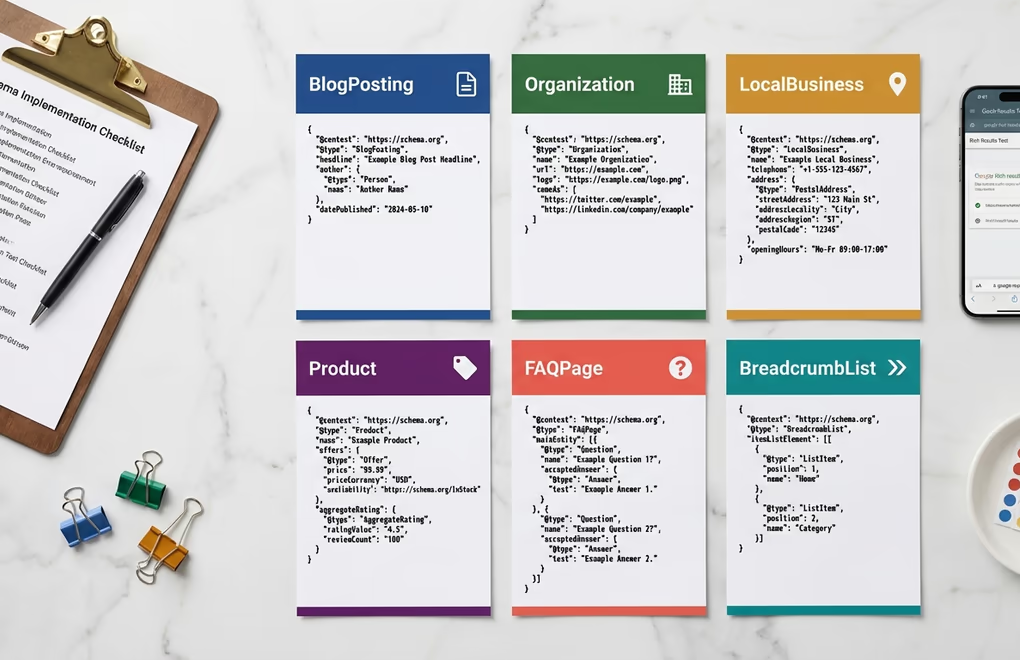
Ready-to-use JSON-LD templates for the six most common schema types. Paste them into a Custom HTML block or wrap them in the PHP function from Method 1. Swap the placeholders for your own information and you’re live.
Article / BlogPosting Schema
The single most important schema type for any WordPress blog. It communicates your post’s headline, author, publish date, and featured image to Google, which helps your content surface in the Top Stories carousel and news-related rich results. Google requires headline, author, datePublished, and image for Article rich results eligibility. The publisher with a logo is recommended rather than required, but including it avoids validation warnings.
<script type="application/ld+json"> { "@context": "https://schema.org", "@type": "BlogPosting", "headline": "Your Post Title Here", "url": "https://yoursite.com/post-slug/", "datePublished": "2026-02-21T10:00:00+00:00", "dateModified": "2026-02-21T10:00:00+00:00", "description": "A brief summary of your post content.", "image": "https://yoursite.com/wp-content/uploads/featured-image.jpg", "author": { "@type": "Person", "name": "Your Name", "url": "https://yoursite.com/about/" }, "publisher": { "@type": "Organization", "name": "Your Site Name", "logo": { "@type": "ImageObject", "url": "https://yoursite.com/logo.png" } } } </script>Organization Schema
This goes on your homepage. It connects your business name, logo, and social profiles into a single entity that Google references across every page of your site, helping define your brand identity in search results and Knowledge Panels.
<script type="application/ld+json"> { "@context": "https://schema.org", "@type": "Organization", "name": "Your Company Name", "url": "https://yoursite.com", "logo": "https://yoursite.com/logo.png", "sameAs": [ "https://twitter.com/yourhandle", "https://facebook.com/yourpage", "https://linkedin.com/company/yourcompany" ], "contactPoint": { "@type": "ContactPoint", "email": "[email protected]", "contactType": "customer service" } } </script>LocalBusiness Schema
Got a physical location? This schema type is essential for local SEO because it feeds Google Maps, the local search pack, and Knowledge Panels with your address, phone number, and business hours.
<script type="application/ld+json"> { "@context": "https://schema.org", "@type": "LocalBusiness", "name": "Your Business Name", "url": "https://yoursite.com", "telephone": "+1-555-123-4567", "address": { "@type": "PostalAddress", "streetAddress": "123 Main Street", "addressLocality": "Your City", "addressRegion": "State", "postalCode": "12345", "addressCountry": "US" }, "openingHours": ["Mo-Fr 09:00-17:00", "Sa 10:00-14:00"], "image": "https://yoursite.com/storefront.jpg" } </script>Product Schema
Product schema generates some of the most visually compelling rich results in Google. Prices, availability, review stars, all displayed directly in the search listing before anyone clicks through. Whether you’re selling physical goods through WooCommerce or digital products, this schema type can significantly boost your product pages’ click-through rates compared to competitors showing nothing but a bare title and meta description. One critical warning though: the aggregateRating must reflect real reviews that actually exist on your page. Add a 4.8 rating in schema when there are no visible reviews, and Google considers that a structured data policy violation that can strip your rich results eligibility.
<script type="application/ld+json"> { "@context": "https://schema.org", "@type": "Product", "name": "Your Product Name", "description": "Brief product description here.", "image": "https://yoursite.com/product-image.jpg", "brand": { "@type": "Brand", "name": "Your Brand" }, "offers": { "@type": "Offer", "price": "49.00", "priceCurrency": "USD", "availability": "https://schema.org/InStock", "url": "https://yoursite.com/product/" }, "aggregateRating": { "@type": "AggregateRating", "ratingValue": "4.8", "reviewCount": "125" } } </script>FAQ Schema
Want more visual real estate on the results page? FAQ schema creates expandable question-and-answer dropdowns directly in Google’s search results, pushing competitor listings further down while giving your result a much larger footprint. The questions and answers must match content that’s actually visible on the page, and you can add as many question objects to the mainEntity array as you need.
<script type="application/ld+json"> { "@context": "https://schema.org", "@type": "FAQPage", "mainEntity": [ { "@type": "Question", "name": "What is schema markup?", "acceptedAnswer": { "@type": "Answer", "text": "Schema markup is structured data code that helps search engines understand your content better and display rich results." } }, { "@type": "Question", "name": "Do I need a plugin to add schema to WordPress?", "acceptedAnswer": { "@type": "Answer", "text": "No. You can add JSON-LD schema manually through your theme files, a code manager, or Custom HTML blocks in the editor." } } ] } </script>BreadcrumbList Schema
Breadcrumb schema replaces your plain URL in search results with a clean navigation trail, so instead of seeing yoursite.com/blog/some-long-post-slug, users see Home › Blog › Category › Post Title. It’s a small visual change that makes your listing look more professional while helping users understand where the page sits within your site’s topic clusters and internal linking structure. One detail to note: the last item in the breadcrumb trail intentionally omits the item URL property, since Google’s guidelines specify that the final breadcrumb represents the current page and shouldn’t link to itself.
<script type="application/ld+json"> { "@context": "https://schema.org", "@type": "BreadcrumbList", "itemListElement": [ { "@type": "ListItem", "position": 1, "name": "Home", "item": "https://yoursite.com/" }, { "@type": "ListItem", "position": 2, "name": "Blog", "item": "https://yoursite.com/blog/" }, { "@type": "ListItem", "position": 3, "name": "Your Post Title" } ] } </script>How to Test and Validate Your Schema Markup

Writing schema is half the job. You also need to confirm it’s syntactically valid, that Google can parse it correctly, and that it actually qualifies for rich results.
Google’s Rich Results Test at search.google.com/test/rich-results is where you start. Enter your page URL and Google crawls the page, identifies all structured data, and tells you whether your markup qualifies for rich results. It shows every detected schema type with its properties, and separates errors from warnings clearly. An error means something is broken and rich results won’t appear. A warning means the markup works but you’re missing a recommended property that could strengthen it. You can also paste raw code snippets directly into the tool to test before publishing, which saves you from putting broken markup live and waiting for Google to re-crawl.
The Schema Markup Validator checks your structured data against the full Schema.org specification, not just Google’s subset. This matters because AI tools like ChatGPT and Perplexity use schema types that Google ignores for rich results, so validating against the broader spec ensures maximum compatibility.
Once your schema goes live, Google Search Console becomes your ongoing monitoring dashboard. The Enhancements section shows reports grouped by schema type (Articles, Products, FAQs, and so on), with separate counts for valid items, items with warnings, and items with errors. This is where you’ll catch site-wide problems like a template function generating broken schema across hundreds of posts simultaneously. A quick note on what “valid with warnings” means, since this confuses a lot of site owners: it means your schema is syntactically correct and Google can parse it, but you’re missing some recommended properties. Rich results can still appear with this status, but adding the missing properties like publisher.logo or brand generally improves your odds.
Common WordPress Schema Mistakes That Kill Your Rich Snippets
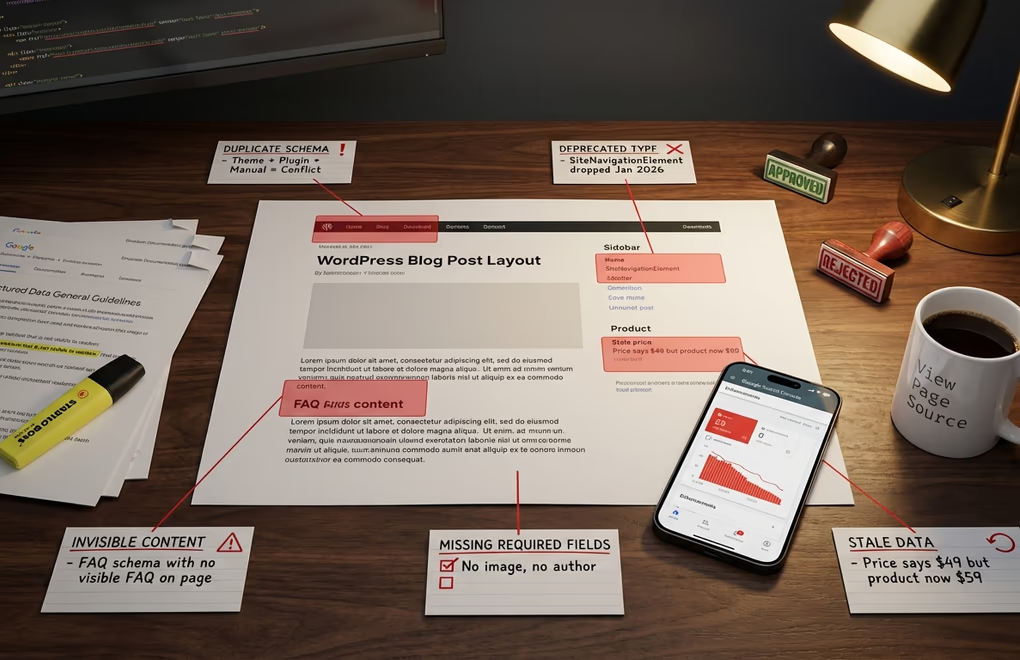
Your schema can pass validation and still never produce a single rich snippet. Here are the mistakes that trip up WordPress site owners most often.
The fastest route to a manual action from Google is marking up content that doesn’t exist on your page. Your schema must describe content users can actually see. If your FAQ schema includes a question that isn’t written anywhere visible, or your Product schema shows a price that doesn’t appear in the content, Google treats that as misleading structured data and the penalty can range from losing rich results on a single page all the way to having eligibility stripped from your entire domain.
Deprecated schema types are a silent killer. Google dropped support for seven types in January 2026, so if you’re still generating SiteNavigationElement or Speakable markup, your code won’t throw errors but it also won’t produce any rich results. Check Google Search Central’s structured data gallery for what’s currently supported.
WordPress sites are especially prone to duplicate schema from theme and plugin conflicts. Many modern themes already output Organization and WebSite schema in the <head> section, and if you add your own on top of that while also running an SEO plugin like Rank Math or Yoast that generates its own schema, you end up with duplicate or conflicting structured data. Google won’t necessarily penalize you for this, but the conflicting signals can confuse its parser enough to prevent rich results entirely. Before adding any manual schema, view your page source and search for application/ld+json to see what’s already being output by your theme and plugins.
Missing required properties will also block rich results even when your JSON-LD is syntactically perfect. Article schema needs headline, image, datePublished, and author at minimum. Product schema requires name, image, and an offers object with price and priceCurrency. Skip any required property and your markup won’t qualify. Always test before going live.
Stale schema is another common trap for anyone using Method 3. Since Custom HTML blocks contain static text, your JSON-LD doesn’t update when you change a post title, adjust a product price, or modify a publish date. Over time that mismatch between your structured data and your visible content erodes trust signals and reduces your chances of earning rich results. Method 1 avoids this entirely because it pulls values dynamically from WordPress every time the page loads. And finally, don’t add schema to every page. Focus on pages that benefit from rich results: blog posts, product pages, your homepage, key landing pages, and your contact or about page if you have a physical location. Schema on your privacy policy or terms of service page adds complexity with zero SEO benefit.
Get Rich Snippets Working on Your WordPress Site Today
Manual WordPress schema markup gives you complete control over your structured data with zero plugin bloat. You’ve now got three methods and six code templates. Pick the one that fits your workflow and comfort level.
If you’re starting from scratch, begin with Article or BlogPosting schema on your posts, add Organization schema to your homepage next, then expand based on what your site actually needs: Product schema for ecommerce, FAQ for informational pages, LocalBusiness if you’ve got a storefront. Don’t try to implement everything in one afternoon. Pick one type, validate it, confirm it’s working in Search Console, then move on to the next. With 69% of websites still not using any schema at all, even basic structured data puts you ahead of the vast majority of your competition. Open the Google Rich Results Test right now, paste in your URL, and see exactly what you’re missing.





0 Comments on "WordPress Schema Markup: How to Add Rich Snippets Without Plugins"