
WordPress revisions save a snapshot of every change you make to a post or page, and they let you roll back to any previous version with a single click. They’re one of the most useful built-in features for content teams, solo bloggers, and store owners who update product pages on a regular basis.
The catch is that WordPress stores every single revision indefinitely by default, which means your database grows quietly in the background with each edit. A site with 200 posts and 50 revisions each can end up with 10,000 extra rows in the wp_posts table, and that adds up over months and years of publishing.
This guide covers how WordPress revisions actually work under the hood, how to find and restore them when you need a rollback, and the practical steps to limit or clean up old revisions so your database stays lean without giving up the safety net that makes revisions valuable in the first place.
What Are WordPress Revisions and How Do They Work?
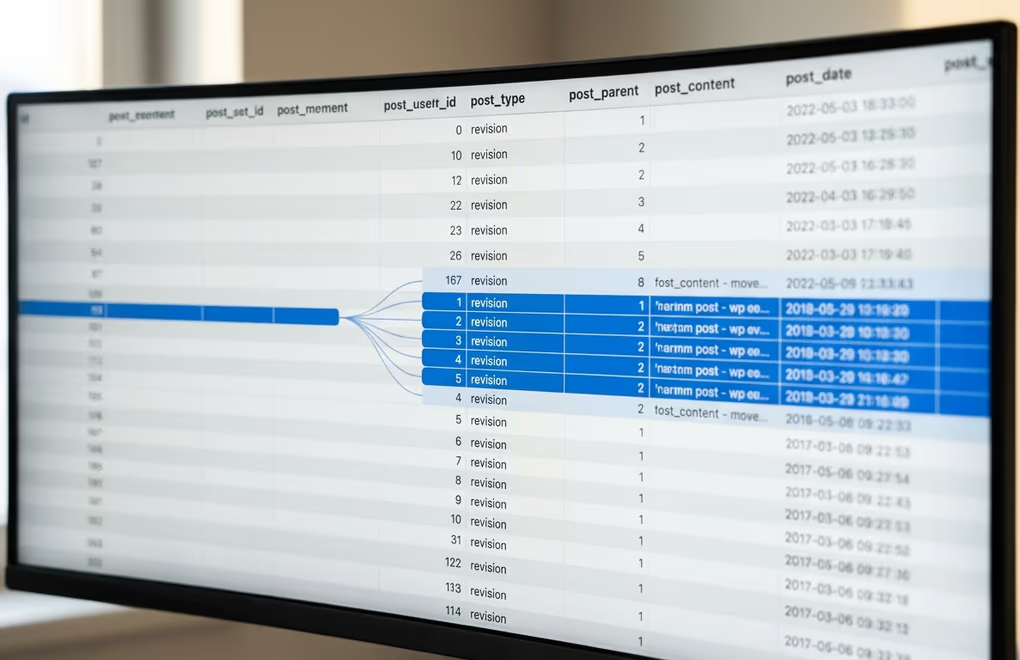
Every time you click “Save Draft”, “Update”, or “Publish” in the WordPress editor, the system copies the entire content of that post into a new row in the wp_posts table with the post type set to revision. That copy includes the title, the body content, the excerpt, and the post date, which means you can compare any two saves against each other and see exactly what changed between them.
WordPress also runs an autosave on a 60-second interval while you’re editing, and it stores that autosave as its own revision entry. If your browser crashes, your internet drops, or you accidentally close the tab, you can recover the most recent autosave the next time you open the post. The autosave replaces itself on each tick rather than creating a new row every minute, so it doesn’t pile up the way manual saves do.
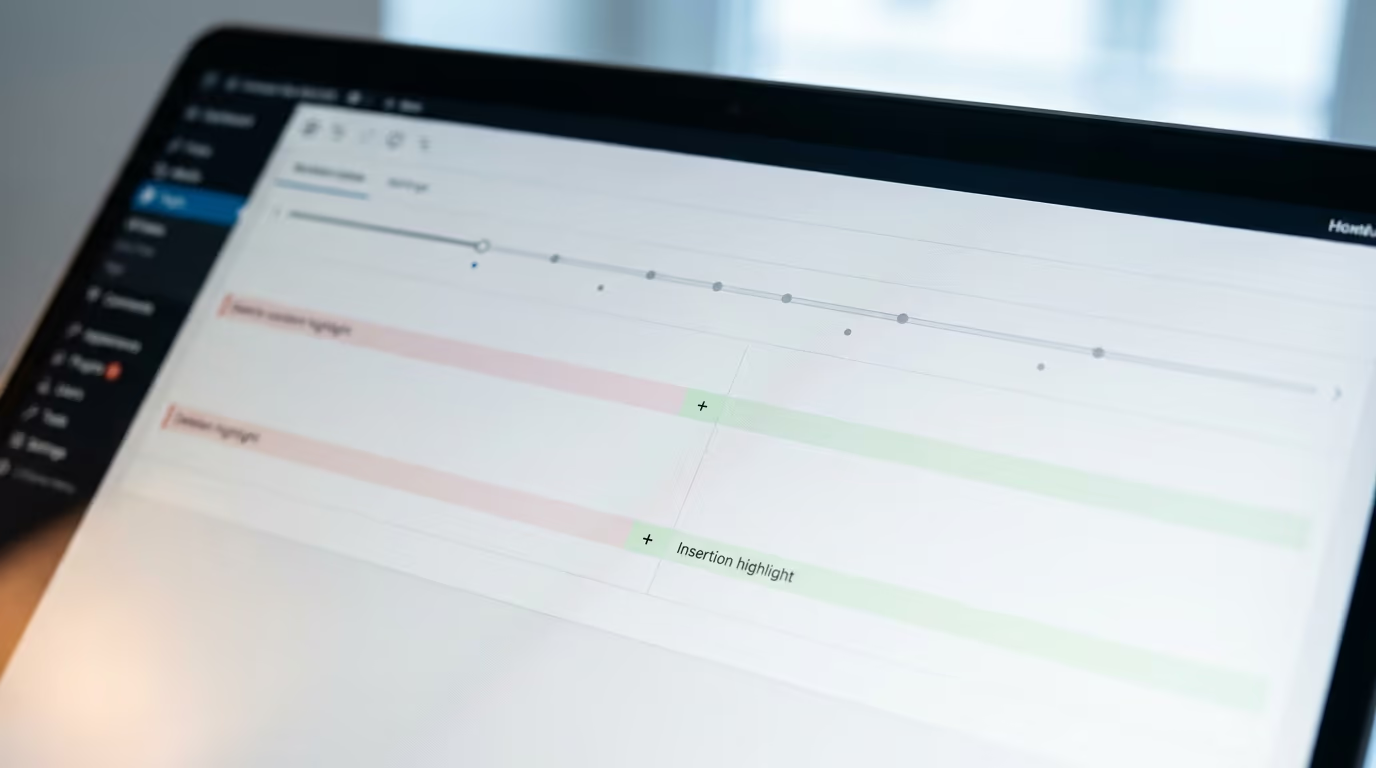
Revisions are tied to the post they belong to through the post_parent field in the database, and WordPress uses a comparison screen to display differences between two versions side by side. You can drag a slider across the timeline to step through every saved version, with insertions highlighted in green and deletions highlighted in red. This comparison view works in both the block editor and the Classic Editor, though the block editor’s revision panel lives in the Settings sidebar under the Post tab.
One detail that catches people off guard is that revisions don’t track changes to custom fields, featured images, categories, or tags. They only cover the main content area, title, and excerpt. Plugins like Advanced Custom Fields store their own revision data separately, but out of the box, WordPress revisions are strictly about the post content itself.
Recent WordPress versions (6.4 and later) extended revision support beyond posts and pages to include templates and template parts in block themes that use full site editing. If you modify a header template or a footer layout in the Site Editor, WordPress now tracks those changes as revisions too, which means you can revert a broken template back to a working version the same way you’d revert a blog post. Global styles, the design settings that control fonts, colors, and spacing across your entire theme, also gained revision support, so experimenting with a new color scheme and then rolling back takes a few clicks rather than manual re-entry of every setting.
How Do You Find and Restore WordPress Revisions?
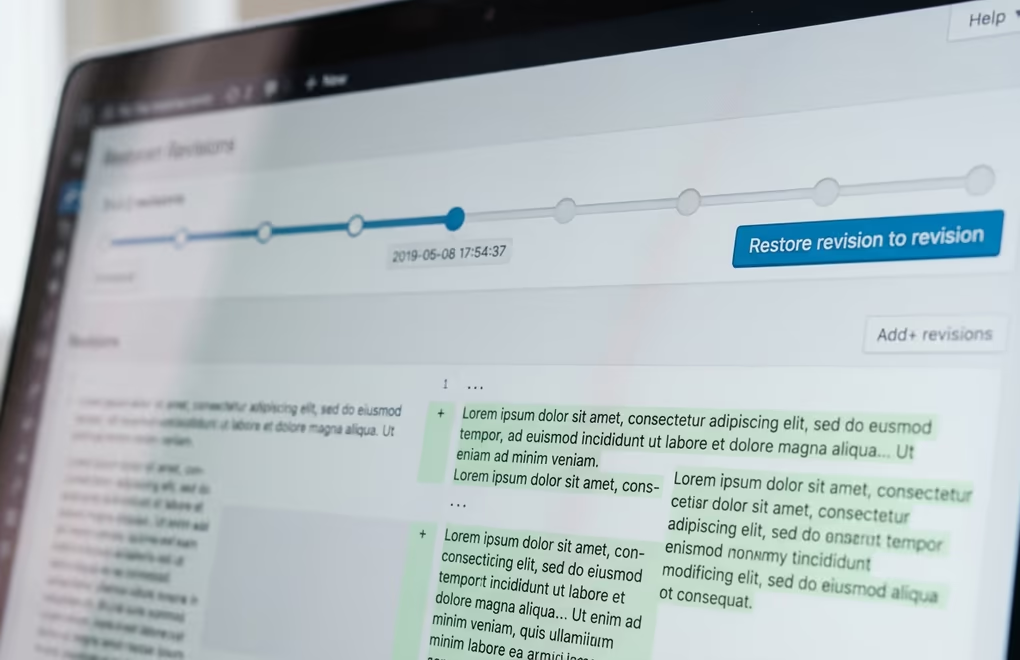
In the block editor (Gutenberg), you’ll find revisions by opening a post and clicking the three-dot menu in the top-right toolbar, then selecting “Revisions” from the dropdown, or by clicking the revision count link in the Settings sidebar under the Post tab. Either path takes you to the comparison screen, where the slider at the top lets you step through each saved version chronologically.
The comparison screen shows two columns of content side by side, and it highlights every addition, deletion, and change between the two versions you’re comparing. By default it compares each version to the one immediately before it, but you can check the “Compare any two revisions” box at the top to jump between versions that aren’t adjacent, which is useful when you want to compare today’s draft against the original version from weeks ago.
Restoring a revision takes exactly one step: scroll to the version you want and click “Restore This Revision” at the top of the screen. WordPress replaces the current content with that older version, and it creates a new revision entry for the restore action itself, so you don’t lose anything in the process. If you restore version 5 and realize version 8 was actually better, you can go right back to version 8 because it’s still saved in the revision history.
WordPress doesn’t support restoring individual paragraphs or blocks from a revision through the built-in UI. If you need to recover just one section from an older version while keeping everything else, you’ll need to open the comparison screen, find the section you want, and manually copy the text from the side-by-side view back into the editor. It’s not elegant, but it works without any plugins or extra tools.
For sites running the Classic Editor, the process is nearly identical except the revision link appears in the “Publish” metabox on the right side of the edit screen. Clicking it takes you to the same comparison interface with the same slider and restore button.
How Many WordPress Revisions Should You Keep?
The right number depends on how often you edit and how critical a rollback might be for your particular type of site. WordPress stores unlimited revisions by default, and for a site that publishes and rarely touches old content, that’s rarely a problem. But sites that update frequently, like stores with changing product descriptions or membership sites with evolving course material, can accumulate thousands of revisions that serve no practical purpose after a few weeks.
A personal blog or a portfolio site that publishes once or twice a week can comfortably keep 10 to 15 revisions per post. That’s enough to cover a few editing sessions and gives you a solid safety net without bloating the database. You’re unlikely to ever need to roll back more than 10 versions for a blog post, and the storage cost is trivial at that scale.
An e-commerce site that updates product pages, pricing, and seasonal collections on a rolling basis should keep closer to 5 to 10 revisions per post. Product pages get edited far more frequently than blog posts, and the content changes tend to be small, targeted updates (a price correction, a new bullet point) rather than full rewrites. Five revisions gives you about a week’s worth of safety for pages you touch daily.
Membership and course sites that continuously refine lesson content, update module structures, and rework instructional material benefit from keeping 15 to 20 revisions. Course creators often make incremental improvements over weeks, and reverting to a version from two or three editing sessions ago is genuinely common in that workflow. The extra revisions are worth the modest database overhead because the cost of losing a good version of a lesson is real.
Agency sites and client projects that rarely change after launch can drop to 3 to 5 revisions per post. Once a page goes live and the client approves, the revision history becomes mostly archival, and keeping the database clean for speed is the higher priority. If a client requests a major rewrite months later, a full site backup is a better safety net than months of accumulated revisions.
Custom post types follow the same logic, but they only support revisions if the developer explicitly registered them with revision support enabled. WooCommerce products, for example, don’t save revisions out of the box, so adjusting your revision limit through wp-config.php won’t affect product pages unless you’ve added revision support through a plugin or custom code. If you’re running a store with DigiCommerce or another digital product plugin, check whether the product post type supports revisions before assuming your limit applies to it.
How Do You Limit or Disable WordPress Revisions?
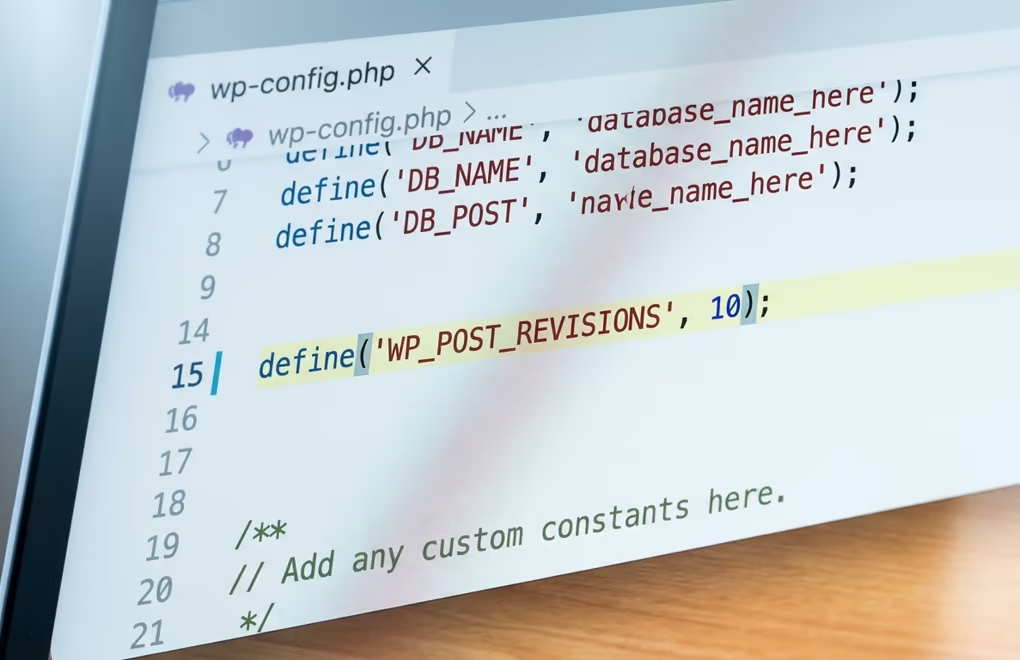
The most reliable way to control WordPress revisions is through the WP_POST_REVISIONS constant in your wp-config.php file. This constant accepts either a number (the maximum revisions per post) or a boolean (true for unlimited, false to disable revisions entirely). You need to add the line above the “That’s all, stop editing!” comment in wp-config.php for it to take effect.
To cap revisions at 10 per post, add this line to wp-config.php:
define(‘WP_POST_REVISIONS’, 10);
That tells WordPress to keep only the 10 most recent revisions for any post or page, and it automatically discards older ones the next time you save. If you set the value to 0 or false, WordPress stops creating revisions entirely, though autosaves still function separately and aren’t affected by this constant. Setting it to true or leaving it undefined keeps the default behavior of unlimited revisions.
Some managed hosting providers override the WP_POST_REVISIONS constant at the server level, which means your wp-config.php setting might not work if your host has its own revision policy. WP Engine, for example, caps revisions at 5 by default on their platform. If your changes to wp-config.php don’t seem to take effect, check with your hosting provider to see if they enforce a server-side limit.
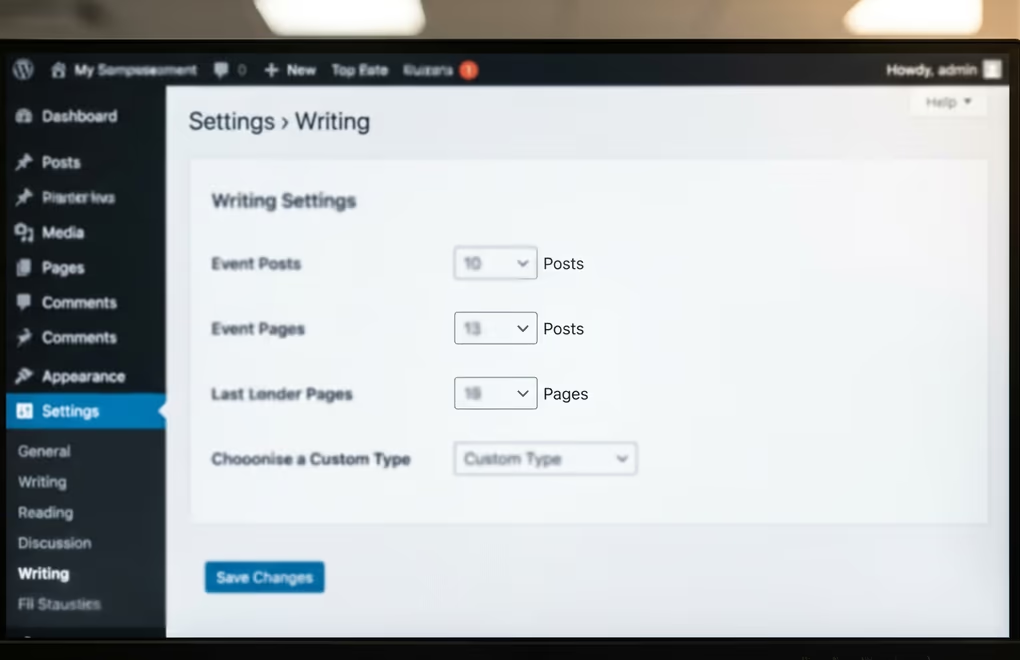
If you’d rather not edit configuration files directly, several plugins offer a visual interface for revision management. WP Revisions Control adds a setting under Settings > Writing where you can specify the maximum number of revisions per post type, which is useful when you want different limits for posts, pages, and custom post types. The plugin doesn’t delete existing revisions though; it only limits future ones, so you’ll need a separate cleanup step for old data (covered in the next section).
Disabling revisions entirely is technically possible but rarely a good idea for active sites. The storage savings are minimal compared to the risk of losing content you can’t recover, and the autosave feature alone doesn’t provide the same level of version history that full revisions do. A limit of 3 to 5 revisions gives you most of the database benefit while preserving a meaningful safety net for accidental changes.
How Do You Delete Old WordPress Revisions Safely?
Before you delete anything, create a full database backup. Revisions live in the same wp_posts table as your published content, and a careless query can wipe out live posts if the WHERE clause isn’t specific enough. Every method below is safe when used correctly, but the backup is your insurance policy against mistakes. A reliable backup plugin can create a snapshot of your database in under a minute, and that one minute can save you from a very bad afternoon.
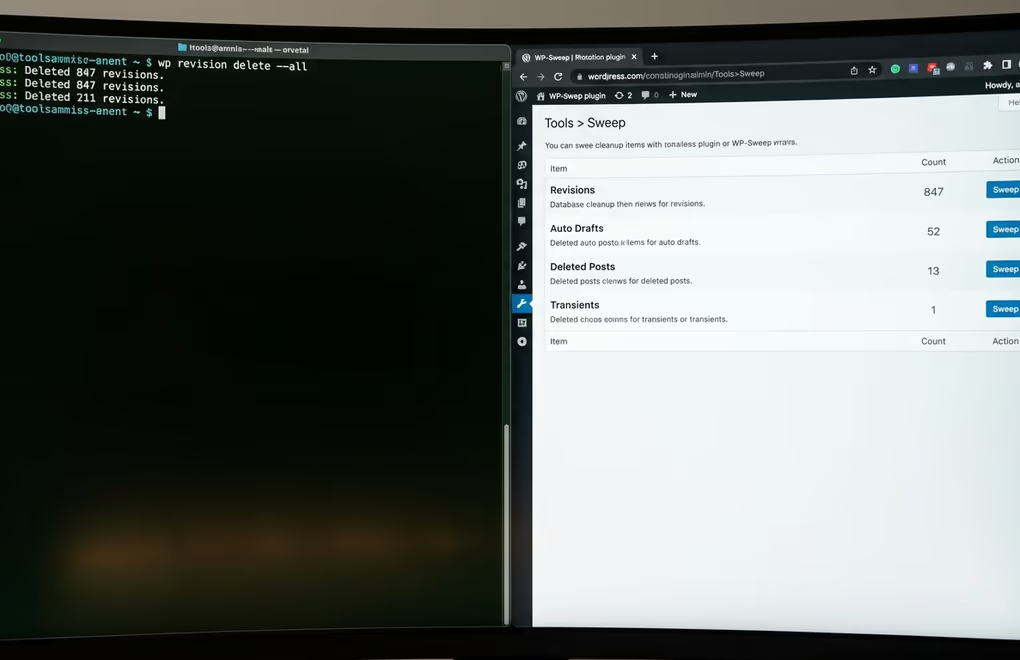
The cleanest approach for most site owners is WP-Sweep, a free plugin that scans your database for orphaned revisions, auto-drafts, trashed posts, and other unnecessary data. After installing and activating it, go to Tools > Sweep, and you’ll see a count of revisions alongside a “Sweep” button. It processes revisions in batches to avoid overloading the database on large sites, and it cleans up the related metadata and term relationships that a raw SQL query would miss.
If you’re comfortable with the command line, WP-CLI provides a surgical way to handle revision cleanup without installing a plugin. The command wp post delete $(wp post list –post_type=revision –format=ids) finds every revision in the database and deletes them permanently. You can add filters like –post_parent=123 to target revisions for a specific post, or pipe the list through head -n 100 to process them in manageable batches rather than deleting everything at once.
For site owners who want to run the cleanup directly in the database, phpMyAdmin lets you execute a SQL query against the wp_posts table. The query DELETE FROM wp_posts WHERE post_type = ‘revision’ removes all revision rows in one statement. Run it against a staging copy first if your site has custom post types or plugins that store their own data as revisions, because some plugins use the revision post type for non-standard purposes that you don’t want to accidentally remove.
After deleting revisions through any method, run an optimization on the wp_posts table to reclaim the freed disk space. In phpMyAdmin, select the wp_posts table, click “Optimize table” from the dropdown, and the database engine will compact the table and rebuild its indexes. WP-Sweep handles this step automatically, which is another reason it’s the recommended approach for sites that don’t have WP-CLI access. The caching layer on your site should pick up the leaner database on the next page load without any extra configuration.
A Cleaner Database Means a Faster WordPress Site
WordPress revisions are genuinely useful when you need them, and they’re completely invisible when you don’t, which is exactly how a good safety feature should work. The problem has never been revisions themselves but rather the default of keeping every single one indefinitely without any built-in limit. Setting a sensible cap in wp-config.php takes less than a minute, and cleaning up old revisions takes less than five.
The combination of a defined revision limit and a periodic database cleanup keeps your .htaccess and server configuration working efficiently alongside a database that isn’t carrying years of unused data. Your queries run faster, your backups stay smaller, and you still have enough revision history to undo any mistake that matters.



0 Comments on "WordPress Revisions: How to Use, Limit, and Clean Up Post History"