

Your WordPress site is losing visitors right now. Every 100 milliseconds of delay costs you conversions, and if your server sits in New York while half your audience browses from London, Sydney, or Tokyo, those visitors experience frustrating load times that make them bounce before seeing your content. A WordPress CDN solves this problem by caching your static files on servers spread across the globe, delivering content from the location nearest to each visitor. Pairing a CDN with one of the fastest WordPress themes gives you the strongest possible performance foundation.
The numbers back this up. According to Google’s research, TTFB (Time to First Byte) accounts for 40% of your Largest Contentful Paint score, which directly impacts your Core Web Vitals and search rankings. CDNs can reduce TTFB by up to 72% according to Cloudflare’s own testing, and that improvement alone can push your site from failing Core Web Vitals to passing them comfortably.
Three CDN providers dominate the WordPress ecosystem in 2026: Cloudflare, BunnyCDN, and KeyCDN. Each takes a different approach to content delivery, and choosing the wrong one for your specific situation means leaving performance and money on the table. Cloudflare operates at the DNS level with a generous free tier and built-in security features. BunnyCDN offers the most affordable pay-as-you-go pricing with excellent image optimization. KeyCDN provides developer-focused tools with straightforward pricing.
This guide walks you through setting up each CDN from scratch, compares their real-world performance and costs, and helps you decide which one makes sense for your WordPress site. You’ll also learn an advanced technique: running Cloudflare and BunnyCDN together for maximum performance gains.
How a WordPress CDN Actually Works
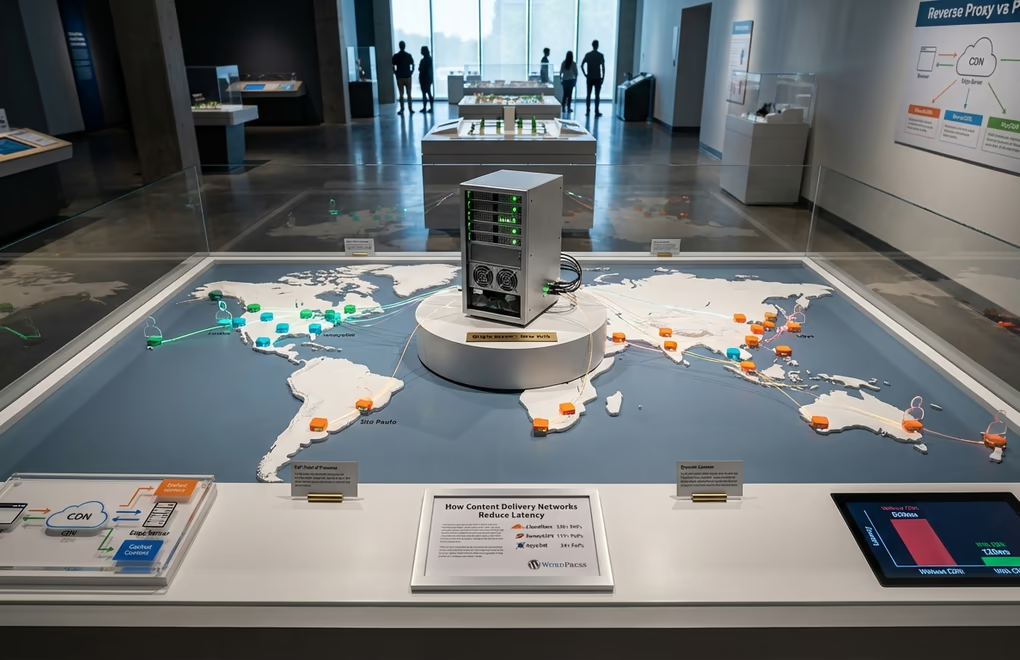
A Content Delivery Network consists of servers positioned in data centers around the world, commonly called Points of Presence or PoPs. When someone visits your WordPress site, instead of their request traveling all the way to your origin server, it gets served from the nearest PoP. Cloudflare operates 330+ PoPs globally, BunnyCDN has 119+ PoPs, and KeyCDN maintains 34+ PoPs across six continents.
The process works differently depending on whether you’re using a reverse proxy CDN like Cloudflare or a pull CDN like BunnyCDN. With Cloudflare, all traffic routes through their network first since you point your domain’s nameservers directly to Cloudflare. They handle DNS, cache your content, filter malicious requests, and only forward legitimate traffic to your origin server. With BunnyCDN and KeyCDN, your site operates normally, but you configure WordPress to load static assets like images, CSS, and JavaScript from the CDN’s URL instead of your domain.
Static assets get cached automatically, meaning images, stylesheets, scripts, and fonts load from edge servers near your visitors. Dynamic content like HTML pages requires additional configuration. Cloudflare’s APO (Automatic Platform Optimization) caches entire WordPress pages at the edge with a $5/month add-on for free plan users. BunnyCDN doesn’t offer built-in full-page caching, so you’d typically pair it with a caching plugin like WP Rocket that handles HTML optimization on your server.
Beyond speed improvements, CDNs provide security benefits. DDoS attacks get absorbed by the CDN’s network rather than hitting your server directly. Cloudflare’s free tier includes basic DDoS protection and a Web Application Firewall. Both BunnyCDN and KeyCDN offer DDoS mitigation as standard features. Your origin server IP stays hidden behind the CDN, making direct attacks significantly harder.
Cloudflare: The All-in-One DNS-Level CDN
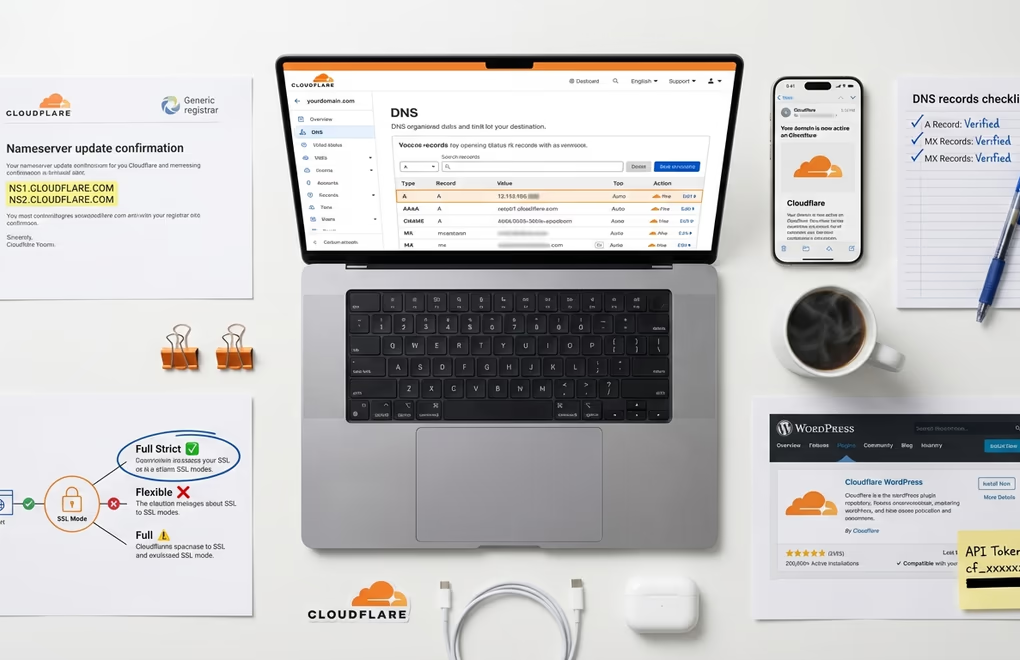
Cloudflare is the most widely used CDN for WordPress sites, and for good reason. Their free tier includes CDN functionality, SSL certificates, basic DDoS protection, and DNS hosting, all without spending a dollar. The network spans over 330 cities globally, ensuring low latency for visitors virtually anywhere in the world. The main difference from other CDNs is the DNS-level integration, meaning you’re trusting Cloudflare with your entire domain’s traffic.
Setting up Cloudflare for WordPress requires changing your nameservers. Start by creating a free account at cloudflare.com and adding your domain. Cloudflare automatically scans your existing DNS records and imports them, but you should verify each record matches your current configuration before proceeding. Pay special attention to your A record pointing to your hosting server’s IP address.
Once you’ve verified the DNS records, Cloudflare provides two custom nameservers. Log into your domain registrar, whether that’s GoDaddy, Namecheap, Google Domains, or wherever you registered your domain, and replace the existing nameservers with Cloudflare’s. DNS propagation typically completes within a few hours, though it can take up to 48 hours in some cases. You’ll receive an email confirmation when your domain is active on Cloudflare.
The critical SSL setting trips up many WordPress users. If your hosting already has an SSL certificate installed, set Cloudflare’s SSL mode to Full (Strict). Leaving it on Flexible causes infinite redirect loops that break your site completely. In your Cloudflare dashboard, navigate to SSL/TLS and select Full (Strict) if you have a valid certificate on your origin server.
Install the official Cloudflare WordPress plugin from the plugin repository. After activation, connect it using your email and API token, which you can generate in your Cloudflare dashboard under My Profile > API Tokens. The plugin provides a one-click button to apply recommended WordPress settings. These optimizations include enabling Brotli compression, turning on Early Hints for faster preloading, and configuring appropriate cache rules for WordPress.
For maximum WordPress performance, enable APO (Automatic Platform Optimization), this $5/month add-on caches your entire WordPress site at the edge, including dynamic HTML pages. Testing shows APO can reduce TTFB by 72% and improve Speed Index by 13%. The plugin handles cache invalidation automatically when you publish or update posts, so visitors always see fresh content.
Cloudflare pricing tiers:
- Free (basic CDN, SSL, DDoS protection)
- Pro at $25/month (enhanced performance features, better support)
- Business at $250/month (advanced WAF rules, 100% uptime SLA)
- Enterprise with custom pricing
Most WordPress sites perform well on the free tier with APO added for $5/month.
BunnyCDN: Best Value Pay-As-You-Go CDN

BunnyCDN has earned a reputation as the best value CDN for WordPress users who want professional features without enterprise pricing. With rates starting at $0.01 per GB and a $1/month minimum, you’re looking at CDN costs that most sites barely notice on their hosting bill. The network includes 119+ PoPs globally with an average latency of just 29 milliseconds, making it competitive with providers charging ten times as much.
Unlike Cloudflare, BunnyCDN operates as a pull CDN. You don’t change your nameservers or route all traffic through their network. Instead, you create what BunnyCDN calls a Pull Zone, which is essentially a CDN endpoint that fetches and caches content from your WordPress site. Your site continues operating normally, but static assets like images, CSS, and JavaScript load from BunnyCDN’s servers.
Setting up BunnyCDN takes about five minutes. Create an account at bunny.net and fund it with at least $1 to activate your account. Navigate to the CDN section and click Add Pull Zone. Give your zone a descriptive name like your domain, then enter your WordPress site’s URL as the Origin URL. BunnyCDN generates a hostname in the format yourzone.b-cdn.net, which you’ll use to serve static files.
The official BunnyCDN WordPress plugin simplifies integration considerably. Install it from the WordPress plugin repository and enter your Pull Zone’s CDN URL in the settings. The plugin automatically rewrites URLs for static assets to load from BunnyCDN instead of your origin server. Enable the Smart Image Optimization feature if you want automatic WebP conversion and responsive image delivery.
For even better image performance, consider Bunny Optimizer at $9.50/month. This add-on compresses images automatically, resizes them based on the visitor’s device, and converts them to WebP format on the fly. According to Bunny’s documentation, this can reduce page weight by 50-70% and improve loading speed by 2-3x for image-heavy sites. If you’re running a photography portfolio or an eCommerce store selling digital products, Optimizer pays for itself quickly.
If you’re already using a caching plugin like WP Rocket, FlyingPress, or LiteSpeed Cache, you can configure BunnyCDN directly within those plugins instead of installing BunnyCDN’s plugin separately. WP Rocket has a dedicated CDN section where you enter your BunnyCDN URL. FlyingPress, developed by the same team behind WP Speed Matters, integrates particularly well with BunnyCDN and is a popular combination among WordPress performance enthusiasts.
BunnyCDN pricing structure:
- Standard Network starts at $0.01/GB in North America and Europe, with slightly higher rates for Asia, South America, and Oceania.
- Volume Network pricing drops to $0.005/GB for high-traffic projects.
- The 14-day free trial gives you access to all features without requiring payment upfront.
Real-world costs: a site serving 100 GB of bandwidth monthly pays around $1-2 with BunnyCDN.
KeyCDN: Developer-Focused CDN Solution
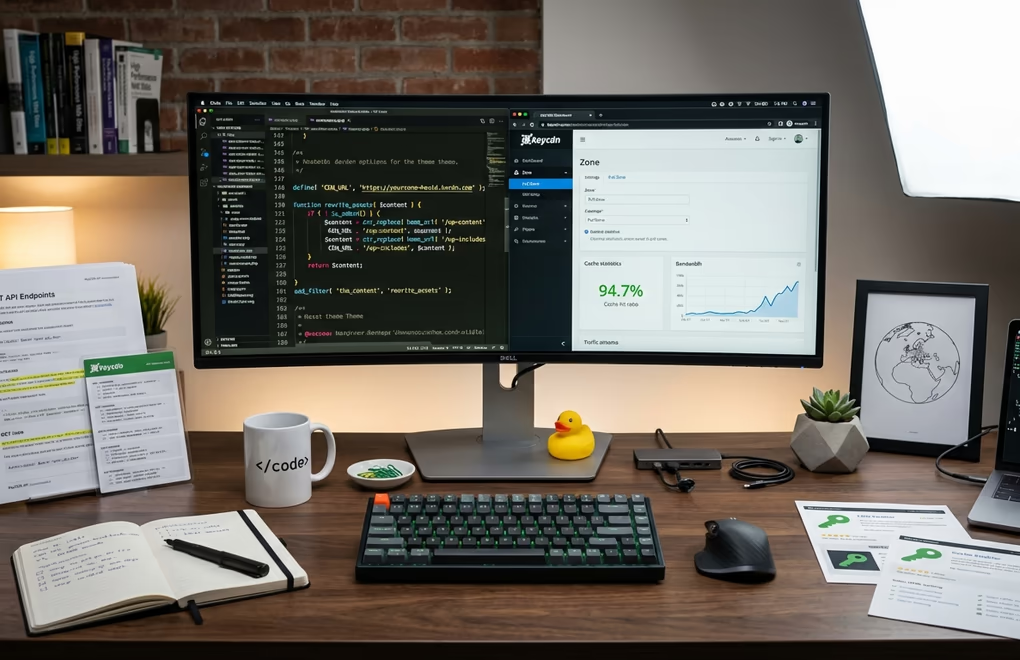
KeyCDN positions itself as the developer’s choice, built for users who want granular control over caching rules without the complexity of enterprise solutions. The company maintains strict privacy standards, operates entirely on SSD servers for better performance, and provides free SSL and HTTP/2 support on all plans. With 34+ PoPs concentrated primarily in Europe and North America, it’s particularly effective for sites targeting those regions.
KeyCDN follows a prepaid credit model instead of monthly subscriptions. You purchase $4 minimum in credits upfront, then consume those credits as bandwidth gets used. Pricing starts at $0.04 per GB for the first 10 TB, dropping to lower rates at higher usage tiers. The company offers a free 25 GB trial so you can test performance before committing funds.
Setting up KeyCDN for WordPress is straightforward. After creating an account, you’ll set up a Pull Zone similar to BunnyCDN. Enter your WordPress site URL as the origin, and KeyCDN generates a zone URL for loading assets. The setup process walks you through configuring cache headers, enabling Gzip compression, and setting up SSL.
KeyCDN developed their own WordPress plugin called CDN Enabler, which is available free from the WordPress plugin repository. The plugin has over 100,000 active installations and does exactly what the name suggests: it rewrites your asset URLs to load from your KeyCDN zone. Install the plugin, enter your zone URL, and optionally specify file extensions to include or exclude from CDN delivery.
KeyCDN also offers Cache Enabler, a separate plugin for page caching on your origin server. Using both together gives you static HTML caching locally plus CDN delivery for assets. For image optimization, KeyCDN partners with Optimus, their image compression service. The Optimus HQ plan runs $39/year and includes WebP conversion with a 5 MB file size limit.
The main limitation of KeyCDN is network size. With only 34+ PoPs compared to Cloudflare’s 330+ or BunnyCDN’s 119+, latency may be higher for visitors in regions with less coverage. Most KeyCDN data centers concentrate in Europe, making it an excellent choice if that’s where your audience lives but potentially suboptimal for sites targeting Asia-Pacific or South American markets.
KeyCDN pricing summary:
- $0.04/GB flat rate across all regions for the first 10 TB, with volume discounts available.
- The $4 minimum purchase lasts until you consume it, so low-traffic sites might run for months on a single deposit.
- No monthly minimums beyond the initial credit purchase, and the 25 GB free trial lets you verify performance before spending anything.
Performance Comparison and Real-World Benchmarks
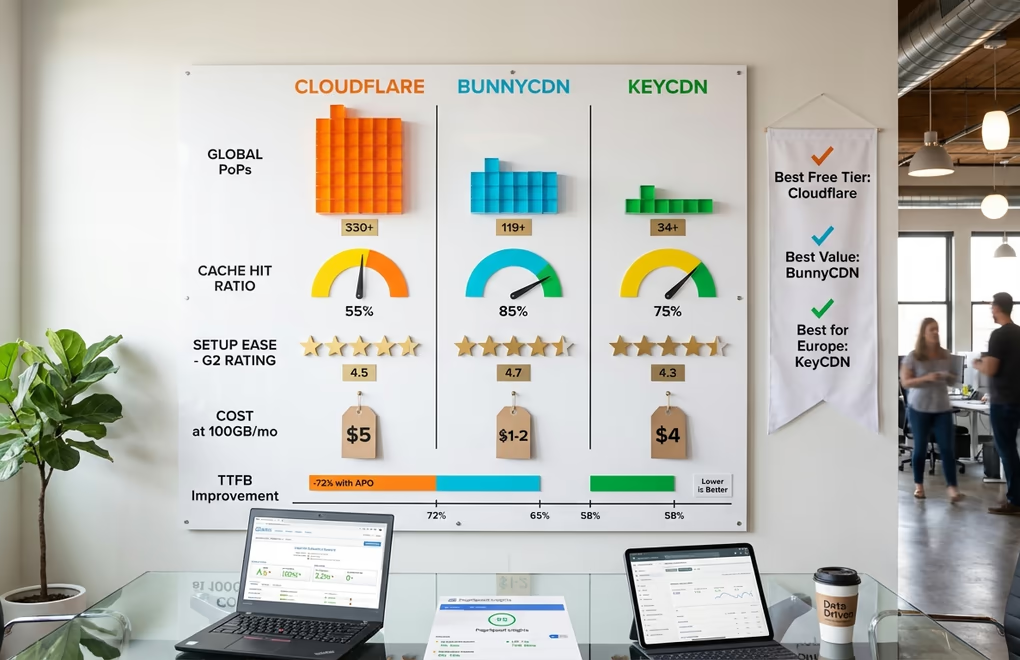
Raw numbers matter when choosing a WordPress CDN. BunnyCDN reports an average global latency of 29 milliseconds, making it one of the fastest CDNs available at any price point. Cloudflare’s massive network of 330+ PoPs ensures consistently low latency worldwide, though exact figures vary by region. KeyCDN’s smaller network means slightly higher latency in underserved regions, but performance in Europe and North America remains competitive.
Cache hit ratios tell another important story. Users on the Cloudflare Community forums report cache hit ratios between 50-60% on Cloudflare’s free tier, while BunnyCDN users frequently see 70-90% cache hit rates. Higher cache hit ratios mean more requests served from edge servers rather than your origin, reducing load on your hosting and improving response times for visitors.
For WordPress specifically, Cloudflare with APO enabled delivers the best full-page performance because it caches HTML at the edge. Without APO, Cloudflare only caches static assets like images and scripts, so your HTML still loads from your origin server. BunnyCDN and KeyCDN focus on static asset delivery, which means you’ll need a caching plugin on your WordPress site to optimize HTML delivery.
The cost comparison at 100 GB monthly bandwidth: Cloudflare’s free tier costs $0, or $5/month with APO. BunnyCDN costs approximately $1-2/month at this usage level. KeyCDN costs around $4/month. For sites with 1 TB monthly bandwidth, Cloudflare stays at $5/month with APO, BunnyCDN rises to roughly $10-15/month, and KeyCDN reaches about $40/month. As traffic scales, BunnyCDN’s per-GB pricing becomes increasingly attractive compared to KeyCDN’s higher rates.
Advanced Setup: Using Cloudflare and BunnyCDN Together
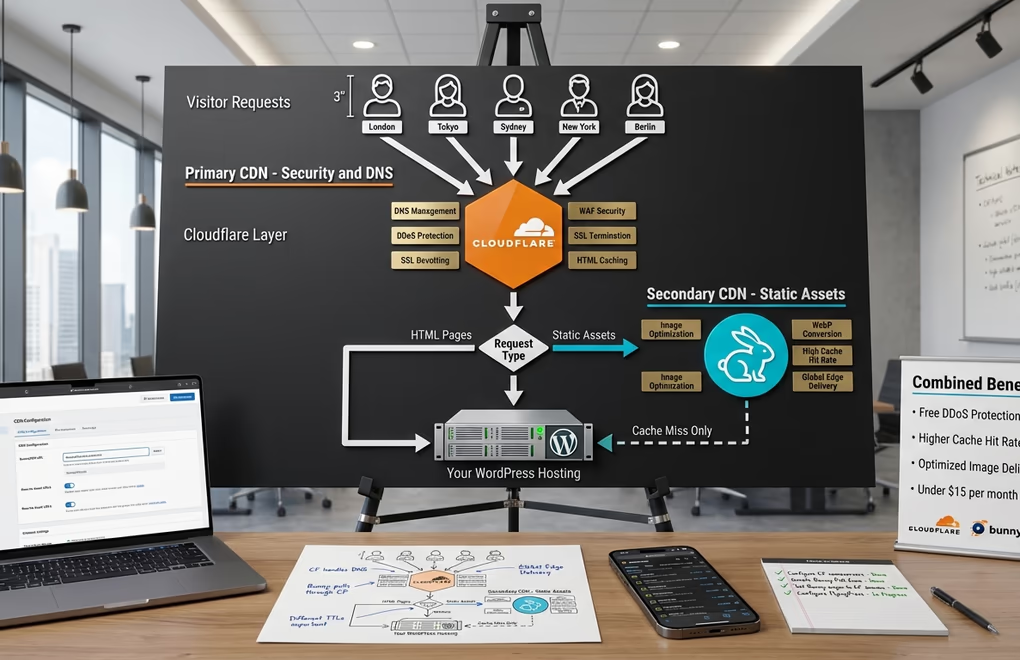
Running two CDNs simultaneously sounds redundant, but combining Cloudflare and BunnyCDN is actually a popular optimization strategy among WordPress performance experts. Gijo Varghese, the developer behind FlyingPress, recommends this setup for sites that want both Cloudflare’s security features and BunnyCDN’s superior static asset performance.
The concept works like this: Cloudflare handles your DNS, provides DDoS protection, and serves as the first layer of caching for your domain. BunnyCDN operates as a secondary CDN specifically for static assets like images, fonts, and scripts. Your WordPress site rewrites asset URLs to load from BunnyCDN, while HTML pages and everything else flows through Cloudflare.
To set this up, first configure Cloudflare as your primary CDN following the steps outlined earlier. Point your nameservers to Cloudflare and ensure your site works correctly through their network. Then create a BunnyCDN Pull Zone with your Cloudflare-proxied domain URL as the origin. This means BunnyCDN pulls content through Cloudflare rather than hitting your origin server directly.
Configure your caching plugin, whether that’s WP Rocket, FlyingPress, or another solution, to rewrite static asset URLs to your BunnyCDN hostname. Keep Cloudflare’s caching enabled for HTML and other content. The key is avoiding cache conflicts: set different cache TTLs for each CDN, and be mindful of which assets load from which source.
This dual-CDN approach delivers several benefits. You get Cloudflare’s free DDoS protection and WAF, plus BunnyCDN’s higher cache hit rates for static files. Image-heavy sites particularly benefit since BunnyCDN’s Optimizer handles image compression and WebP conversion more aggressively than Cloudflare’s free tier. The combined cost remains minimal, typically under $15/month for most WordPress sites even with Bunny Optimizer included.
Test thoroughly after implementing this setup. Check your browser’s Network tab to verify assets load from the expected CDN hostnames. Monitor both Cloudflare and BunnyCDN analytics to ensure cache hit rates look healthy. If you notice issues with certain file types or unexpected origin requests, adjust your cache rules accordingly.
Which WordPress CDN Should You Choose?
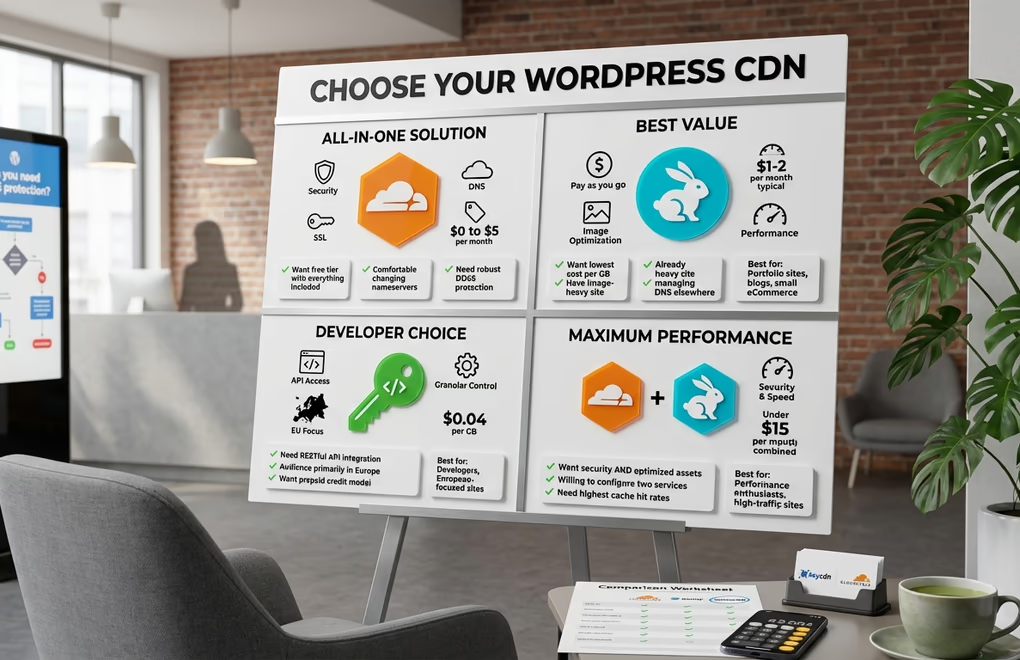
Your choice depends on your specific situation.
Choose Cloudflare if you want an all-in-one solution with DNS, CDN, and security in one package. The free tier works well for budget-conscious site owners, and adding APO for $5/month delivers excellent full-page caching performance. Cloudflare makes sense if you’re comfortable changing nameservers and want robust DDoS protection without extra configuration.
Choose BunnyCDN if you want the best price-to-performance ratio and don’t mind managing DNS separately. The pay-as-you-go model keeps costs predictable, and the 14-day free trial lets you verify performance before committing. BunnyCDN particularly shines for image-heavy sites when paired with Bunny Optimizer. If you’re already using a modern block theme optimized for performance, BunnyCDN complements that foundation nicely.
Choose KeyCDN if your audience concentrates in Europe or North America and you prefer straightforward pay-as-you-go pricing without monthly minimums. Developers appreciate KeyCDN’s RESTful API and granular caching controls. The ecosystem of companion plugins like CDN Enabler and Cache Enabler provides a cohesive WordPress integration experience.
For maximum performance, consider the Cloudflare + BunnyCDN combination. You get security features from Cloudflare and optimized static asset delivery from BunnyCDN. This setup requires more initial configuration but delivers results that single-CDN setups struggle to match.
Remember that a CDN is just one piece of the WordPress performance puzzle. Your hosting infrastructure, theme architecture, caching strategy, and overall site optimization all contribute to final load times. A fast lightweight WordPress theme built for performance will always outperform a bloated theme even with the best CDN attached.
Speed Up Your WordPress Site Today
A WordPress CDN transforms your site’s performance by serving content from edge servers close to your visitors. Cloudflare offers the most comprehensive free solution with optional APO for full-page caching. BunnyCDN delivers the best value for sites that need reliable static asset delivery at minimal cost. KeyCDN provides developer-friendly tools with strong European coverage. And combining Cloudflare with BunnyCDN gives you the best of both worlds.
Pick the CDN that matches your traffic patterns, budget, and technical comfort level. Start with a free trial or free tier, measure your baseline performance, then track improvements after implementation. Your visitors will notice the difference, and Google’s Core Web Vitals measurements will reflect better scores within days.
Have you implemented a CDN on your WordPress site? Which provider are you using, and what performance improvements have you seen? Share your experience in the comments.





0 Comments on "WordPress CDN Setup Guide: Cloudflare vs BunnyCDN vs KeyCDN (2026 Comparison)"