
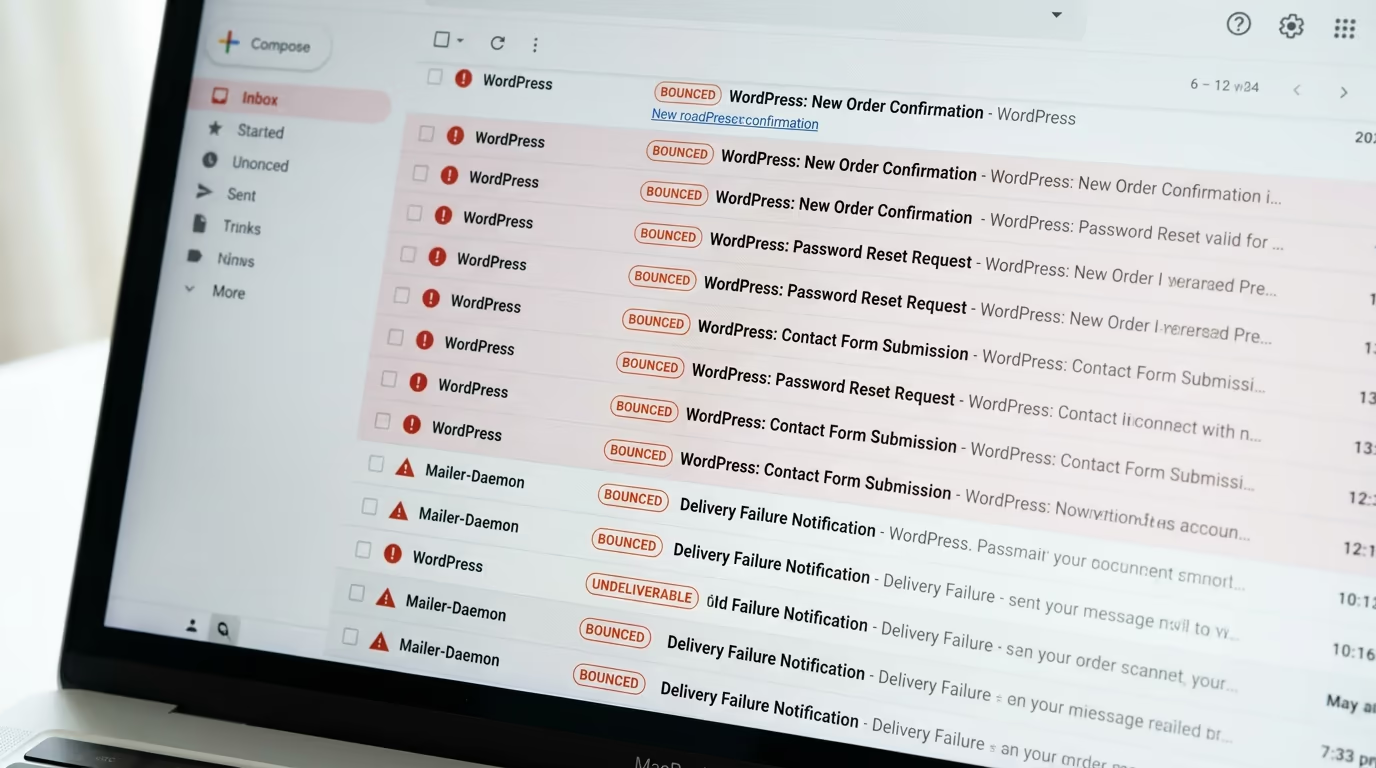
WordPress not sending email is one of the most common problems site owners run into, and it usually catches them off guard. WordPress relies on PHP’s built-in mail() function for every message it tries to deliver, and most hosting companies either restrict or disable that function entirely. That’s why your password reset links never arrive, your contact form submissions disappear, and your customers don’t get order confirmations.
The fix isn’t complicated, but it starts with understanding what’s actually broken. In most cases, the problem is that your server can’t prove it’s allowed to send email on behalf of your domain. Email providers like Gmail and Outlook reject messages that lack proper authentication, and PHP’s mail() function doesn’t include any. You need an SMTP connection to a dedicated email service, plus DNS records that tell receiving servers your messages are legitimate.
This guide walks through every step, from diagnosing the actual cause on your specific server to picking the right SMTP plugin and configuring the DNS records that keep your messages out of spam folders. Whether the problem is a contact form that quietly drops submissions, a WooCommerce store that never confirms orders, or a login page that won’t send password resets, you’ll find the specific fix below.
Why Is WordPress Not Sending Email?

WordPress uses PHP’s mail() function for every email it sends, from password resets to comment notifications to plugin alerts. This function hands the message off to whatever mail transfer agent your web server runs, usually Sendmail or Postfix on Linux. The problem is that most shared hosting providers throttle or block this function because spammers abuse it constantly.
Even when PHP mail() works on your server, the emails it sends usually lack authentication. Gmail, Outlook, Yahoo, and most modern email providers check incoming messages for SPF, DKIM, and DMARC records. These DNS records prove that your server has permission to send email on behalf of your domain. Messages sent through PHP mail() almost never pass these checks, so they land in spam or get silently dropped before reaching anyone’s inbox.
Shared hosting creates another layer of problems. When hundreds of sites share the same server IP address, that IP often ends up on email blacklists because one or two sites send spam. Your perfectly legitimate password reset email gets blocked because your server’s IP has a bad reputation from other tenants, something you can’t control.
Some managed WordPress hosts like WP Engine and Kinsta don’t support PHP mail() at all. They block it on purpose and expect you to use a third-party email service through SMTP. If you’re on one of these hosts and haven’t configured an SMTP plugin, WordPress literally can’t send anything. There’s no error message, no warning in the dashboard, and no log entry unless you’ve set up debugging, so the emails vanish without any trace.
WordPress itself doesn’t include any email logging or delivery tracking. When you submit a contact form or trigger a password reset, WordPress fires the wp_mail() function and moves on. It doesn’t check whether the email actually arrived, and it doesn’t tell you if something went wrong during delivery. That’s why most site owners only discover the problem when a customer complains they never received an order receipt, or when they can’t log back in after a password reset.
How Do You Diagnose WordPress Email Problems?

Before installing any plugin, figure out whether your server can send email at all. The fastest test is to go to Settings, then General in your WordPress dashboard, and verify that the administration email address is correct. Then trigger a password reset for your own account and check your inbox, including your spam folder. If nothing arrives within five minutes, your server’s email delivery is broken.
Enable WordPress debug logging to see what’s happening behind the scenes. Open your wp-config.php file (it sits in your WordPress root directory) and add these two lines before the “That’s all, stop editing!” comment:
define( 'WP_DEBUG', true );define( 'WP_DEBUG_LOG', true );
This writes errors to wp-content/debug.log. After enabling it, trigger another password reset and check the log file for any PHP warnings or errors related to mail() or wp_mail(). Common errors include “Could not instantiate mail function” (which means PHP mail() is disabled on your server) and connection timeout messages (which point to firewall rules blocking outbound SMTP ports).
If you want a quicker visual test, install the free Check Email plugin from the WordPress repository. It adds a simple interface under Tools where you can send a test message to any address and see the result immediately. This tells you whether the basic wp_mail() function works without any SMTP plugin installed. Remove the plugin after testing because you don’t need it running permanently.
For server-level checks, contact your hosting provider and ask two specific questions. First, does your plan support PHP mail()? Second, does the server block outbound connections on ports 587 and 465? These are the standard SMTP ports, and some budget hosts block them to prevent spam. If your host blocks these ports, you’ll need to use an API-based email service (like SendGrid’s web API or Mailgun’s API) instead of a traditional SMTP connection, because API delivery uses port 443 (HTTPS) which is never blocked. Knowing this before you pick a plugin saves you from configuring one that can’t connect.
You should also check whether your server’s IP address is blacklisted. Visit a tool like MXToolbox’s blacklist check, enter your server’s IP (your host can tell you what it is), and see if it appears on any major blocklists. If it does, that’s a strong sign you need to route email through a third-party service with its own clean IP reputation instead of sending directly from your server.
Which SMTP Plugin Should You Use for WordPress?
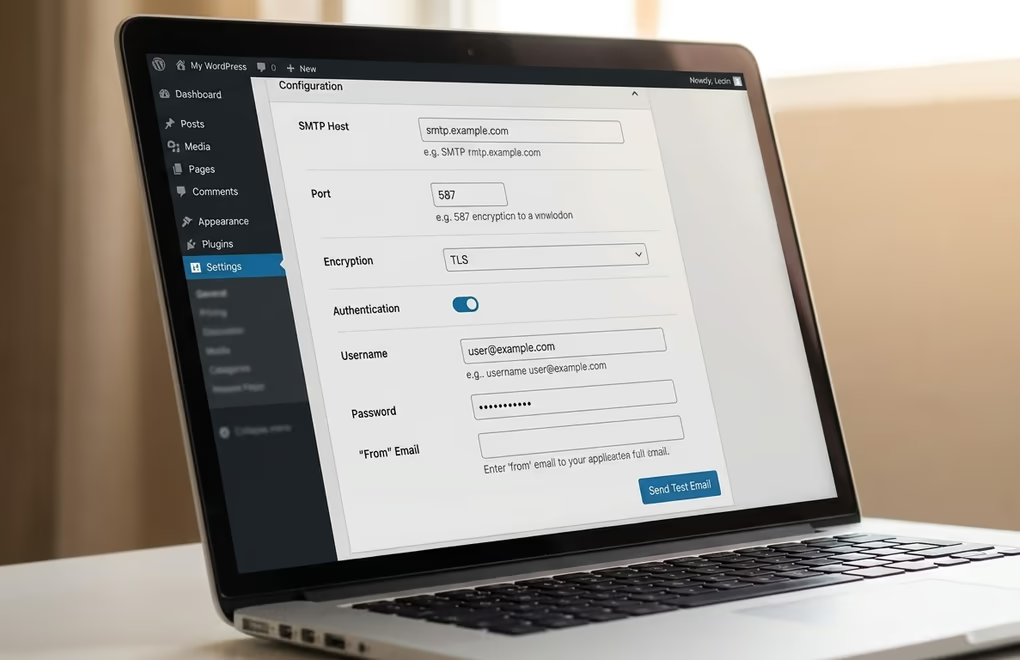
WP Mail SMTP is the most widely installed option with over 3 million active installations. The free version connects WordPress to Gmail, Outlook, Amazon SES, SendGrid, Mailgun, and other providers. It reconfigures the wp_mail() function to route through your chosen SMTP server instead of PHP mail(). The free version covers the basics, but it doesn’t include email logging, which means you still can’t see whether individual messages were delivered. The Pro version starts at $49 per year for a single site and adds logging, failure alerts, a backup SMTP connection, and smart routing that sends different types of email through different providers.
FluentSMTP takes a different approach by giving away everything for free. It’s open source, supports 10+ email services, and includes features that WP Mail SMTP charges for: full email logging with delivery status, multiple simultaneous SMTP connections, automatic fallback to a secondary provider when the primary fails, and real-time failure notifications through Telegram, Slack, or Discord. The interface runs on Vue.js so it loads faster than the PHP-rendered settings pages in other plugins. For a site owner who wants full email visibility without paying for a premium tier, FluentSMTP is hard to beat on features per dollar.
Post SMTP Mailer sits between the two. The free version includes email logging, a delivery failure alerts system, a built-in spam score checker, and a dedicated mobile app for monitoring delivery from your phone. It supports 15+ email service connections. For most WordPress sites that need reliable delivery plus logging and don’t want to pay an annual subscription, Post SMTP and FluentSMTP both deliver more in their free versions than WP Mail SMTP’s paid tier does in some areas.
Whichever plugin you choose, the setup follows the same pattern. Install and activate the plugin, run the setup wizard, choose your email provider, and enter your SMTP credentials or API key. Then send a test email through the plugin’s built-in testing tool. If the test email arrives, your transactional email (password resets, form submissions, automated email campaigns) will work too. If it doesn’t, the plugin’s error log will tell you exactly what failed, which is already a major improvement over the silent failures of PHP mail().
How Do You Set Up SPF, DKIM, and DMARC Records?
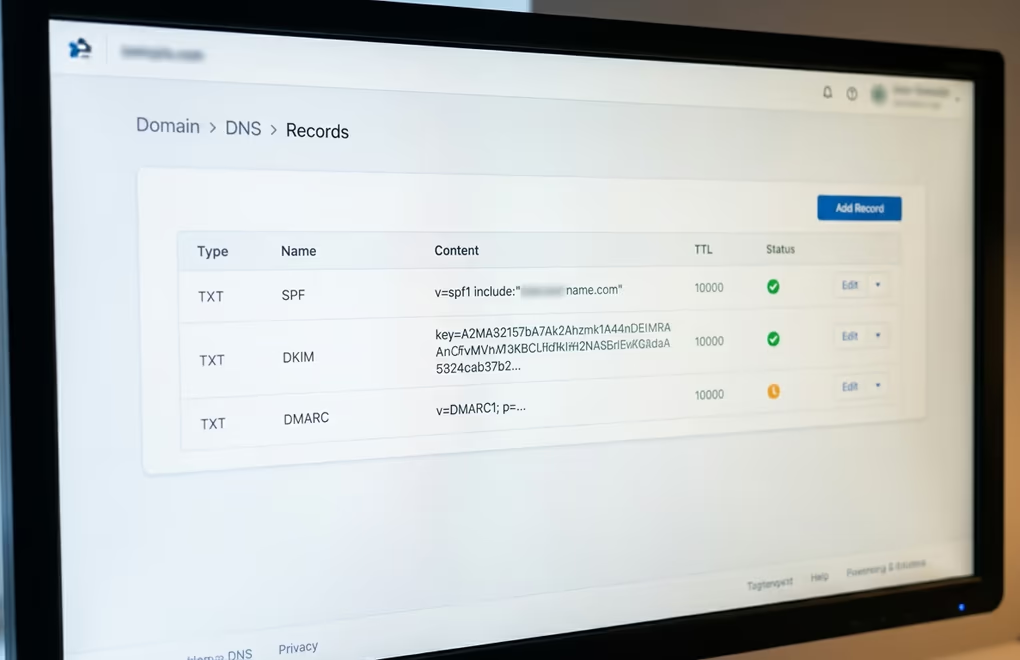
Installing an SMTP plugin solves the delivery mechanism, but your emails can still land in spam if your domain’s DNS records don’t prove you authorized the sending server. Three DNS record types work together to authenticate your email, and all three matter.
SPF (Sender Policy Framework) tells receiving email servers which IP addresses and services are allowed to send email on behalf of your domain. You add it as a TXT record on your domain’s DNS. A typical SPF record for a WordPress site using SendGrid looks like: v=spf1 include:sendgrid.net ~all. If you use multiple email services (your SMTP plugin plus Google Workspace for your team inbox, for example), you include all of them in a single SPF record separated by spaces. You can only have one SPF record per domain, so add all authorized senders to that one record rather than creating separate ones.
DKIM (DomainKeys Identified Mail) adds a cryptographic signature to every outgoing email. Your email service provider generates a public/private key pair. The private key signs each message, and you publish the public key as a DNS TXT record so receiving servers can verify the signature. Every email provider gives you the exact DKIM record to add during setup. In SendGrid, you’ll find it under Settings then Sender Authentication. In Mailgun, it’s under Sending then Domain Settings. Copy the record exactly as provided, paste it into your DNS, and wait for propagation (usually under an hour, sometimes up to 48 hours).
DMARC (Domain-based Message Authentication, Reporting, and Conformance) builds on SPF and DKIM by telling receiving servers what to do when a message fails authentication. A basic DMARC record looks like: v=DMARC1; p=none; rua=mailto:[email protected]. The p=none policy starts in monitoring mode, meaning failed emails still get delivered but you receive reports about authentication failures. Once you’ve confirmed everything works correctly for a few weeks, you can tighten the policy to p=quarantine (sends failures to spam) or p=reject (blocks them entirely).
After adding all three records, verify them with a tool like MXToolbox or Google’s Check MX. Enter your domain and confirm that SPF, DKIM, and DMARC all pass validation. Then send a test email from your WordPress site to a Gmail address and open the message. Click the three dots menu, select “Show original”, and look for “SPF: PASS”, “DKIM: PASS”, and “DMARC: PASS” in the headers. If all three show PASS, your emails have the best possible chance of reaching the inbox instead of the spam folder.
These records also protect your domain’s reputation beyond just email delivery. Without DMARC enforcement, anyone can spoof your domain name and send phishing emails that appear to come from your business, so authentication is worth the setup time even if your WordPress emails are already arriving.
What If WordPress Is Still Not Sending Form or Order Emails?
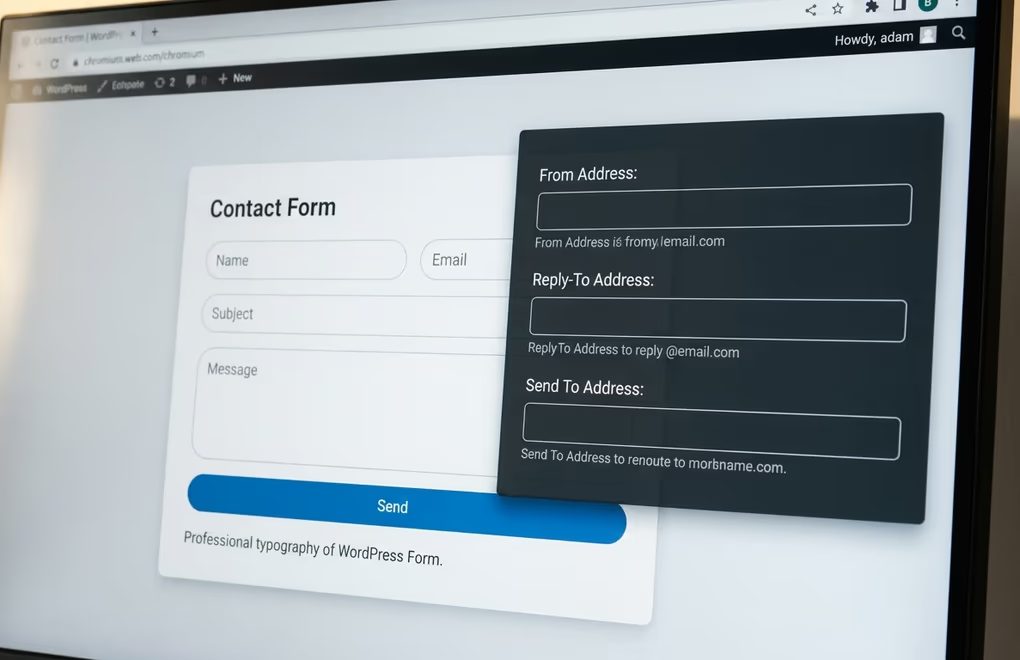
Sometimes the SMTP plugin works fine for password resets and admin notifications, but specific types of email still fail. Contact form submissions and ecommerce order confirmations break for different reasons than general WordPress email, and each needs its own fix.
Contact form plugins like Contact Form 7, WPForms, and Gravity Forms send email using the wp_mail() function, so an SMTP plugin should route those messages through your authenticated connection automatically. The most common failure point is the “From” address. Many form plugins default to using the submitter’s email address as the sender, which means your SMTP server tries to send an email “from” an address it doesn’t control. Gmail and Outlook reject this immediately because it looks like spoofing. Fix it by opening your form plugin’s email settings and changing the From address to an email at your own domain, like [email protected]. Put the submitter’s address in the Reply-To field instead, so clicking Reply in your inbox still goes to the right person.
For WooCommerce and other ecommerce plugins, order confirmation emails often fail because of volume or timing. When someone completes a purchase, the store tries to send the confirmation immediately during the checkout process. If the SMTP connection is slow (which happens with free-tier email services under load), the email gets queued behind the page redirect and sometimes times out. You need to address both sides of that problem. First, make sure your email service can handle your order volume without throttling. Services like Amazon SES charge $0.10 per 1,000 emails with no daily sending limit, which makes them a better fit for stores than free Gmail SMTP (which caps at 500 messages per day). Second, install an email logging plugin so you can see which order emails failed and resend them manually.
If you’re selling digital products on WordPress, failed delivery emails are particularly damaging because the customer expects an immediate download link. Tools like DigiCommerce handle the storefront and payment processing, but the email delivery still depends on your SMTP setup. Test your entire purchase flow on a staging site before going live, including the confirmation email and the download link delivery.
Password reset emails have their own quirk. WordPress generates these through a different code path than plugin emails, and some security plugins intercept the process. If password resets stopped working after you installed a security or login-limiting plugin, check that plugin’s settings for any email-related options. Some security plugins replace WordPress’s default password reset mechanism with their own implementation, which might bypass your SMTP plugin entirely. Temporarily deactivate the security plugin and test whether the reset email arrives. If it does, reconfigure the security plugin to use the standard wp_mail() function instead of its custom mailer.
For ongoing monitoring, set up failure notifications in your SMTP plugin. Both FluentSMTP and Post SMTP can send you a Slack or Telegram alert the moment an email fails to deliver, so you catch problems before your customers do. Checking your email marketing plugin delivery reports regularly helps too, since a sudden drop in open rates usually means deliverability has degraded.
Keep WordPress Email Delivery Reliable for Good
Fixing WordPress email once isn’t enough if you don’t maintain the setup. DNS records can break when you switch hosting providers or change your domain’s nameservers, because the old SPF and DKIM records don’t transfer automatically. After any hosting migration, verify your DNS authentication records again using MXToolbox or Google’s Check MX tool.
Keep your SMTP plugin updated, and monitor its email log at least once a month for delivery failures. If your email service raises its free-tier limits or changes its API, you might need to regenerate credentials. Set a quarterly reminder to send a test email through your site’s contact form, trigger a password reset, and check that both arrive promptly. Email delivery isn’t a set-and-forget feature in WordPress, and treating it like your server configuration (something you verify after every change and review on a regular schedule) saves you from silent failures that cost you customers.
If you run an online store or sell digital products, put email delivery testing into your pre-launch checklist alongside payment processing and SSL verification. A store where orders go through but confirmation emails don’t arrive loses trust fast, and most customers won’t bother to contact support before filing a chargeback.



0 Comments on "WordPress Not Sending Email: How to Find and Fix the Problem"