
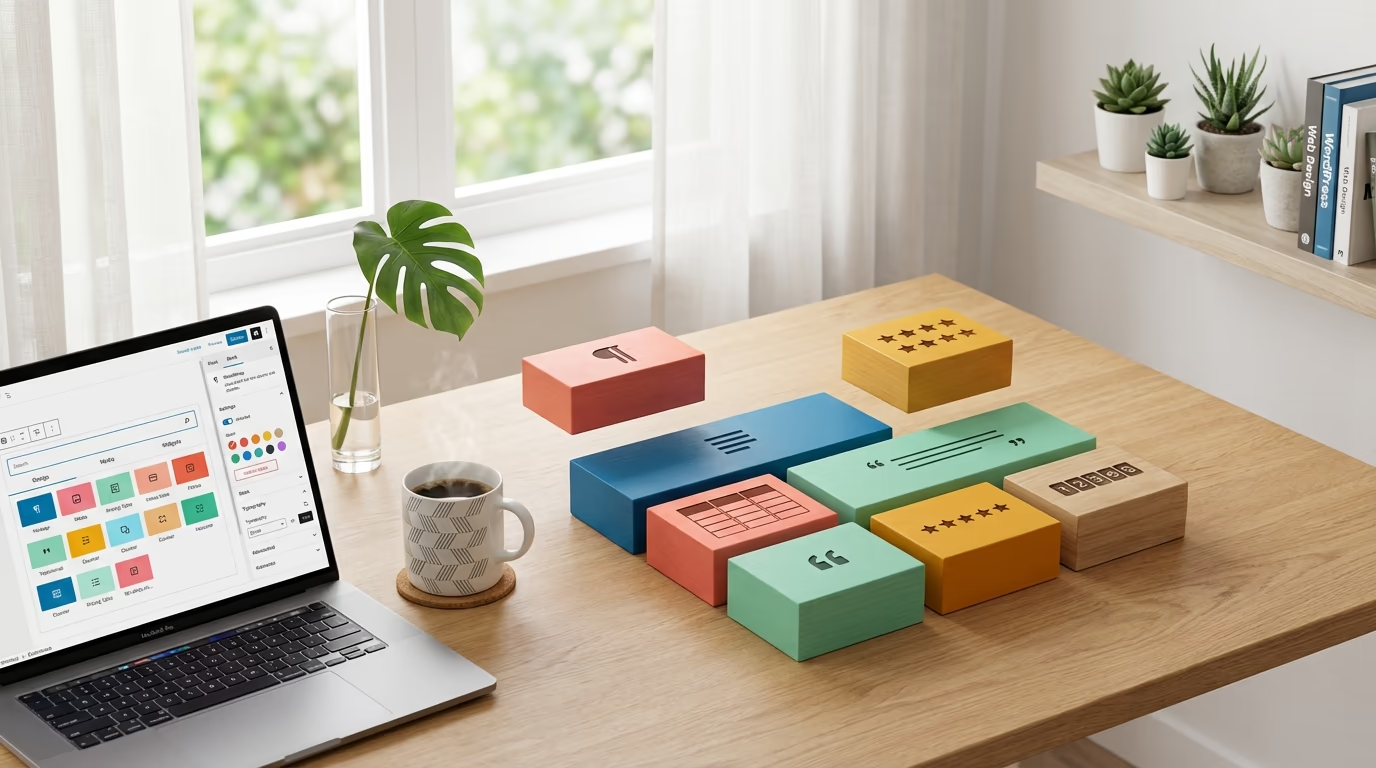
Ever opened the WordPress block editor and felt something was missing? You can add paragraphs, images, and buttons easily enough, but what about pricing tables, testimonials, or animated counters? The default Gutenberg blocks handle basic content creation, but they fall short when you want to build pages that actually impress visitors.
This is where a Gutenberg block plugin becomes essential. These plugins extend your block editor with dozens or even hundreds of additional blocks, transforming WordPress from a basic content management system into a full-featured page builder. Majority of new WordPress sites use the block editor, and the ecosystem of block plugins has exploded to meet demand. Spectra alone has over 1 million active installations, while Kadence Blocks serves 500,000+ sites.
Whether you’re building a business website, launching an online store, or creating a portfolio, the right block plugin can save you countless hours of custom development. Instead of hiring a developer for a $500 pricing table, you drop in a block and customize it in minutes. This guide covers everything you need to know: what Gutenberg block plugins actually are, how they work under the hood, which ones deserve your attention, and exactly how to install and configure them for your specific needs.
I’ll also show you how to avoid common mistakes that slow down your site and explain the difference between single-purpose block plugins and comprehensive block libraries. By the end, you’ll understand exactly which approach fits your workflow and how to build professional WordPress pages without touching a line of code.
What Is a Gutenberg Block Plugin?

A Gutenberg block plugin adds new content blocks to WordPress’s native block editor. Think of blocks as individual content elements like paragraphs, headings, images, or buttons. WordPress ships with roughly 114 default blocks covering basics like text formatting and media embedding. A block plugin expands this library with specialized blocks that WordPress doesn’t include out of the box.
The term Gutenberg refers to WordPress’s block editor, named after Johannes Gutenberg who invented the printing press. WordPress introduced this editor in version 5.0 back in 2018, replacing the classic TinyMCE editor that had been around since the early days. The block-based approach fundamentally changed how we build WordPress content, moving from one big text field to modular, stackable components.
Block plugins come in two main varieties. Single-purpose plugins add one or a few specific blocks for particular tasks, like a table of contents block or a social sharing block. Library plugins bundle dozens or hundreds of blocks into one comprehensive package, often marketed as Gutenberg page builders or block suites. The AIOSEO plugin, for example, adds SEO-focused blocks like FAQ sections with schema markup. Meanwhile, plugins like DigiBlocks provide 60+ blocks covering everything from countdown timers to pricing tables to WooCommerce product displays.
Technically, these plugins register custom block types using WordPress’s Block API. Each block includes JavaScript for the editor experience and PHP or JavaScript for the frontend rendering. Well-built block plugins only load their CSS and JavaScript when you actually use a specific block on a page, which prevents performance bloat. The WordPress repository hosts thousands of block plugins, ranging from free community projects to premium solutions with dedicated support.
Understanding this distinction matters because it affects your decision-making process. If you need just one specific feature, a focused single-purpose plugin keeps things lightweight. But if you’re building complete websites and want design flexibility across multiple pages, a comprehensive block library makes more sense than installing ten separate plugins. The latter approach also ensures visual consistency since all blocks share the same design language and customization options.
Why Your WordPress Site Needs a Block Plugin
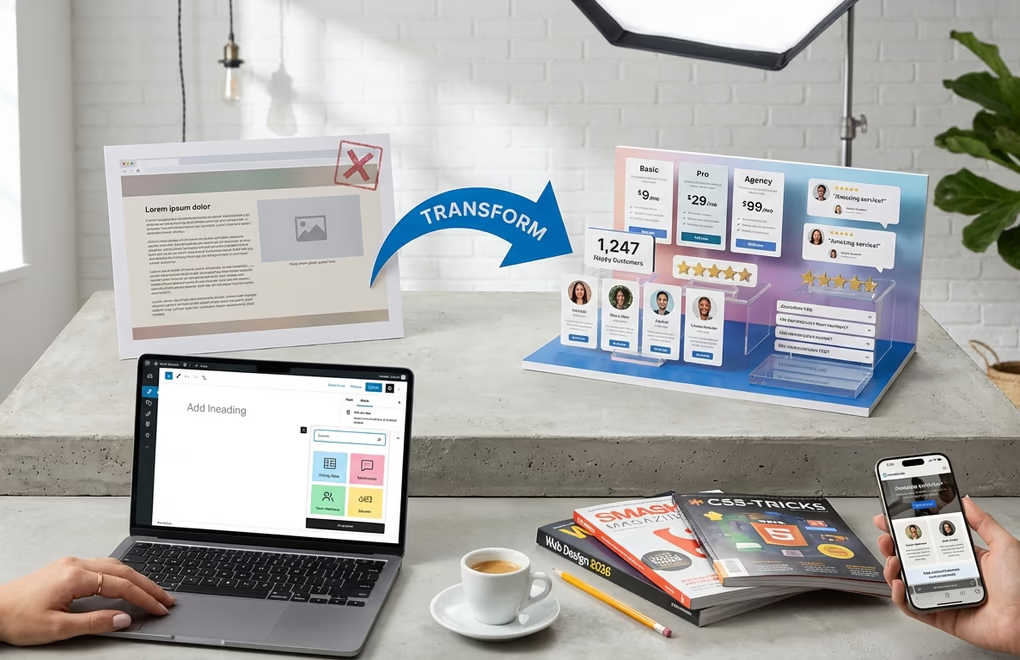
The default WordPress blocks cover content basics but leave significant gaps. You won’t find pricing tables, testimonial carousels, team member profiles, or animated counters in the core block library. Building these elements manually requires custom CSS, JavaScript knowledge, or hiring a developer. A block plugin gives you these components ready-made, with point-and-click customization replacing hours of coding work.
Design consistency becomes much easier with block plugins. Each plugin typically includes cohesive styling options across all its blocks. You set your brand colors, fonts, and spacing preferences once, and they apply everywhere. Compare this to cobbling together elements from different sources, where matching visual styles requires constant manual adjustments. If you’re comparing editing approaches, our Gutenberg vs page builders guide explains the architectural differences in depth.
Speed and performance offer another compelling reason. Traditional page builders like Elementor or Divi generate heavy frontend code that can significantly slow your site. Native Gutenberg blocks produce cleaner, lighter HTML output. Block plugins that follow WordPress coding standards typically add minimal overhead compared to page builders. This matters for Core Web Vitals, which Google uses as a ranking signal. When your pages load faster, you rank better and visitors stay longer. For more optimization tips, check our guide on ways to optimize your WordPress site speed.
Future-proofing your content is something most people overlook. When you build pages with a proprietary page builder, your content becomes locked to that plugin. Deactivating it often breaks your entire site’s appearance. Gutenberg blocks store content as standard WordPress block markup, making migrations smoother. Even if you switch block plugins later, your core content structure remains intact. WordPress itself is moving further toward block-based editing with Full Site Editing, and investing in the block ecosystem now positions your site for long-term compatibility.
The learning curve is also gentler. If you already know how to use the WordPress block editor, you already know 80% of what you need. Block plugins add new options to the same familiar interface. You click the plus button to insert a block, see the new blocks in the inserter, and customize them using the same sidebar controls you’re used to. Page builders often introduce entirely different interfaces, workflows, and terminology.
How to Install and Activate a Gutenberg Block Plugin
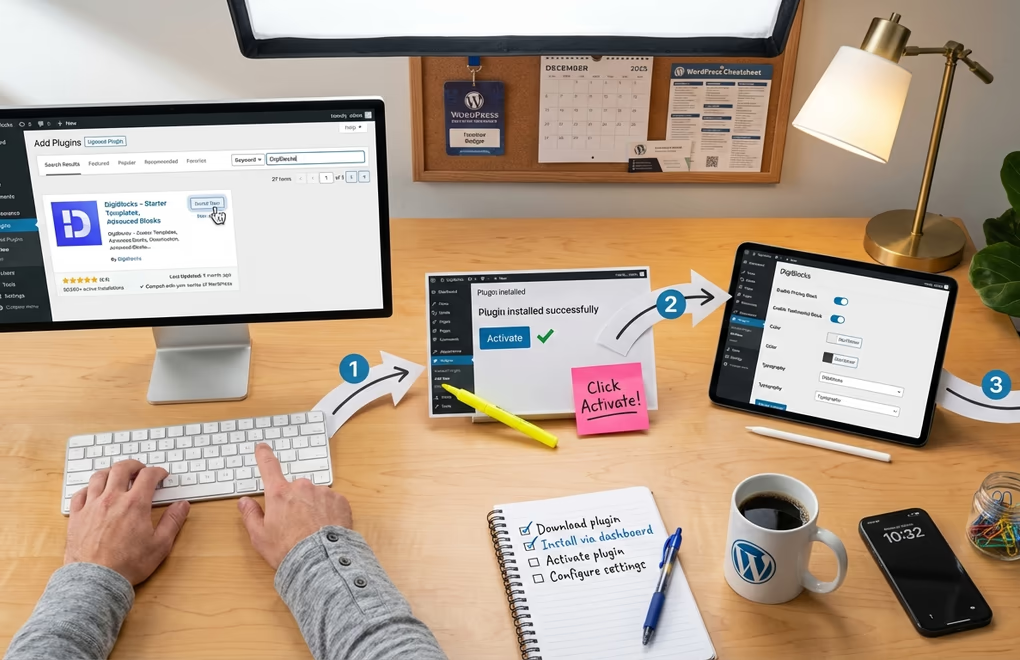
Installing a block plugin works exactly like any other WordPress plugin. Navigate to your WordPress dashboard and click Plugins in the left sidebar, then select Add New. In the search field, type the name of the block plugin you want, such as Spectra, Kadence Blocks, or DigiBlocks. Click Install Now on the correct plugin card, wait for installation to complete, then click Activate.
For premium block plugins or those not hosted on WordPress.org, you’ll download a ZIP file from the developer’s website. In your WordPress dashboard, go to Plugins, click Add New, then click Upload Plugin at the top of the page. Choose your downloaded ZIP file and click Install Now. After installation completes, activate the plugin to enable its blocks.
Most block plugins include a settings or configuration page. You’ll typically find this under Settings or as a new menu item with the plugin’s name. Before building pages, spend five minutes in these settings. Many plugins let you disable blocks you won’t use, which keeps your block inserter clean and can improve editor performance. Some offer global styling options where you set default colors, fonts, and spacing that apply across all their blocks.
Now create a new page or edit an existing one. Click the plus button in the editor to open the block inserter. You’ll see your new blocks organized in categories. Block plugins usually group their blocks under a branded category name, making them easy to find among WordPress’s default options. Click any block to insert it, then use the right sidebar to customize its appearance and content.
Pro tip: use the slash command feature for faster block insertion. Type a forward slash followed by part of the block name, like /pricing or /testimonial, and matching blocks appear instantly. This keyboard shortcut dramatically speeds up page building once you’ve memorized your commonly used block names.
Top Gutenberg Block Plugins to Consider in 2026
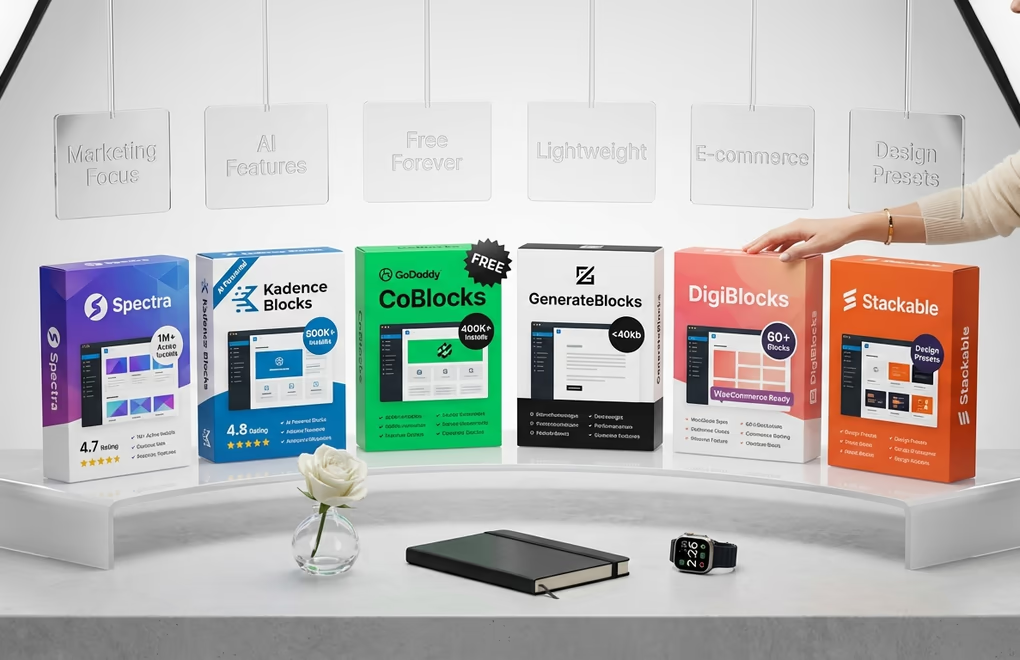
For a detailed comparison of all the top options with pricing and performance data, see our best Gutenberg blocks plugins roundup. Spectra leads the pack with over 1 million active installations and a 4.7-star rating. Developed by Brainstorm Force, the same team behind the popular Astra theme, Spectra offers 30+ free blocks with more available in the premium version. The plugin excels at creating marketing pages with its container block, advanced heading options, and marketing-focused elements like call-to-action sections. Spectra pairs naturally with Astra but works perfectly with any WordPress theme.
Kadence Blocks brings a similar feature set with 500,000+ active installations and a stellar 4.8-star rating. The free version includes layout blocks, row layouts, advanced buttons, and more. Kadence particularly shines with its AI-powered features that can generate content and layouts. The plugin also offers excellent Full Site Editing support if you’re using a block theme for your WordPress site.
CoBlocks from GoDaddy provides 40+ blocks with over 400,000 active installations, completely free. It’s an excellent starting point for beginners who want to explore block plugins without any financial commitment. The plugin includes practical blocks like accordion, alert, author profile, and social sharing. CoBlocks also supports block patterns and includes a Form block for creating contact forms without additional plugins.
GenerateBlocks takes a minimalist approach that performance-focused developers love. Rather than offering 50+ specialized blocks, it provides a handful of highly flexible core blocks: Container, Grid, Headline, and Buttons. These blocks offer extensive styling options that can create almost any design. The plugin weighs under 40kb on the frontend and has no dependencies on heavy libraries. It’s perfect for developers who want maximum control without bloat.
DigiBlocks offers 60+ blocks optimized for both performance and flexibility. CSS and JavaScript only load when blocks are actually used on a page, ensuring minimal impact on load times. The plugin includes dedicated blocks for ecommerce integration with both WooCommerce and DigiCommerce, plus AI image generation built directly into the image block. For users who want comprehensive functionality without sacrificing speed, DigiBlocks strikes an excellent balance.
Stackable rounds out the major players with 27 blocks and strong design presets. The plugin includes a unique UI where each block comes with preset designs you can apply with one click, then customize from there. This works especially well for users who want professional-looking results quickly without designing everything from scratch.
How to Choose the Right Block Plugin for Your Needs
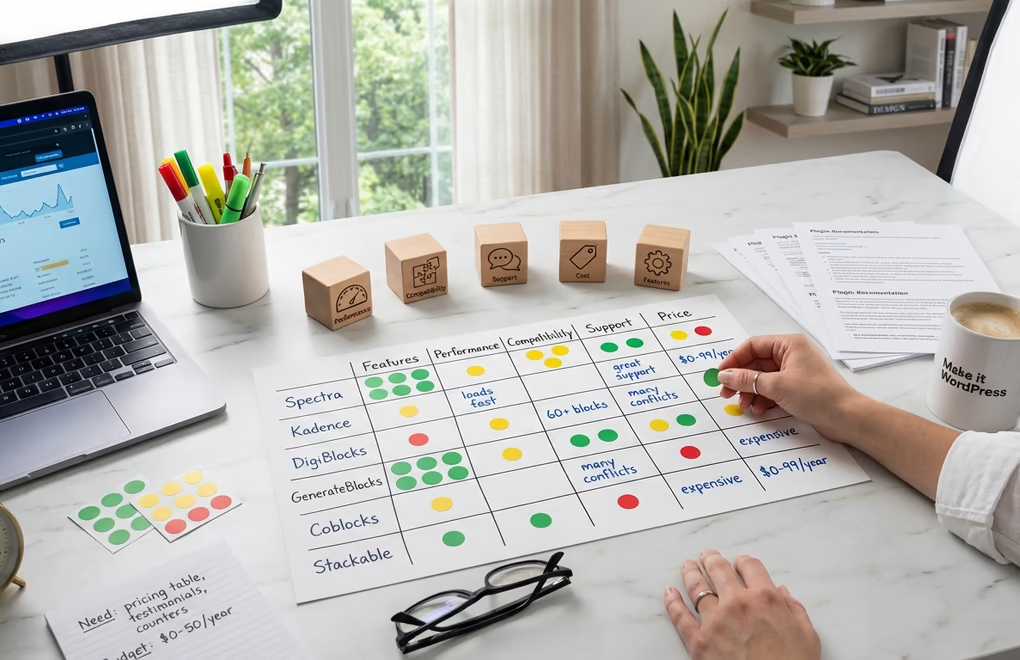
Start by listing what you actually need. Write down the specific page elements you want to create: pricing tables, team sections, testimonial sliders, contact forms, or whatever your project requires. Then check whether the block plugins you’re considering include those specific blocks. Don’t get seduced by a plugin advertising 200 blocks if you’ll only use five of them.
Performance matters more than most people realize. Test potential plugins on a staging site before committing. Use tools like PageSpeed Insights or GTmetrix to measure page load times before and after adding the plugin. Some block plugins add 500kb+ of CSS and JavaScript to every page load regardless of which blocks you use. Others load assets only when specific blocks appear on a page. This difference compounds across your entire site.
Consider your theme compatibility. If you’re using a block theme for Full Site Editing, make sure the block plugin fully supports that environment. Some older block plugins work only within post and page content, not in theme templates. Plugins like Kadence Blocks and DigiBlocks include theme building blocks specifically designed for headers, footers, and other template parts.
Evaluate the support and update frequency. Check the WordPress.org plugin page for the last updated date and support forum activity. A plugin last updated two years ago might have compatibility issues with recent WordPress versions. Active developers typically push updates every few weeks to months. Read the most recent support forum threads to see how the developer handles bug reports and feature requests.
The free versus premium decision depends on your project scope. Most block plugins offer generous free tiers that cover common use cases. Premium versions typically add more blocks, advanced customization options, priority support, and template libraries. If you’re building one simple website, free plugins often suffice. For agencies or developers building multiple client sites, premium features pay for themselves quickly in saved development time.
Finally, don’t stack multiple block plugins unless absolutely necessary. Each plugin adds weight to your site and potential conflicts. Pick one comprehensive block library that covers most of your needs, then add focused single-purpose plugins only for specific gaps. This approach keeps your site lean and your block inserter manageable.
Using Block Patterns and Templates for Faster Page Building

Block patterns are pre-designed combinations of blocks that you can insert with one click. Instead of building a testimonial section from scratch with a container, image, text, and name blocks, you insert a testimonial pattern that includes all those elements already styled and arranged. WordPress core includes basic patterns, but block plugins dramatically expand the available options.
Access patterns through the block inserter by clicking the Patterns tab. You’ll see categories like Headers, Footers, Call to Action, Testimonials, and more. Patterns from installed block plugins appear alongside WordPress defaults. Browse the categories visually or use the search function to find specific pattern types. Click a pattern to insert it at your cursor position, then customize the placeholder content with your own text and images.
Templates go further than patterns by providing complete page layouts. Many block plugins include template libraries with full homepage designs, landing pages, about pages, and more. Import a template that matches your vision, then replace the demo content with your actual content. This approach can reduce page building from hours to minutes.
You can also create your own patterns from sections you design. Select the blocks you want to save, click the three-dot menu, and choose Create Pattern. Give your pattern a name and optional category. Your custom pattern now appears in the pattern library, ready to reuse across your site. This feature is invaluable for maintaining consistency in elements you use repeatedly, like author boxes or newsletter signup sections.
Synced patterns, previously called reusable blocks, take this concept further. When you create a synced pattern, any changes you make to one instance automatically apply everywhere that pattern appears. Perfect for headers, footers, CTAs, or any element you want to update globally from a single edit. Regular patterns create independent copies, so each instance can be modified separately.
Working with AI-powered content creation can further accelerate this process. Some modern block plugins now integrate AI directly, letting you generate text content, suggest layouts, or even create images without leaving the WordPress editor. The combination of block patterns and AI assistance represents the fastest way to build professional WordPress pages today.
Start Building Better WordPress Pages Today
Gutenberg block plugins unlock the full potential of WordPress’s native editor. They transform the basic block experience into something approaching the flexibility of full page builders, but with better performance and tighter WordPress integration. Whether you choose Spectra for its marketing focus, Kadence for AI features, GenerateBlocks for minimalist performance, or DigiBlocks for comprehensive ecommerce support, you’re making a solid choice for your site’s future.
The installation takes minutes, and most plugins offer free versions powerful enough for common use cases. Install one, experiment with its blocks, and see how much faster you can build professional pages without writing CSS or wrestling with shortcodes. Your workflow won’t go back to the way it was.
What’s the first block you’ll try adding to your site?



0 Comments on "Gutenberg Block Plugin: What It Is, Why You Need One, and How to Use It in 2026"